Audit Log
The Audit Log is an Admin-only, read-only history of key system activity — appointments, checkouts, returns, commission reassignments, and patient record changes — that you can browse, search, filter, and export.
Auto-generated from the in-app Help for /audit-log — source of truth src/lib/help-content/.
Switch between the five history types
Move between the different kinds of records the log tracks.
- At the top of the page, click the tab you want: Appointments, Checkouts, Returns, Reassignments, or Patient Updates.
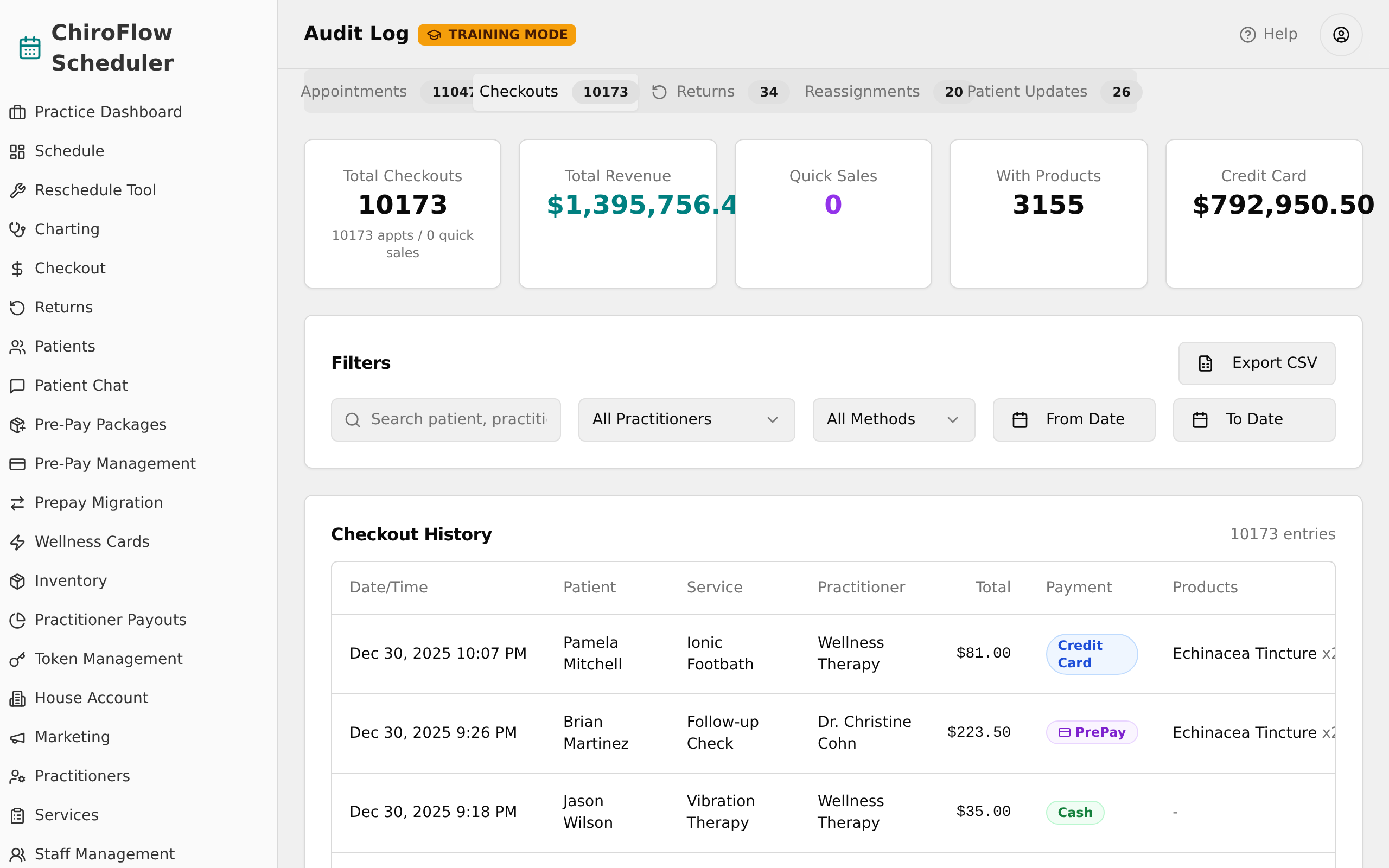
- Read the number badge on each tab to see how many records it holds before any filtering.
- The summary cards and the history table below update to match the tab you picked.
💡 Tip: Your search box text and the practitioner and date filters stay applied when you switch tabs. The Action Type, Payment Method, and Change Type drop-downs are each specific to their own tab.
Search the current tab
Quickly find records by name or keyword.
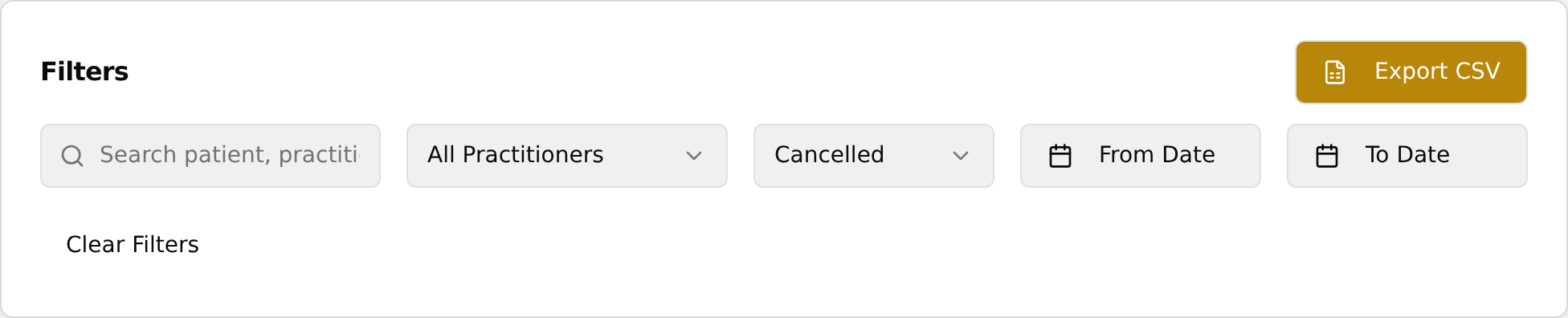
- Click into the search box at the left of the Filters card.
- Type any part of a name or keyword. The hint text tells you what it searches on that tab (for example Search patient, practitioner, service... on Appointments).
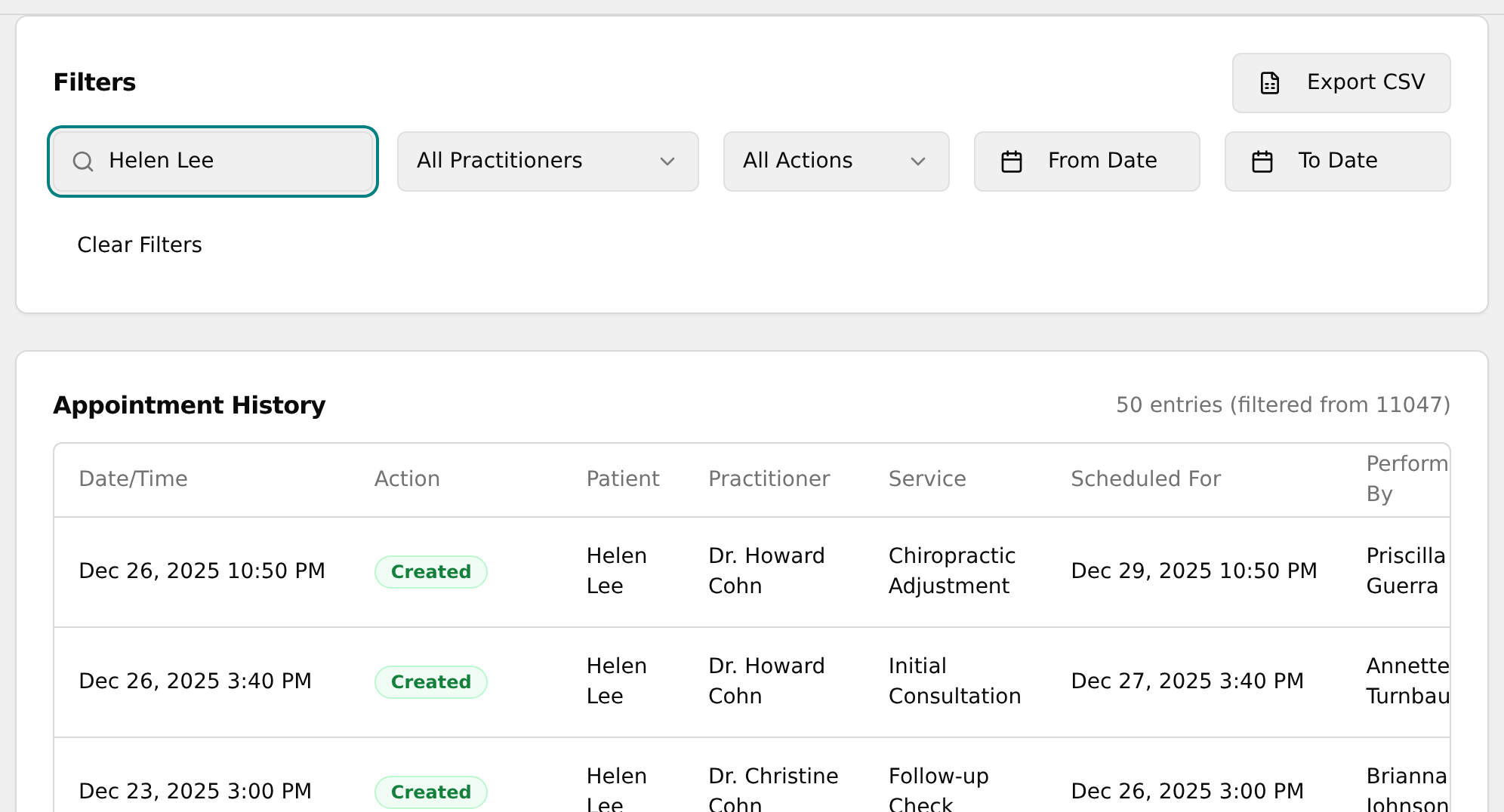
- The table filters as you type — no need to press Enter. The entry count above the table updates to show how many matched.
Filter by practitioner
Narrow records to a single practitioner.
- On the Appointments, Checkouts, Returns, or Reassignments tab, click the drop-down that reads All Practitioners.
- Pick a practitioner from the list.
- The table now shows only records tied to that practitioner.
💡 Tip: The Patient Updates tab has no practitioner drop-down — it offers a Change Type drop-down instead. On Reassignments, the list leaves out company-owned entries.
Filter by a date range
Limit records to a specific window of time.
- Click the From Date button (calendar icon) and pick the earliest date you want to include.
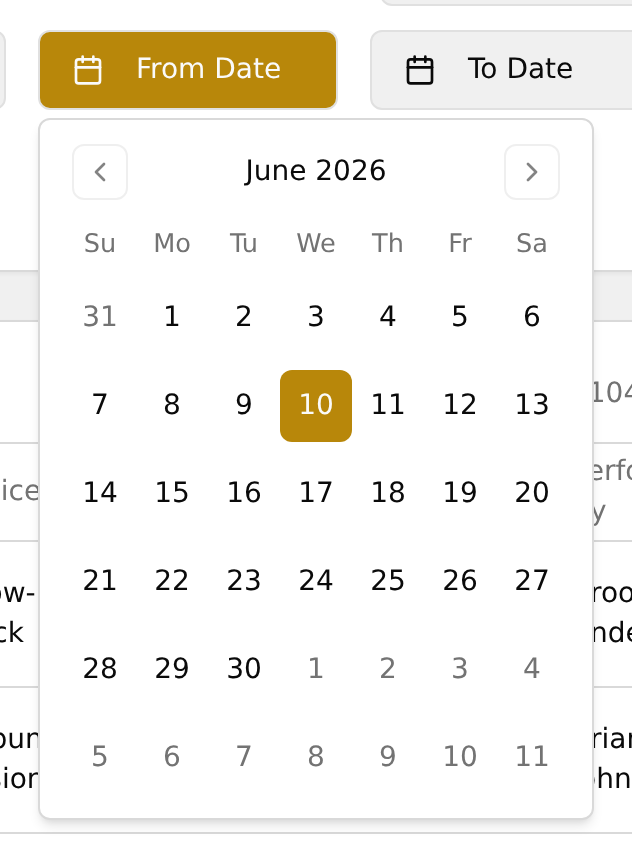
- Click the To Date button and pick the latest date you want to include.
- The table shows only records on or between those dates. You can set just one of the two if you only need a start or end boundary.
Filter by action, payment, or change type
Use each tab's own drop-down to focus on one category of event.
- On Appointments, click Action Type and choose All Actions, Created, Cancelled, Rescheduled, or No-Show.
- On Checkouts, click Payment Method and choose All Methods, Credit Card, Cash, or PrePay.
- On Patient Updates, click Change Type and choose All Types, Created, Updated, or Deleted.
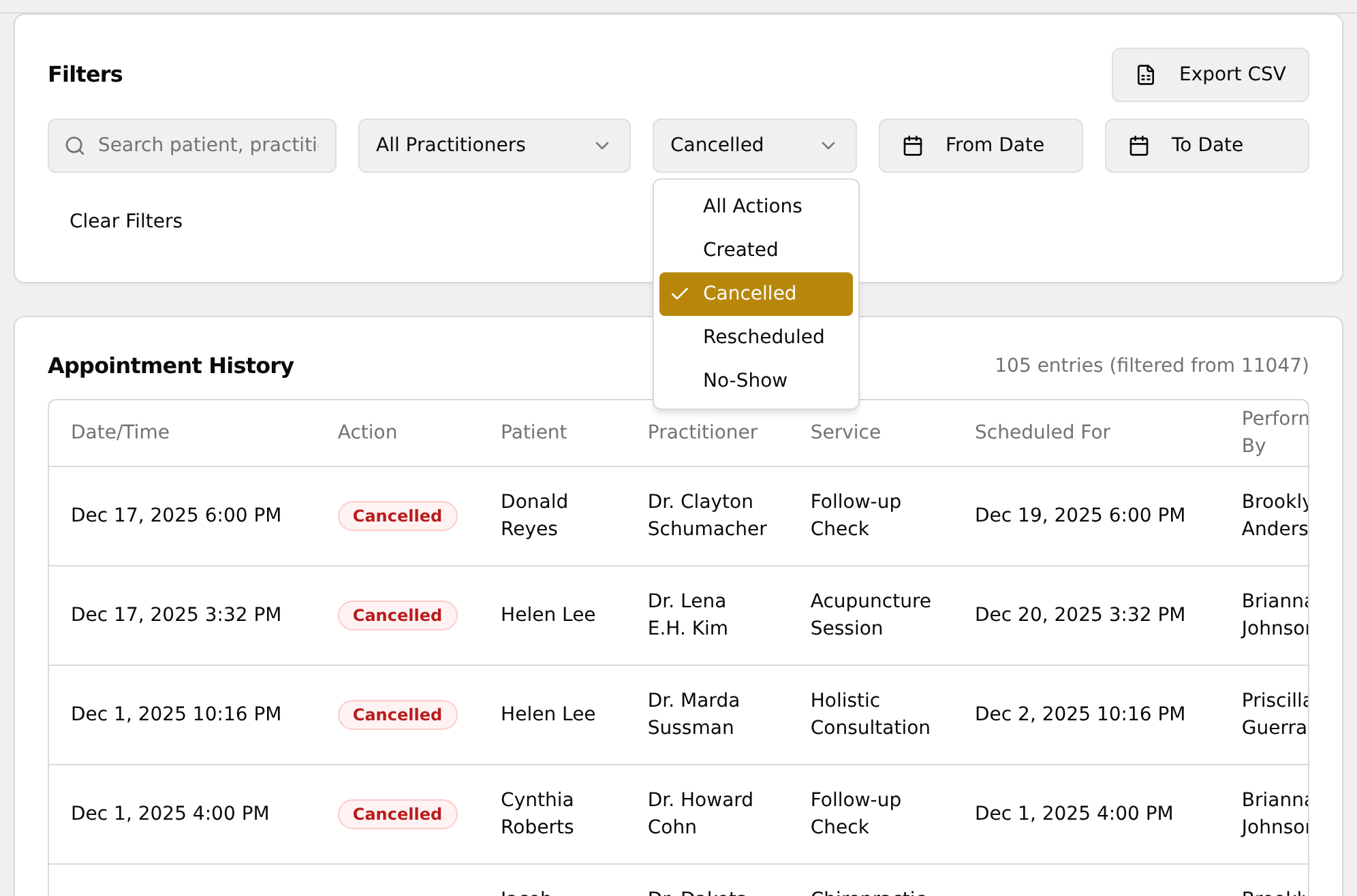
- The table updates to show only events of the type you chose, with color-coded tags making each easy to spot.
Clear all filters
Reset the view back to every record.
- Once any filter is set, a Clear Filters button appears at the right end of the filter row.
- Click Clear Filters.
- The search box empties, every drop-down returns to its All option, both date buttons reset to From Date / To Date, and the full list of records returns.
Export the current tab to a spreadsheet (CSV)
Download the records you're viewing for use in Excel or Google Sheets.
- Set up any search and filters first — the export includes exactly what's currently showing in the table.
- Click the Export CSV button (spreadsheet icon) at the top-right of the Filters card.
- A
.csvfile downloads, named for the tab and today's date (for example,checkout-audit-log-...csv). - Open the file in Excel, Google Sheets, or any spreadsheet program.
💡 Tip: The Export CSV button is greyed out (disabled) when the current table has zero entries. What you filter is what you download.