Practitioners
Set up and manage the doctors and therapists who see patients — their credentials, rates, commission structure, default appointment length, and active status.
Auto-generated from the in-app Help for /practitioner-management — source of truth src/lib/help-content/.
Add a new practitioner
Create a profile so the practitioner becomes available for scheduling.
- Click Add Practitioner (top-right).
- In the Add New Practitioner dialog, enter the First Name (required) and Last Name.
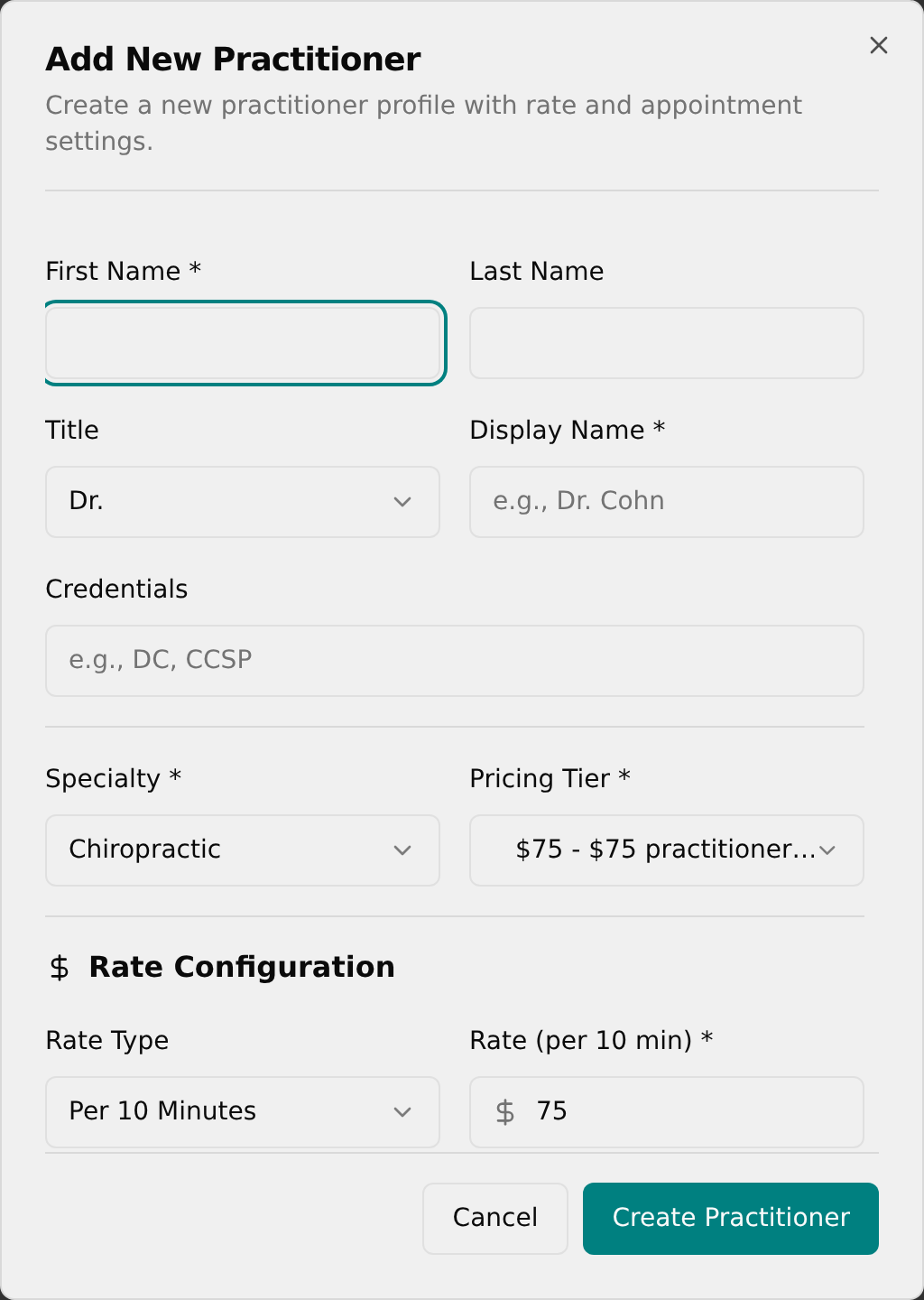
- Pick a Title (Dr., DC, LMT, LAc, ND, or Other). The Display Name auto-fills but you can type over it (required).
- Optionally add Credentials, then choose a Specialty and a Pricing Tier (both required).
- Under Rate Configuration, pick a Rate Type (Per 10 Minutes or Hourly) and enter the Rate.
- Under Commission Configuration, pick a Commission Type and set the percentages (see the commission tasks below).
- Under Appointment Settings, choose a Default Length and Scheduling Increment, and optionally add a Bio.
- Leave Active Status on, set Accepting New Patients as needed, then click Create Practitioner.
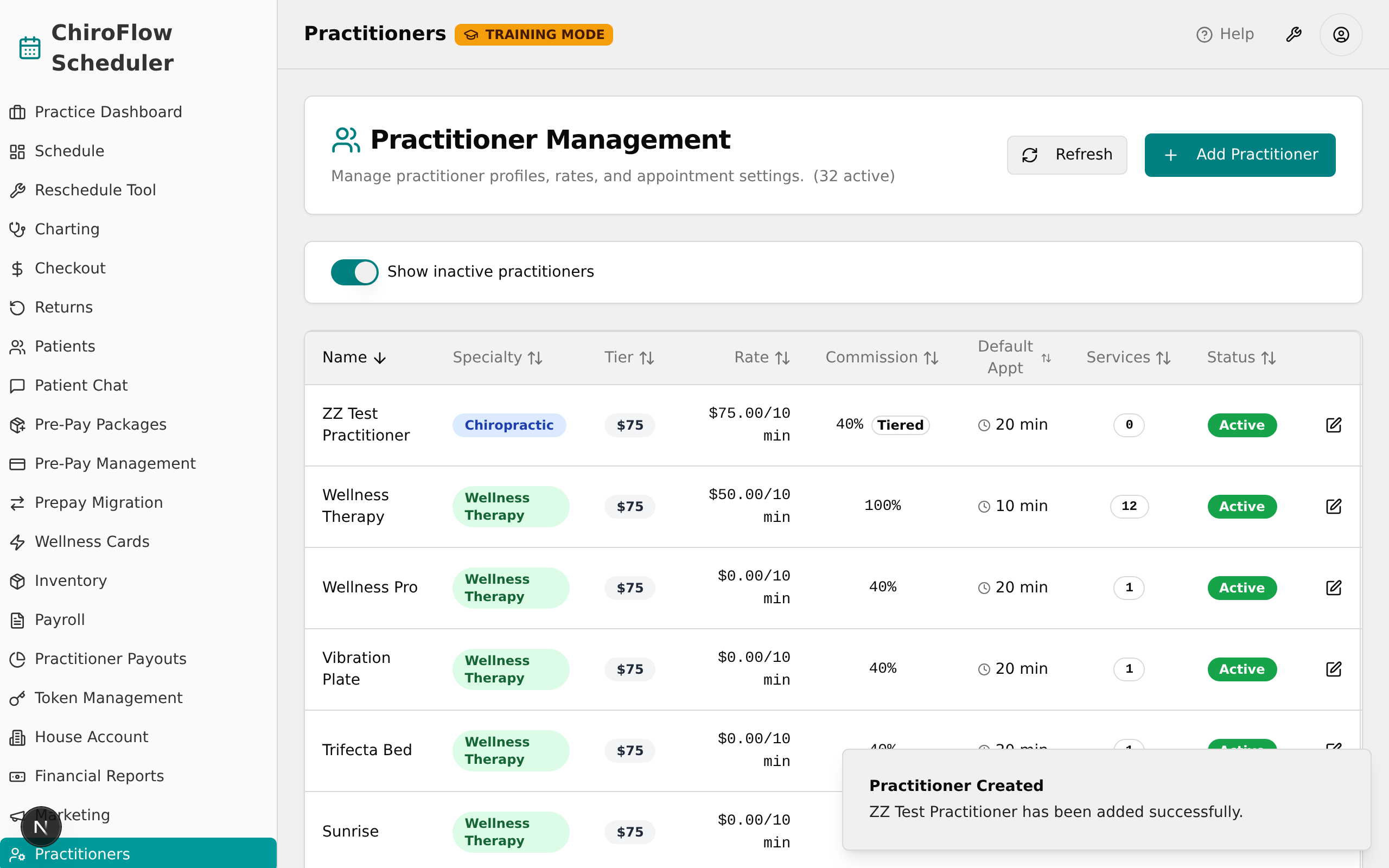
💡 Tip: First Name and Display Name are required — you cannot save without them.
Set a fixed or salaried commission
Choose how a practitioner earns on appointments and supplement sales.
- In the Add or Edit dialog, scroll to Commission Configuration.
- Open the Commission Type dropdown and choose Fixed Rate.
- Enter the Appointment Commission and Supplement Commission percentages (both required).
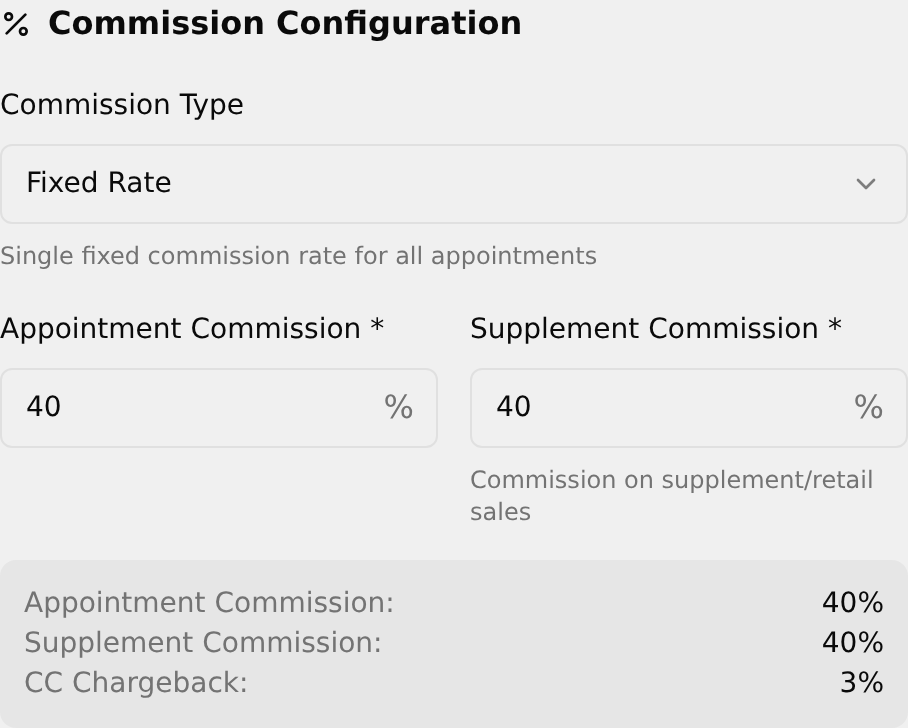
- For a salaried practitioner instead, choose Salaried (No Commission) — the percentage fields disappear and a notice confirms they receive no commission.
- Review the grey summary box (Appointment Commission, Supplement Commission, CC Chargeback), then click Create Practitioner or Update Practitioner.
💡 Tip: Switching the Commission Type resets the percentages to sensible defaults — set the type first, then fine-tune the numbers.
Set up tiered (revenue-based) commission
Pay commission that scales with the practitioner's revenue.
- In Commission Configuration, set Commission Type to Tiered (Revenue-based).
- Set the baseline Appointment Commission and Supplement Commission percentages.
- Under Revenue-Based Commission Tiers, edit each tier's Min Revenue, Max Revenue, and Rate % (leave Max Revenue blank for "No limit").
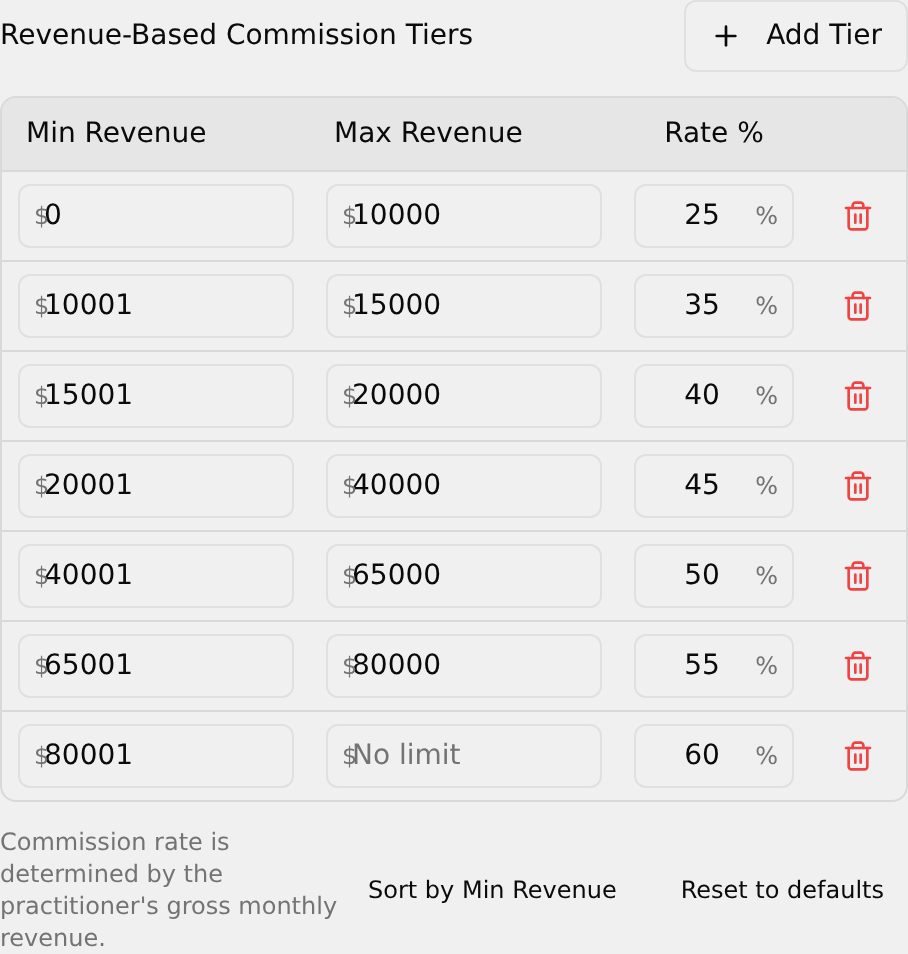
- Click Add Tier to add a row, or the red trash icon to remove one (you cannot remove the last remaining tier).
- Click Sort by Min Revenue to reorder the rows, or Reset to defaults to restore the standard table.
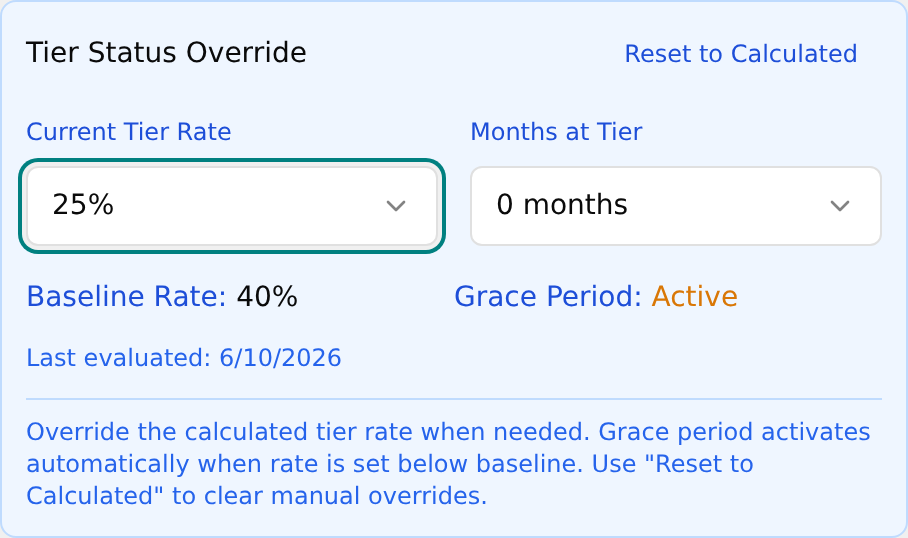
- (Optional) In the blue Tier Status Override box, pick a Current Tier Rate and Months at Tier to manually fix the current rate; click Reset to Calculated to undo.
- Finish the rest of the form and save.
💡 Tip: The Grace Period line turns to Active automatically when you pick a rate lower than the Baseline Rate shown in the box.
Edit a practitioner
- Find the practitioner's row and click the pencil (edit) icon in the Actions column.
- Change any fields you need in the Edit Practitioner dialog.
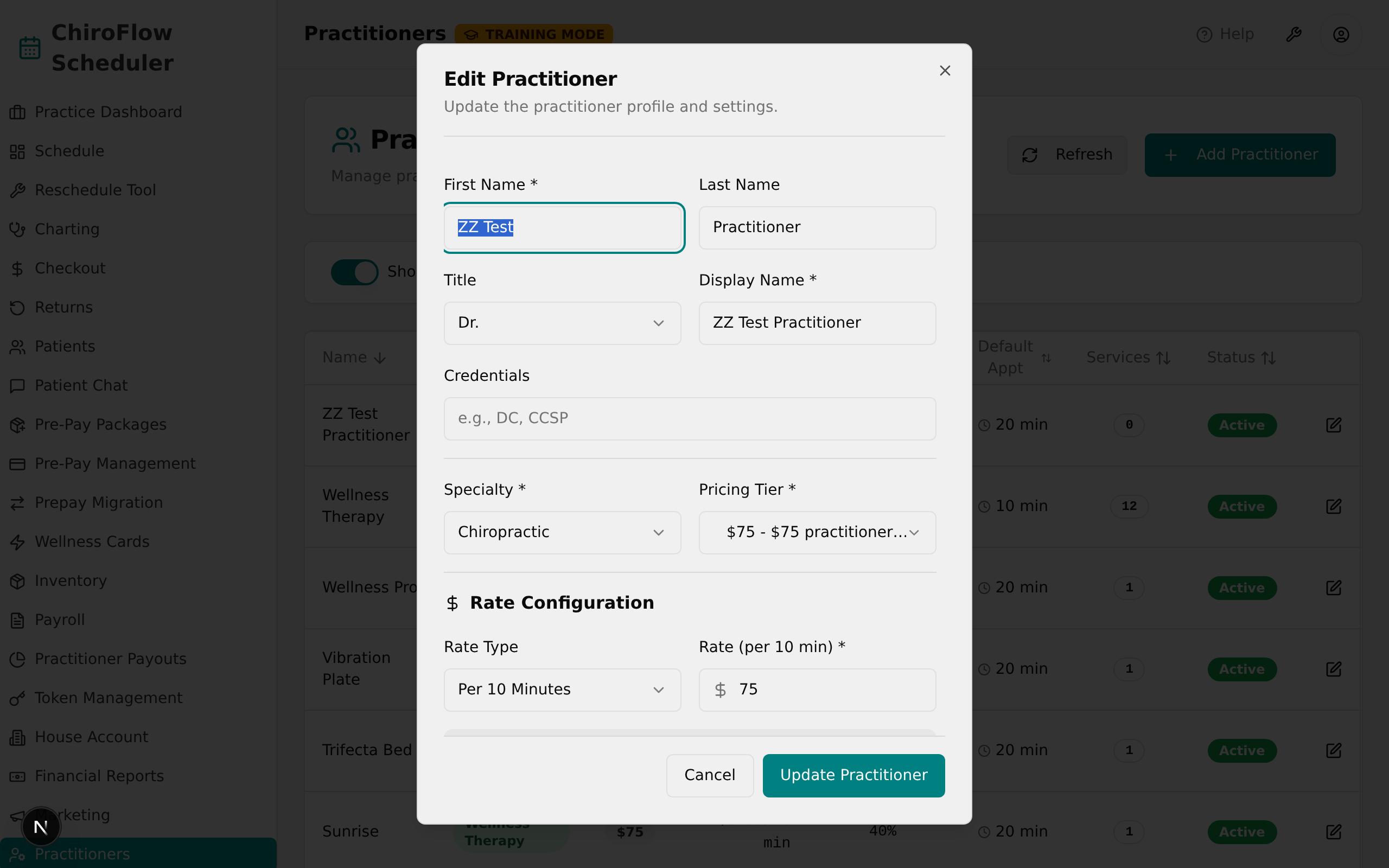
- Click Update Practitioner — a "Practitioner Updated" toast confirms the change.
Deactivate or reactivate a practitioner
Remove someone from scheduling without losing their record, or bring them back.
- To deactivate, click the orange deactivate icon (a person with an X) in an active row's Actions column — the badge changes to Inactive.
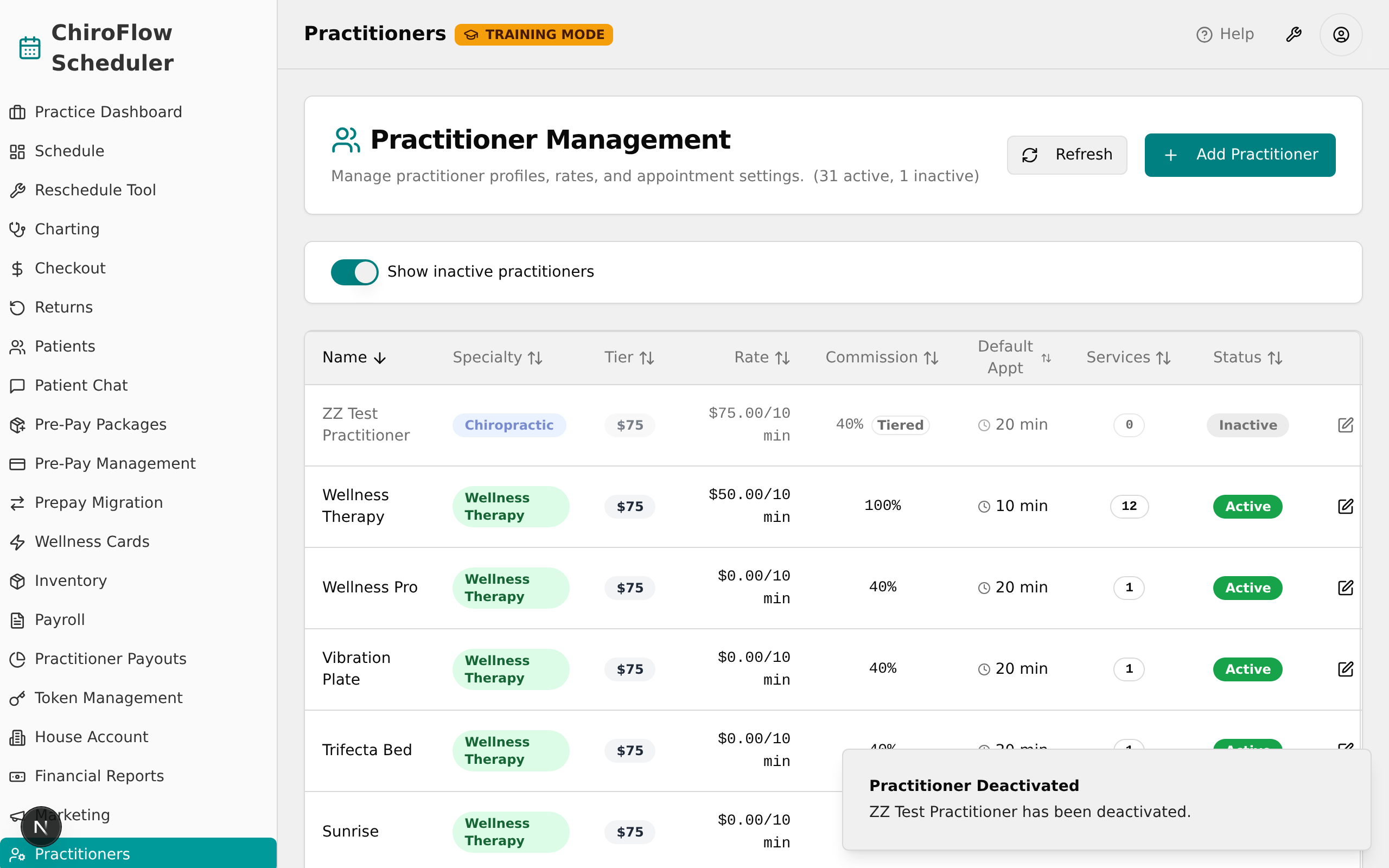
- To reactivate, first turn on the Show inactive practitioners toggle so the person is visible.
- Click the green reactivate icon (a person with a checkmark) in their Actions column — the badge returns to Active.
💡 Tip: Deactivating keeps the record and history but hides the person from scheduling — prefer it over deleting in most cases.
Delete a practitioner permanently
- Click the red trash (delete) icon in the practitioner's Actions column.
- In the Delete Practitioner confirmation, read the warning that the action cannot be undone.
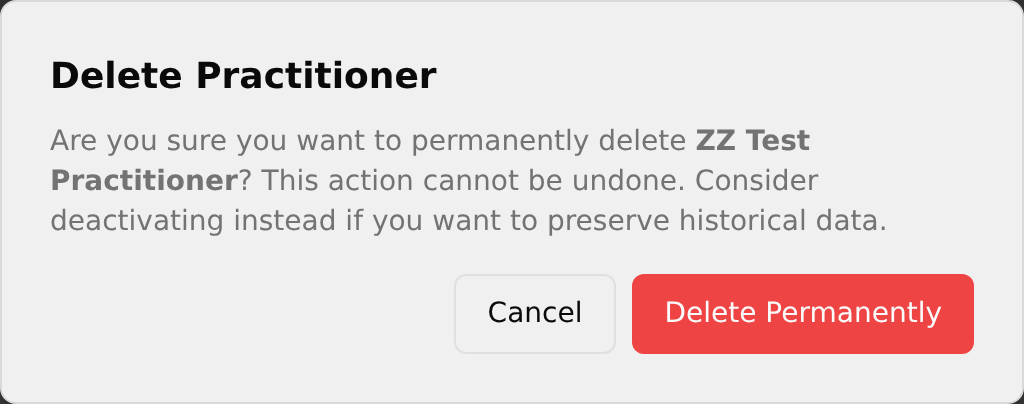
- Click Delete Permanently to remove them, or Cancel to keep them.
💡 Tip: Deleting is permanent and cannot be undone — deactivate instead if you want to preserve historical data.
Sort, filter, and refresh the list
Reorder the table and control which practitioners appear.
- Click any column header (Name, Specialty, Tier, Rate, Commission, Default Appt, Services, or Status) to sort.
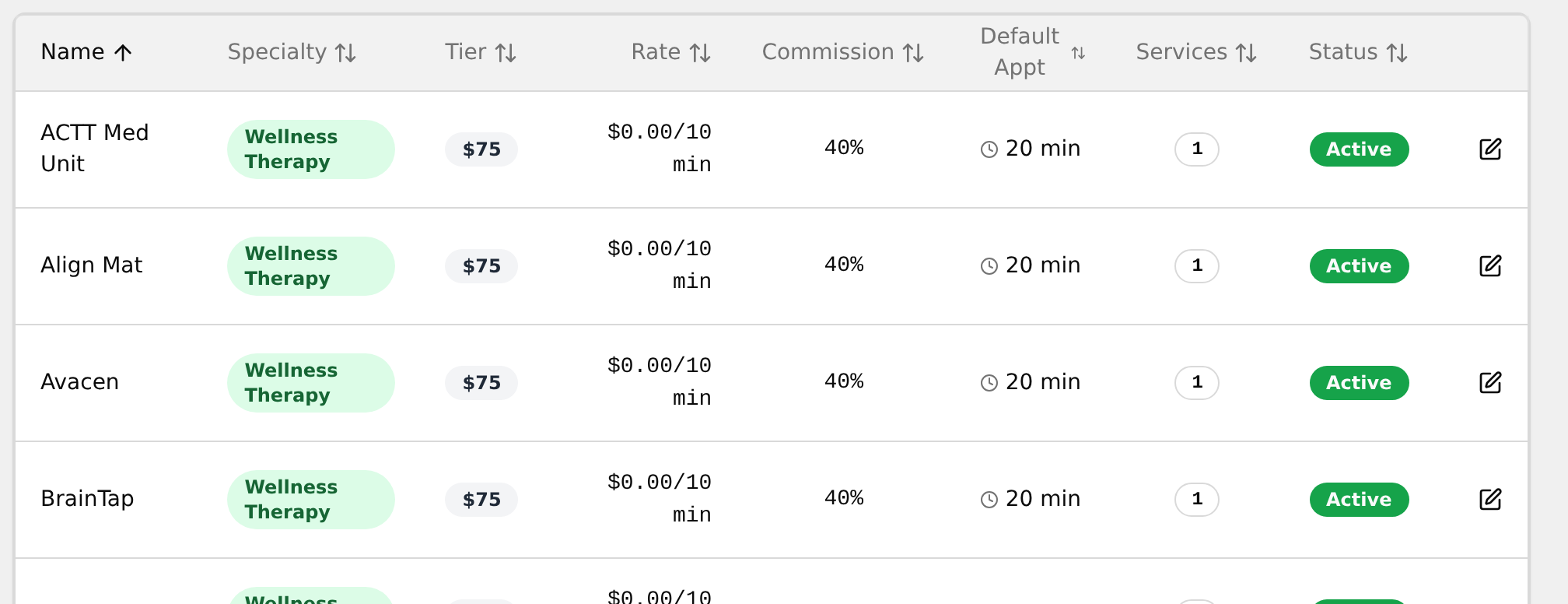
- Click the same header again to toggle ascending → descending → no sort.
- Use the Show inactive practitioners toggle in the filter card to hide or show inactive people (inactive rows appear faded).
- Click Refresh (top-right) anytime to reload the latest saved data.