Prepay Migration
Convert each patient's leftover TPS dollar balance ("legacy credit") into real prepay packages, reconcile every dollar, then sign off to make the balances spendable at checkout.
Auto-generated from the in-app Help for /prepay-migration — source of truth src/lib/help-content/.
Allocate a legacy credit to a package
Turn a patient's legacy dollar balance into one or more real prepay packages.
- Find the patient's row (pending and partial rows float to the top) and click its Allocate button.
- In the Allocate Legacy Balance dialog, read the blue banner showing the Legacy prepay balance and Legacy tier: badge.
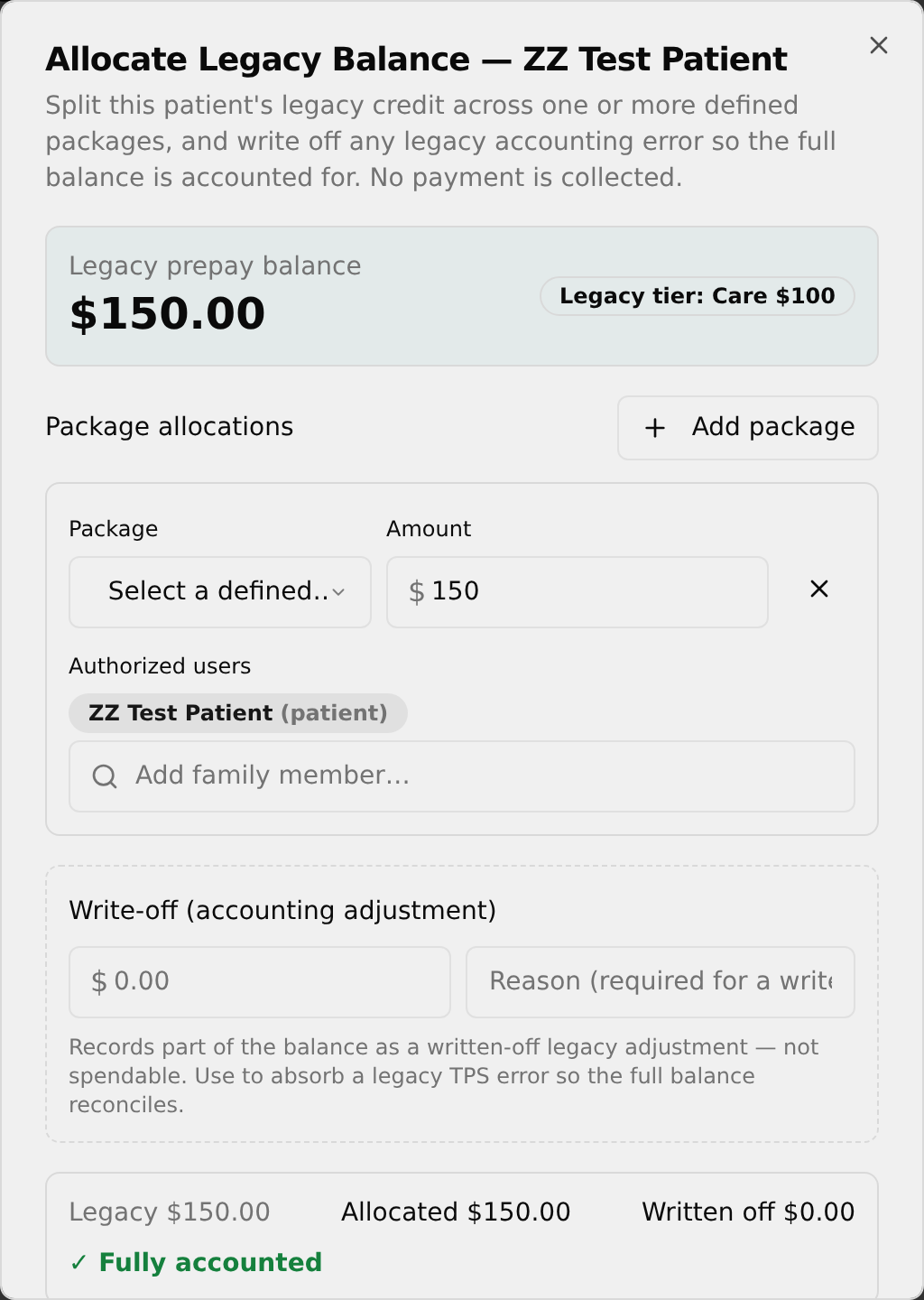
- Under Package allocations, open the Select a defined package… dropdown and choose the real package this balance becomes (the suggested tier package is at the top).
- Adjust the Amount field if this package should get only part of the balance, and click Add package to split across more packages.
- Optional — in the package row's Authorized users area, click Add family member…, type a name, and click it to add them as a badge.
- Watch the live banner at the bottom until it reads ✓ Fully accounted (green), then click Save allocations.
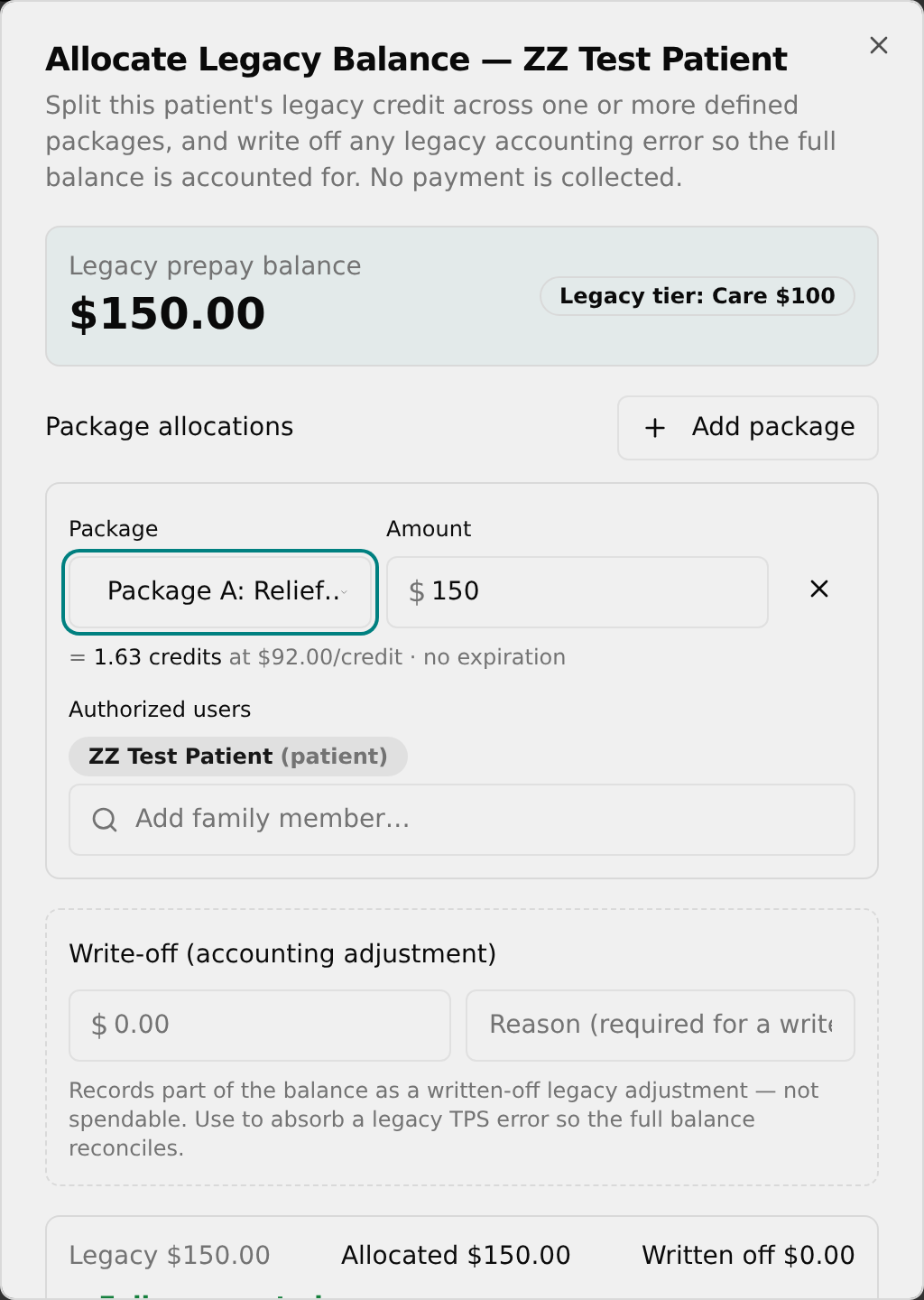
💡 Tip: Each package can be used on only one line. The patient is always an Authorized user and cannot be removed.
Write off part of a balance
Absorb a legacy TPS rounding or error so the full balance reconciles.
- In the allocation dialog, scroll to the dashed Write-off (accounting adjustment) box.
- Enter a dollar amount in the $ field — this money is recorded as written off and is not spendable.
- Type a reason in the Reason (required for a write-off) box.
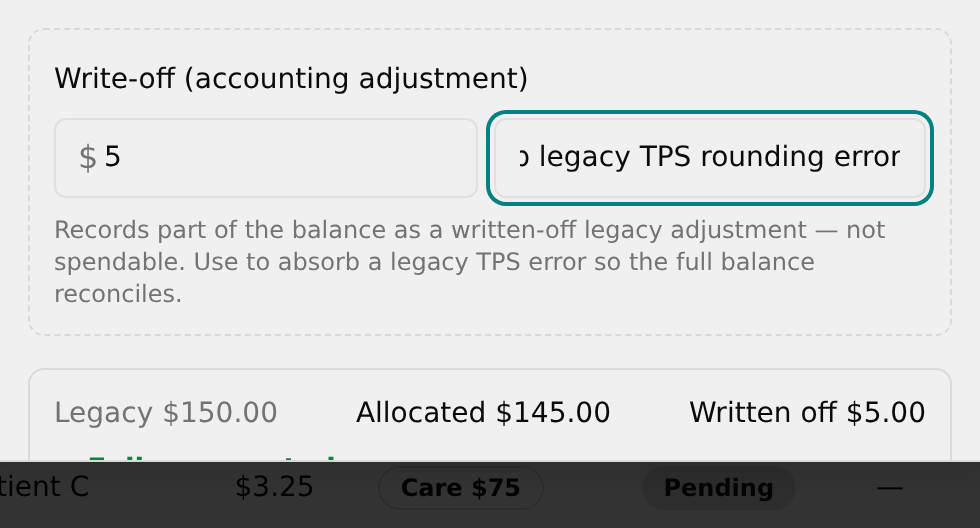
- Confirm the live banner reads ✓ Fully accounted, then click Save allocations.
💡 Tip: A write-off always needs a reason — leaving it blank shows "A write-off requires a reason." and blocks saving.
Save a partial allocation
Save progress when you intentionally leave some of the balance unaccounted.
- In the allocation dialog, allocate only some of the balance and leave money unaccounted.
- Note the amber Remaining … banner and the Save partial button that appears next to Save allocations.
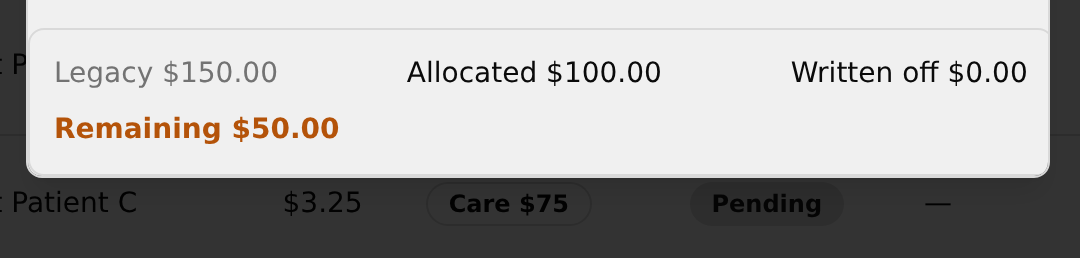
- Click Save partial. The credit's status becomes Partial and the row shows the unallocated amount in amber.
💡 Tip: Partial credits count as unresolved — you must finish them before you can sign off the batch.
Re-allocate or fix a credit
Change packages, amounts, users, or the write-off on a credit that's already mapped.
- On any credit that already has allocations, click its Re-allocate button.
- The Re-allocate Legacy Balance dialog opens pre-filled with the current split. Change packages, amounts, authorized users, or the write-off.
- Any slice already spent at checkout is greyed out with a Used at checkout — this slice can no longer be changed. note and cannot be edited.
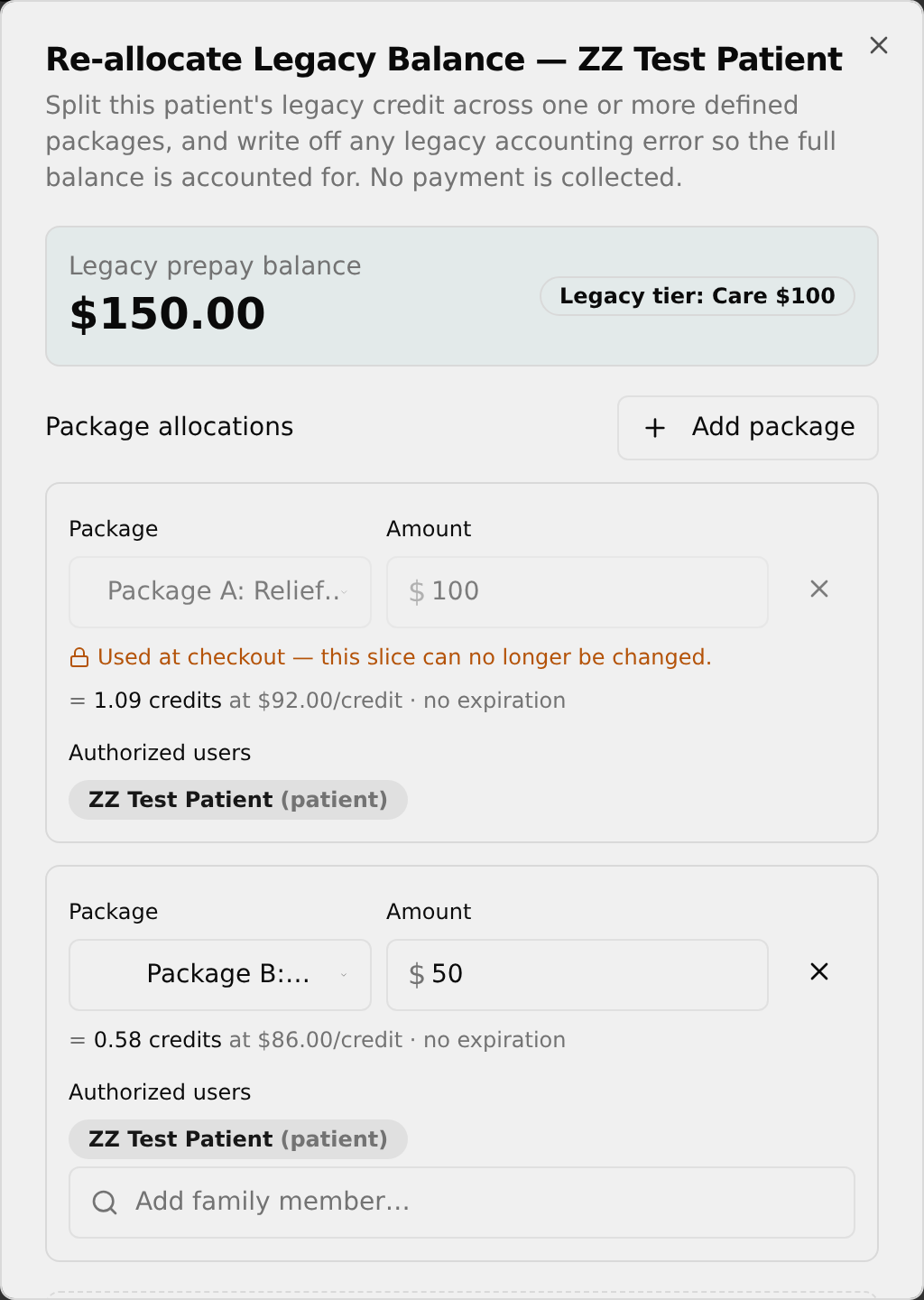
- Click Save allocations (or Save partial).
Skip a single credit
Abandon a balance, converting it at $0 (not recorded).
- On a pending row, click the Skip button in the Actions cell.
- In the confirmation pop-up, click OK to convert the balance at $0.
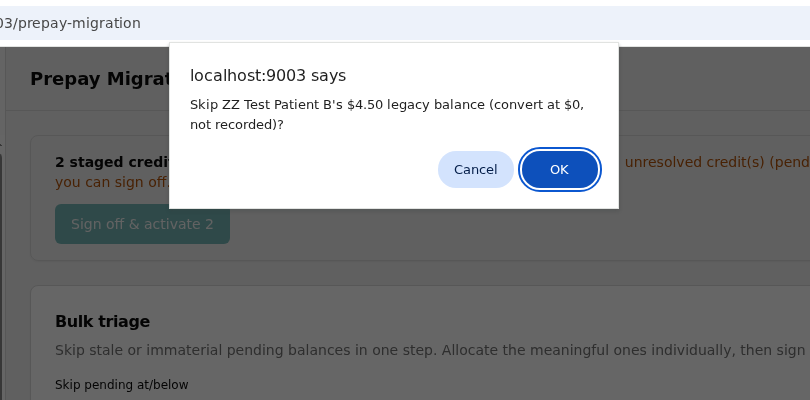
- The row moves to Skipped and a "Skipped" toast confirms it.
💡 Tip: You can also skip inside the dialog with Skip (leave $0), but only while the credit has no allocations yet — otherwise remove all allocations first.
Bulk-skip small pending balances
Clear small or stale pending credits in one action.
- In the Bulk triage card, set the Skip pending at/below dollar field (default
5) to your cutoff. - The button updates to show how many credits qualify and their total, e.g. Skip 12 ($38.40). Click it.

- In the pop-up, click OK to convert them at $0. A "Bulk skipped" toast confirms how many were cleared and the reconciliation summary updates.
Sign off and activate the batch (go live)
Make every reconciled credit spendable at checkout.
- Resolve every credit first — the reconciliation summary must read ✓ All credits fully accounted — reconciled with no pending or partial credits.
- In the amber staged banner at the top, click Sign off & activate.
- In the confirmation pop-up, click OK to make the staged credits spendable at checkout.
- An "Activated" toast confirms the count and total, and the header shows a sign-off line with your name, date/time, and activated and written-off totals.
💡 Tip: Accounts stay at $0 and unspendable until you both allocate them and click Sign off & activate — allocating alone is not enough. The activate button stays disabled while anything is unresolved.