House Account
A read-only reporting page that tracks clinic revenue, expenses, and outstanding wellness-card liability not tied to any single practitioner.
Auto-generated from the in-app Help for /house-account — source of truth src/lib/help-content/.
View the clinic overview
See income, revenue, expenses, and liability at a glance.
- Open House Account from the sidebar.
- Make sure the Overview tab is selected (it opens by default).
- Read the four top cards: Net Income, Total Revenue, Total Expenses, and Outstanding Liability.
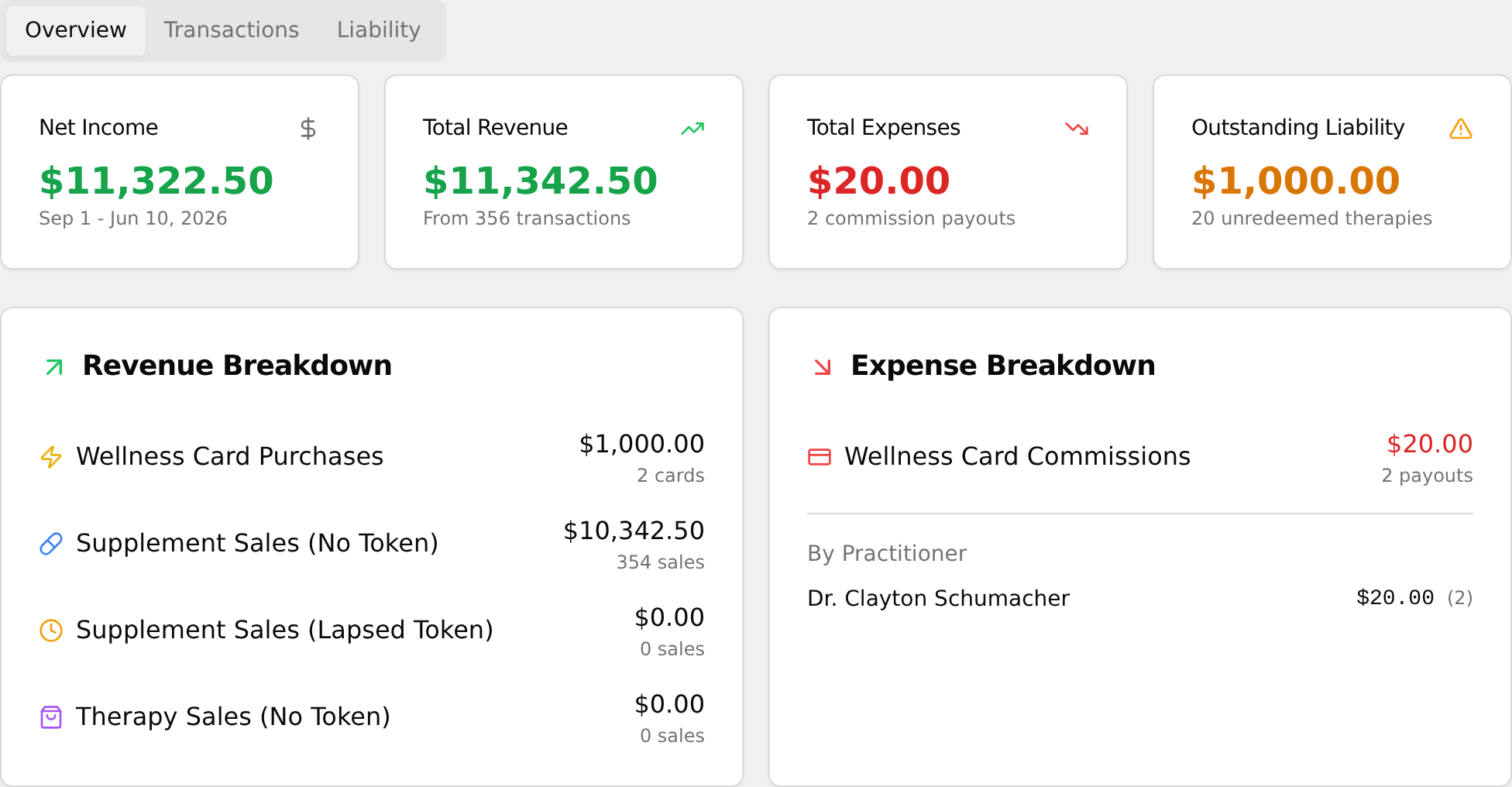
- Look below at the Revenue Breakdown and Expense Breakdown cards to see where the money came from and went.
💡 Tip: Net Income turns green when positive and red when expenses exceed revenue — the red is informational, not an error.
Change the date range
Use a quick preset or pick custom dates to set the reporting period.
- In the date filter bar near the top, click a preset: This Month, Last Month, Last 3 Months, or Year to Date.
- For a custom range instead, click the From box and pick a start date, then click the To box and pick an end date.
- Every number on the page refreshes automatically for the chosen period — there is no Apply button to press.
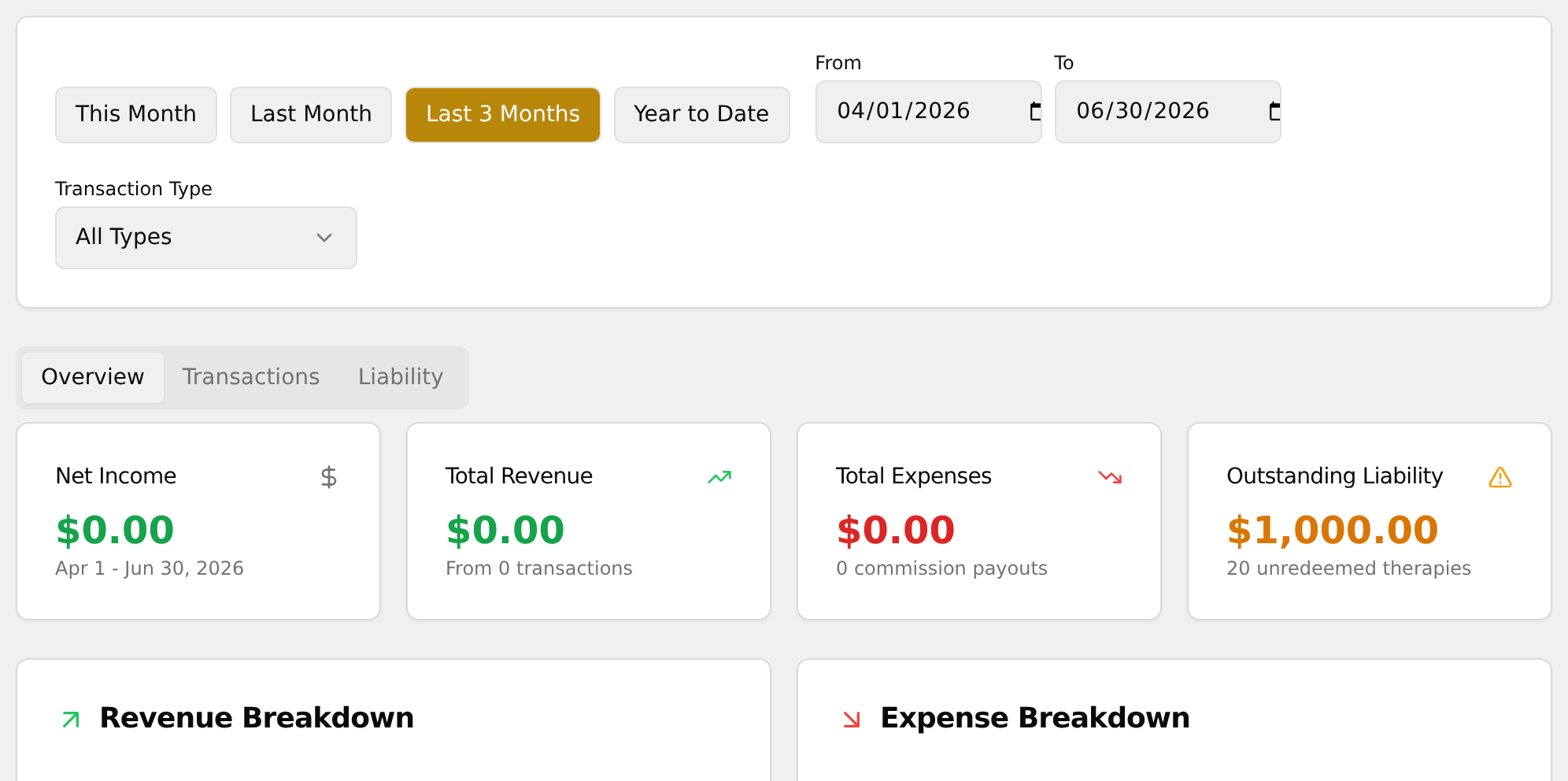
💡 Tip: Date filters do not affect liability — the Outstanding Liability card and the Liability tab always show the clinic's current balance regardless of the range you pick.
Filter by transaction type
- In the date filter bar, click the Transaction Type dropdown (it shows All Types by default).
- Choose All Types, Wellness Card Purchases, Wellness Card Commissions, Supplement Sales (No Token), or Supplement Sales (Lapsed).
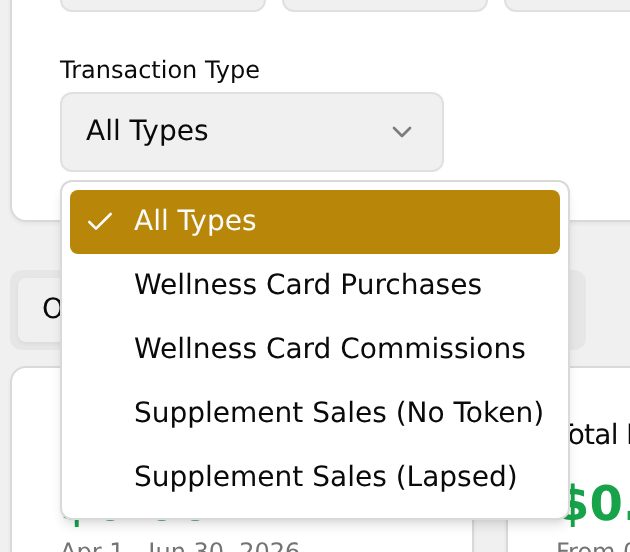
- The Overview totals and the Transactions table both refresh to show only that type.
💡 Tip: There is no Therapy Sales (No Token) filter option, so therapy rows only appear under All Types.
View the full transaction history
- Click the Transactions tab.
- Read each row: Date (with time underneath), a Type badge, a Description, the Patient name (or
-), and the Amount.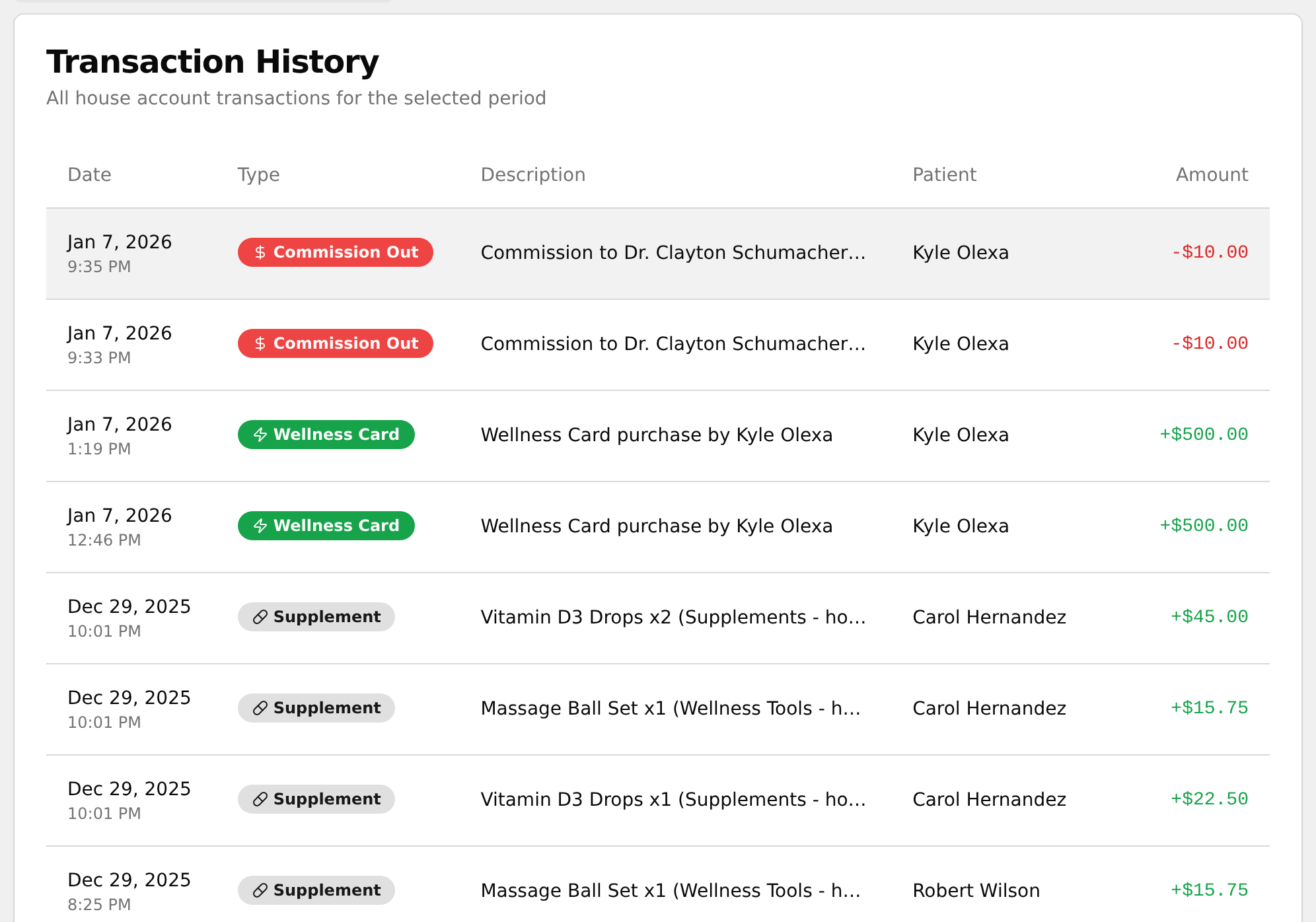
- Note revenue amounts are green with a leading
+and expenses are red; the newest transaction is always at the top. - To narrow the list, change the date range or Transaction Type filter at the top.
💡 Tip: There is no search box and the table cannot be re-sorted — date range and Transaction Type are the only ways to narrow it.
Review outstanding wellness card liability
- Click the Liability tab.
- On the Wellness Card Liability card, read Active Cards, Unredeemed (therapies still owed), and Total Value.
- On the Liability by Age card, review how that value splits across Less than 30 days, 30-90 days, and Over 90 days (the over-90 value is highlighted in red).
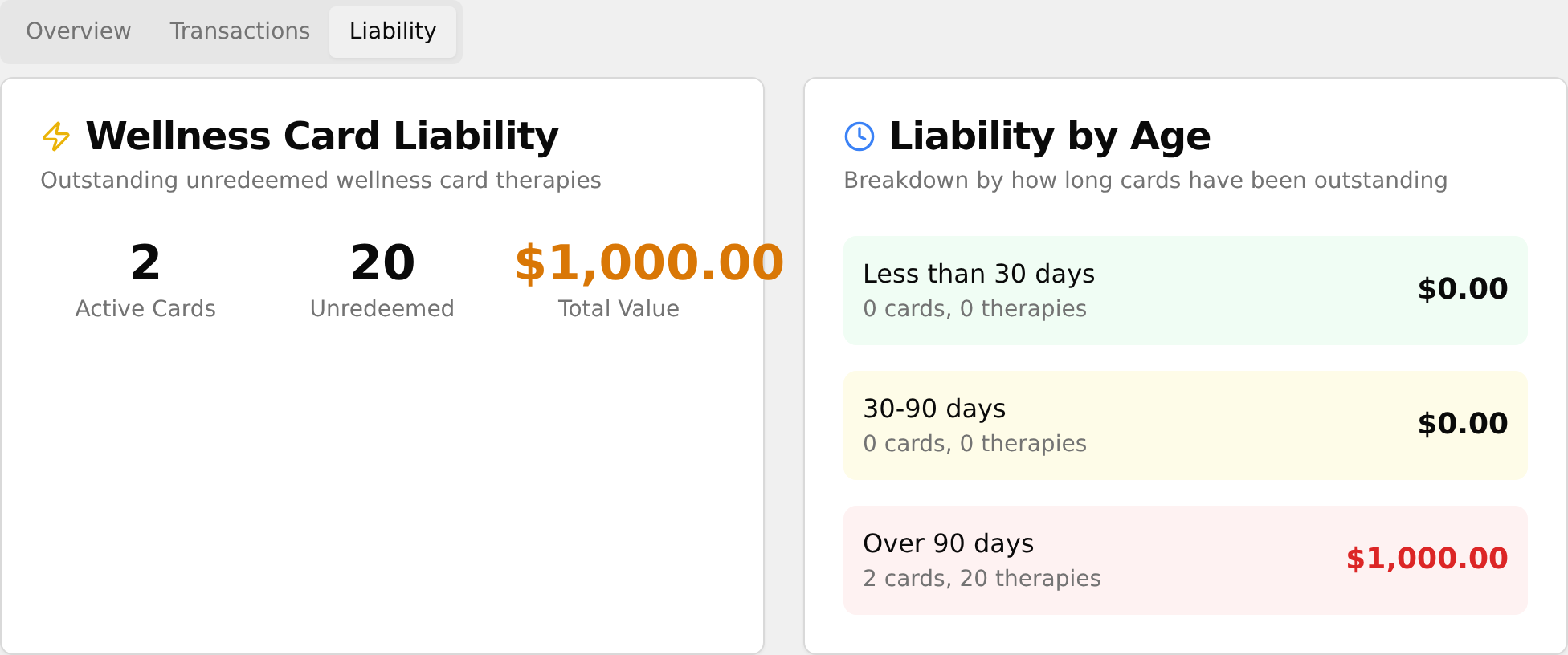
💡 Tip: Liability is valued at $50 per unredeemed therapy (a $500 card covers 10 therapies).
See commissions by practitioner
- Click the Overview tab and find the Expense Breakdown card.
- Under Wellness Card Commissions, read the By Practitioner list — each name with the dollar amount paid and the number of payouts in parentheses.
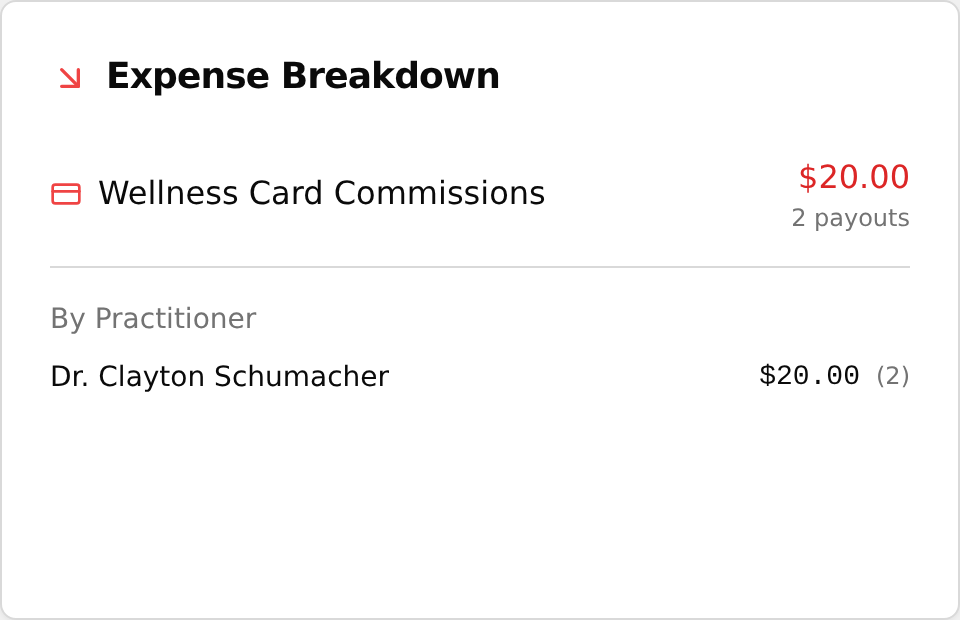
- For a single practitioner's view, set the Transaction Type to Wellness Card Commissions and adjust the date range.
💡 Tip: If no commissions were paid, the card reads "No commissions paid in this period".