Create Appointment
Book a new appointment by picking a patient, practitioner, and visit length, then clicking an open time slot to book it instantly.
Auto-generated from the in-app Help for /create-appointment — source of truth src/lib/help-content/.
Find an existing patient
Attach the appointment to a patient who is already in the system.
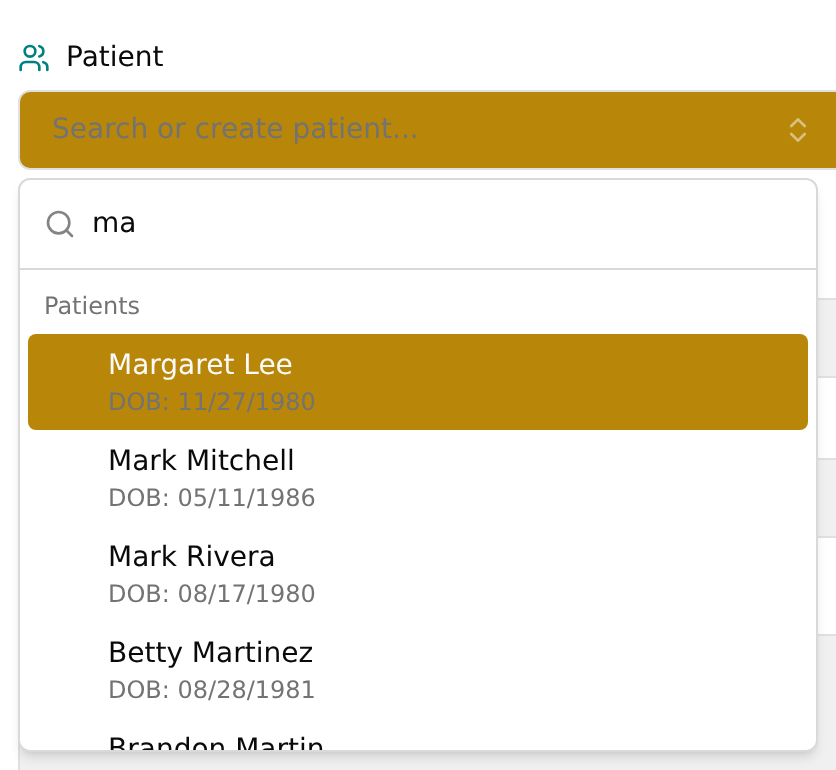
- On the Find Availability tab, click the Patient box that reads "Search or create patient...".
- Start typing the patient's name in the Search by name... box.
- Click the matching name in the list (each row shows the name and DOB: MM/DD/YYYY). The box now shows that patient's name and date of birth.
💡 Tip: A patient must be selected before any time slot or Book Manually button becomes clickable.
Add a brand-new patient (Quick Add)
Create a patient on the fly without leaving the booking page.
- Click the Patient box and start typing the new person's name.
- Click Create New Patient (it appears at the top of the list, and under "No patients found." if there's no match).
- In the Quick Add Patient dialog, confirm or type the Name (required); the name you typed is pre-filled.
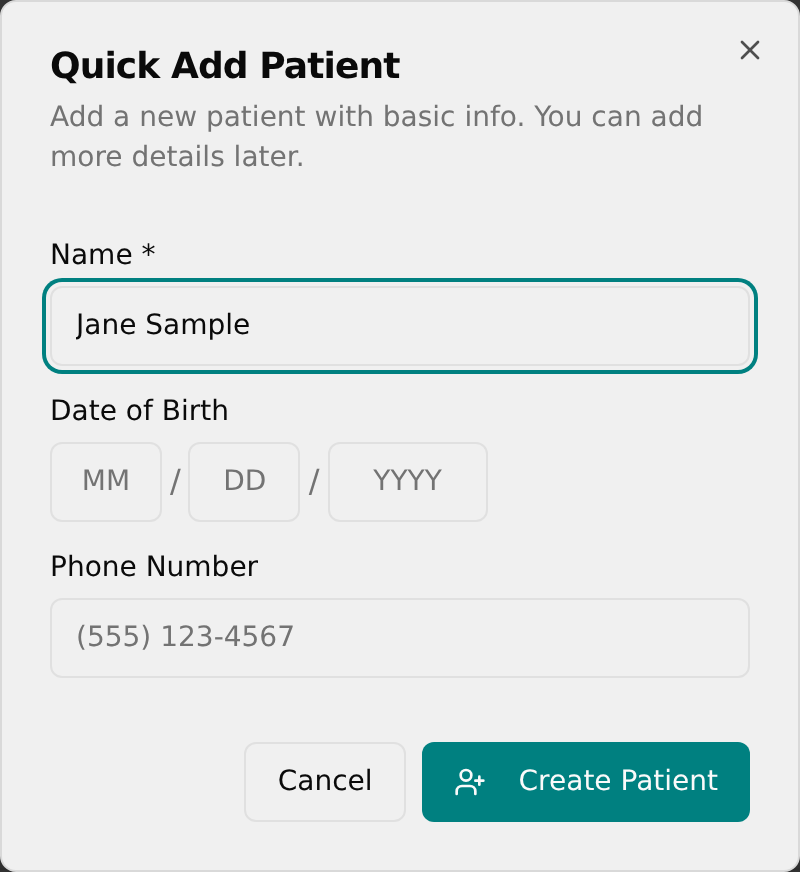
- Optionally set the Date of Birth and Phone Number.
- Click Create Patient (it briefly shows "Creating...").
- A Patient Created message appears and the new patient is automatically selected in the Patient box.
Search for open appointment slots
Pick a practitioner and duration to see available times.
- (Optional) Pick a Service (Optional) from the dropdown, or leave it on "Any service".
- Choose a Practitioner.
- Choose a Duration (the practitioner's default length is marked "(default)").
- (Optional) Adjust the From Date and To Date buttons to widen or narrow the search window.
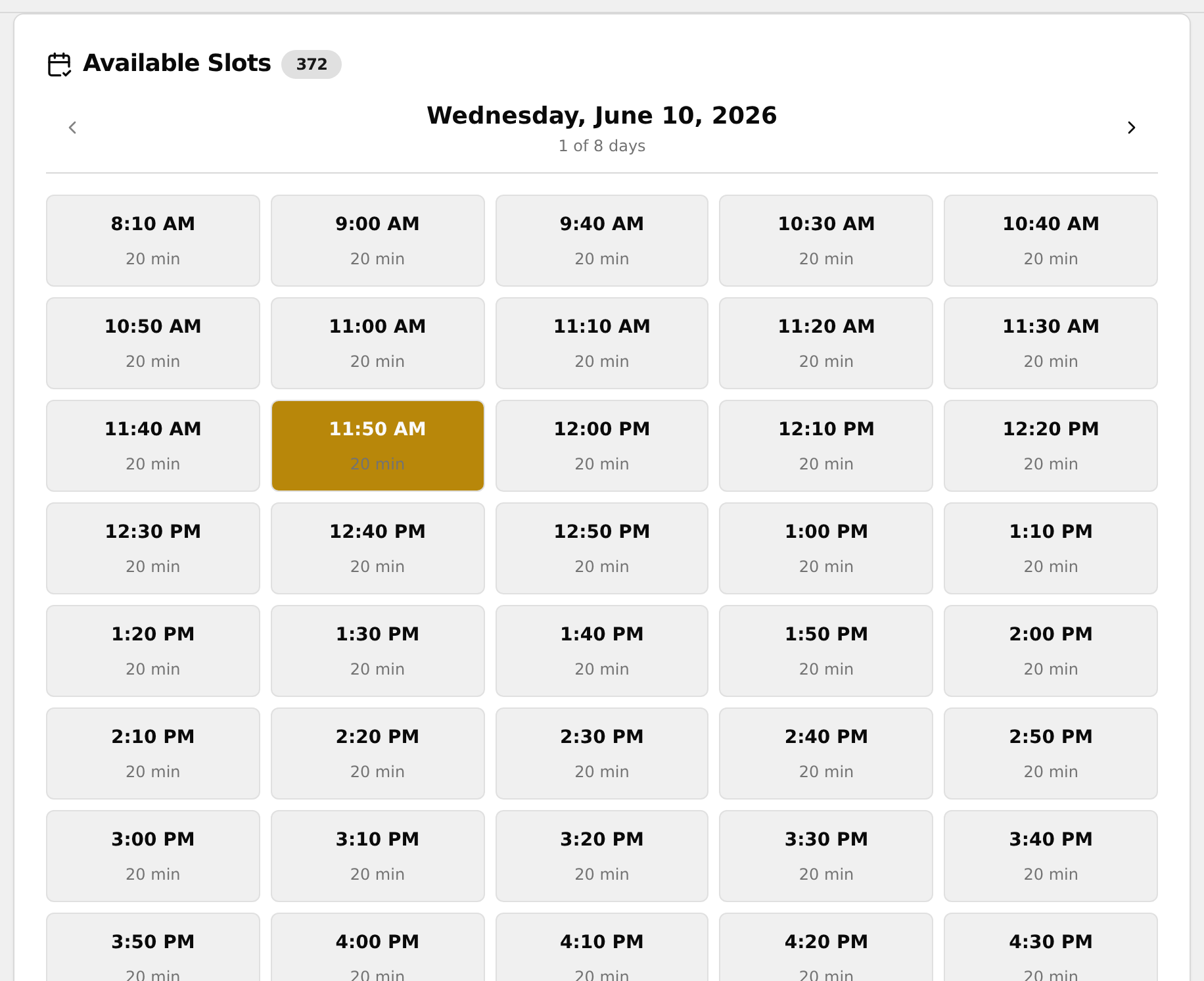
- The tool searches automatically — there is no Search button. The Available Slots card appears with a count badge and a grid of times.
💡 Tip: If you pick a Service first, only practitioners who offer that service appear in the Practitioner dropdown.
Move between days in the results
Browse other dates when the current day doesn't work.
- In the Available Slots card, read the date header (e.g. "Monday, June 9, 2026") and the "X of Y days" counter below it.
- Click the right-arrow button for the next day, or the left-arrow to go back.
- If a day has no openings you'll see "No available slots on this day." — use the arrows to check other dates.
Book an available slot
Click an offered time to book it instantly.
- Make sure a Patient is selected — the time buttons stay disabled until one is.
- (Optional) Type anything useful in Notes (Optional).
- In the Available Slots grid, click the time button you want (each shows the start time and duration).
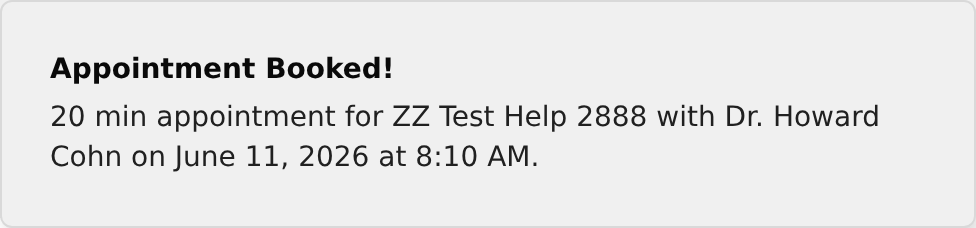
- A green Appointment Booked! message confirms the patient, practitioner, date, and time, and the booked slot disappears from the list.
💡 Tip: If slots are found but no patient is chosen, an amber banner reads "Select a patient above to enable booking." After a successful booking the Notes box clears for the next one.
Book a specific time (Manual Override)
Book an exact time even if it isn't offered as an open slot.
- Make sure a Patient and a Practitioner are selected.
- Scroll to the bottom and click Manual Override (Specific Time) to expand it.
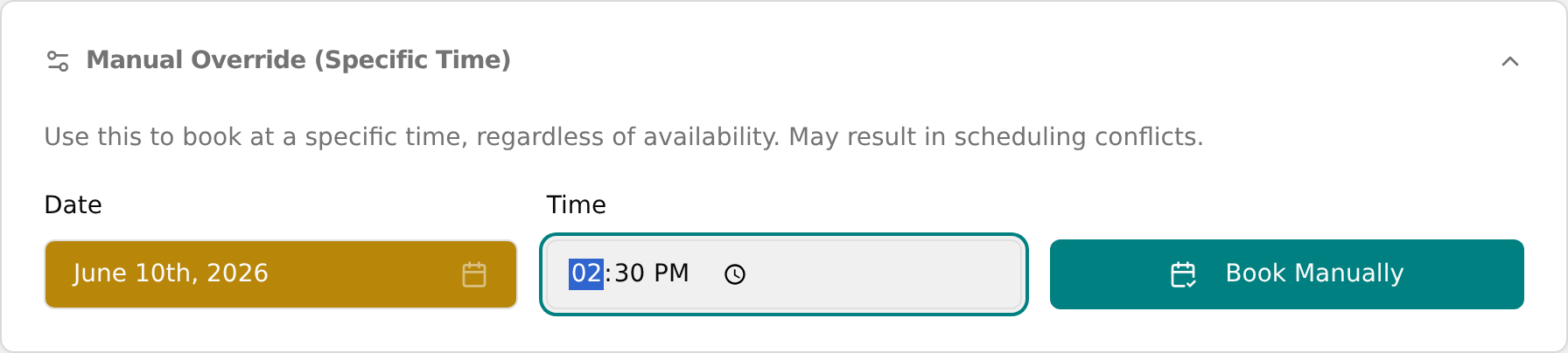
- Set the Date using the date button and calendar.
- Enter a Time in the time field.
- Click Book Manually. A green Appointment Created! message confirms it and the section collapses.
💡 Tip: Warning: Manual Override books at a specific time regardless of availability and may create scheduling conflicts.