Token Management
Token Management lists every supplement commission token so you can see which practitioner owns each one, spot tokens that are at risk or lapsed, and (with the right account) transfer or revoke them.
Auto-generated from the in-app Help for /tokens — source of truth src/lib/help-content/.
Switch between the three views
Tokens can be viewed three ways.
- At the top of the page, click By Practitioner, By Patient, or All Tokens.
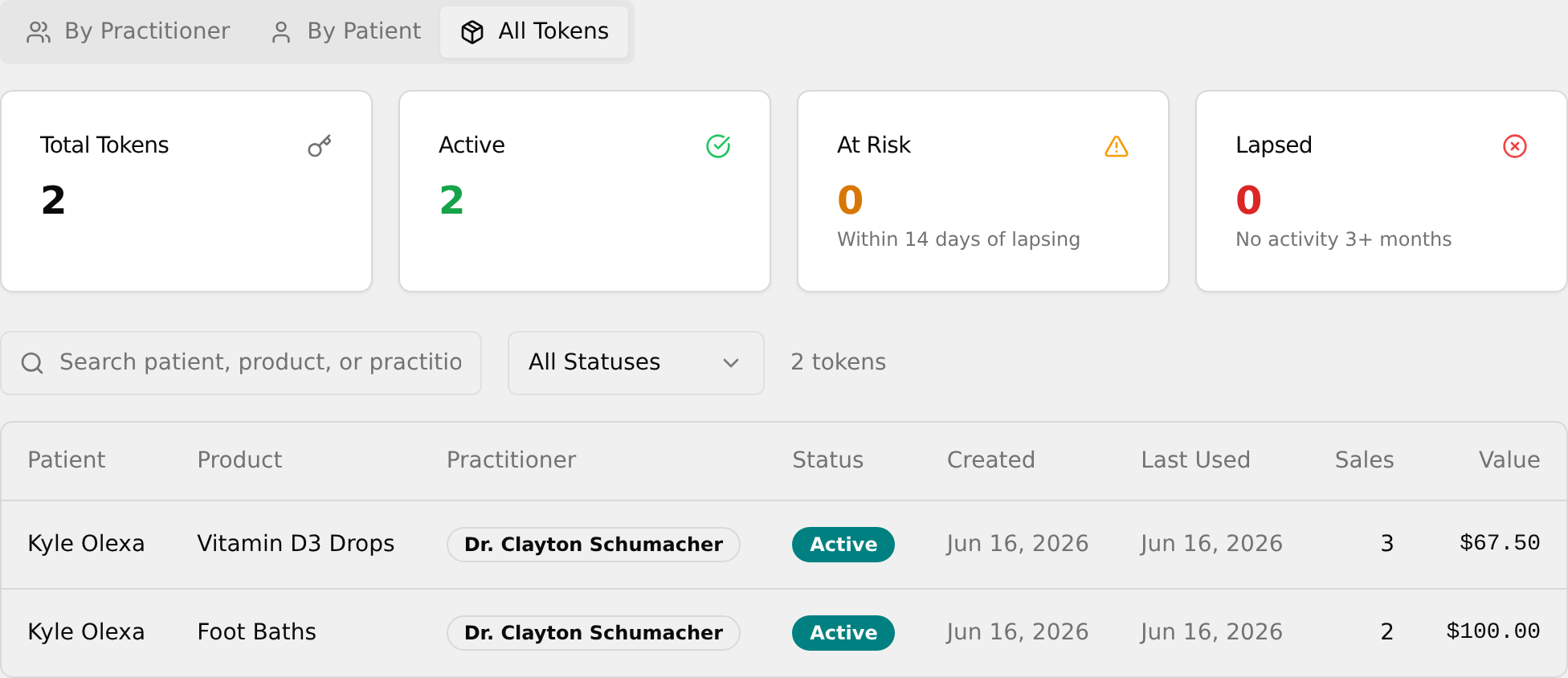
- Use By Practitioner or By Patient for collapsible group rows, or All Tokens for one flat table of every token (sorted by patient name).
- Note that switching tabs starts the view fresh — the search box clears and Status returns to All Statuses.
💡 Tip: Each tab keeps its own search box and Status filter.
Check token health at a glance
Use the summary cards to monitor which tokens need attention.
- Look at the four cards at the top of any tab: Total Tokens, Active, At Risk, and Lapsed.

- Use At Risk ("Within 14 days of lapsing") to find tokens that need attention soon.
- Use Lapsed ("No activity 3+ months") to see tokens that have already gone inactive.
💡 Tip: Status is calculated automatically, not set by hand — Lapsed and Revoked tokens both show a red badge.
Find a specific token
Narrow the list down to the token you need.
- Click the Search patient, product, or practitioner... box and type a patient, product, or practitioner name.
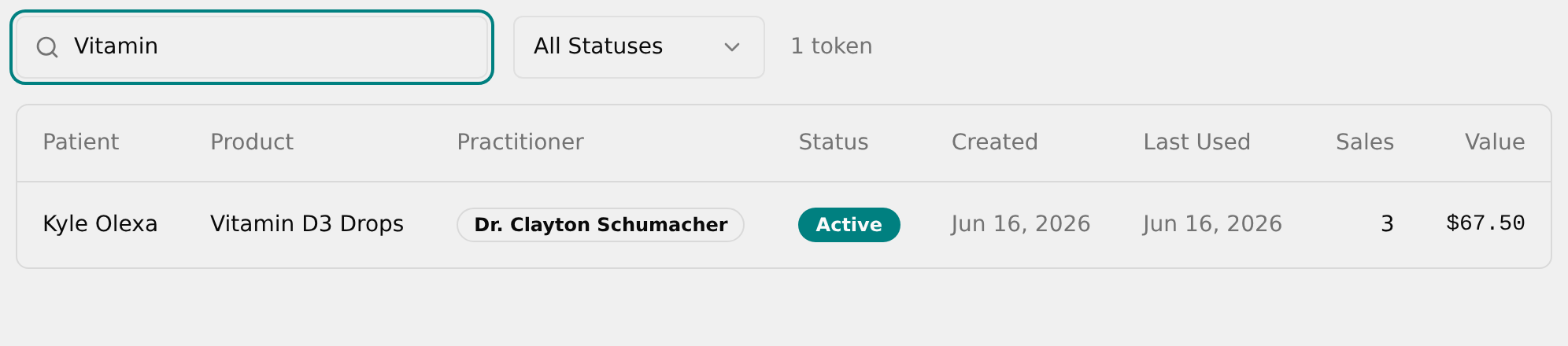
- The list filters as you type and the tokens count on the right updates to show how many match.
- To narrow further, click the Status dropdown and choose All Statuses, Active, At Risk, or Lapsed.
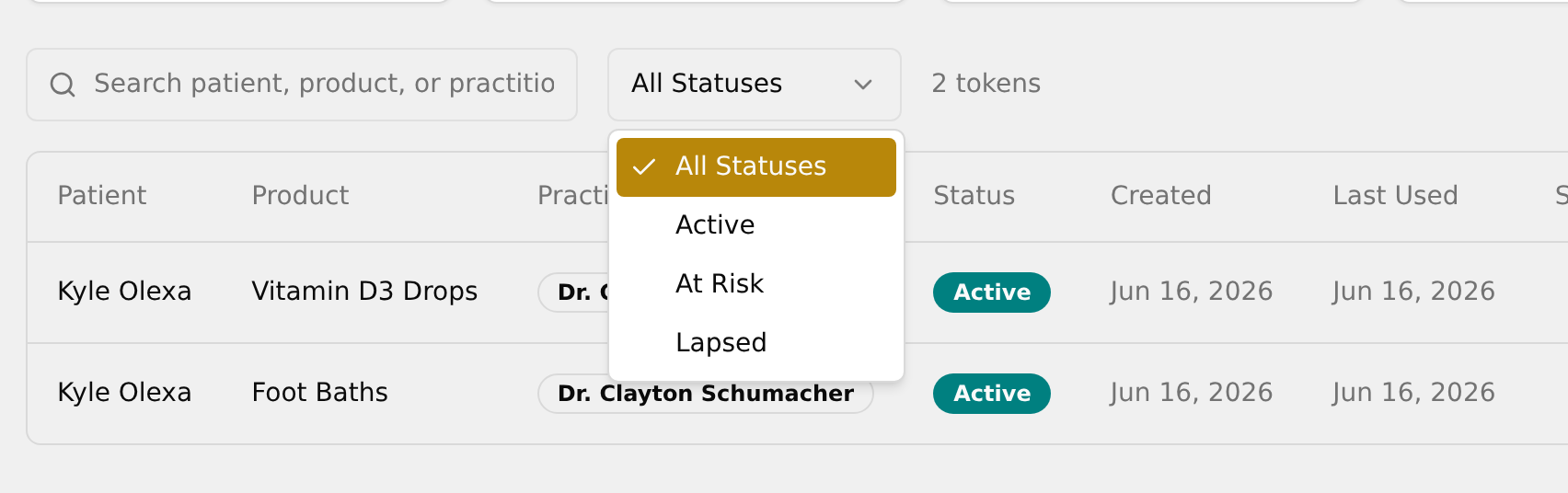
- To clear the search, delete the text in the box.
💡 Tip: Search and the Status filter work together — combine them to pinpoint a token.
Browse tokens grouped by practitioner or patient
The By Practitioner and By Patient tabs group tokens into an expandable accordion.
- Click the By Practitioner or By Patient tab.
- Each header row shows the name, a token count, and quick badges — a green "
active" badge, plus the practitioner's sales value or a patient's "products" badge. - Click a group header to expand it and reveal that group's token table.
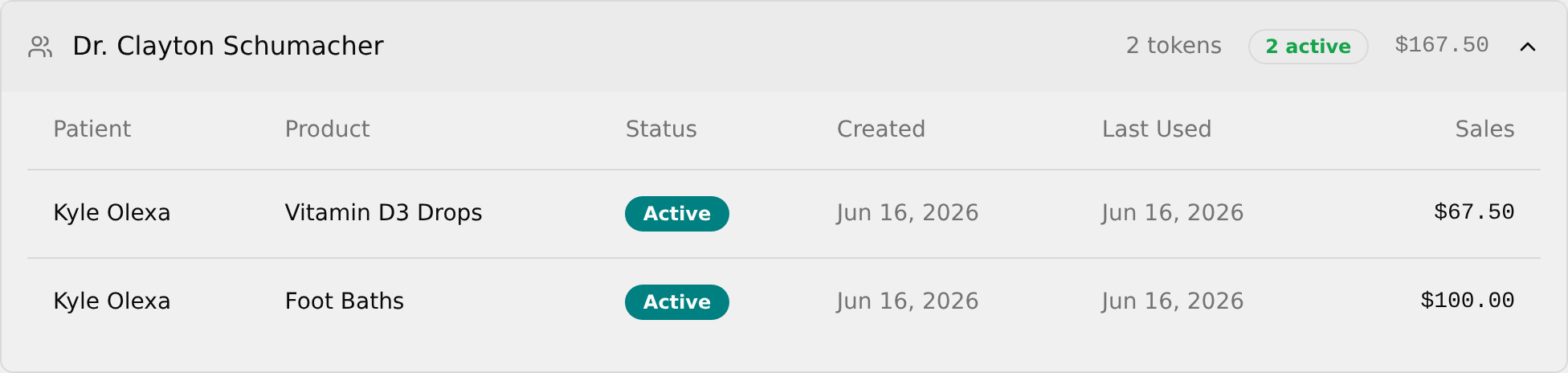
- Click the header again to collapse it — you can keep several groups expanded at once.
💡 Tip: A "—" in the Last Used column means the token has never been used since it was created.
Open a token's details
See the full history and sales behind a single token.
- Click anywhere on a token's row (on the By Practitioner / By Patient tabs, expand a group first).
- A panel slides in from the right showing the product, patient, and a status badge — plus "
days left" if the token is At Risk. 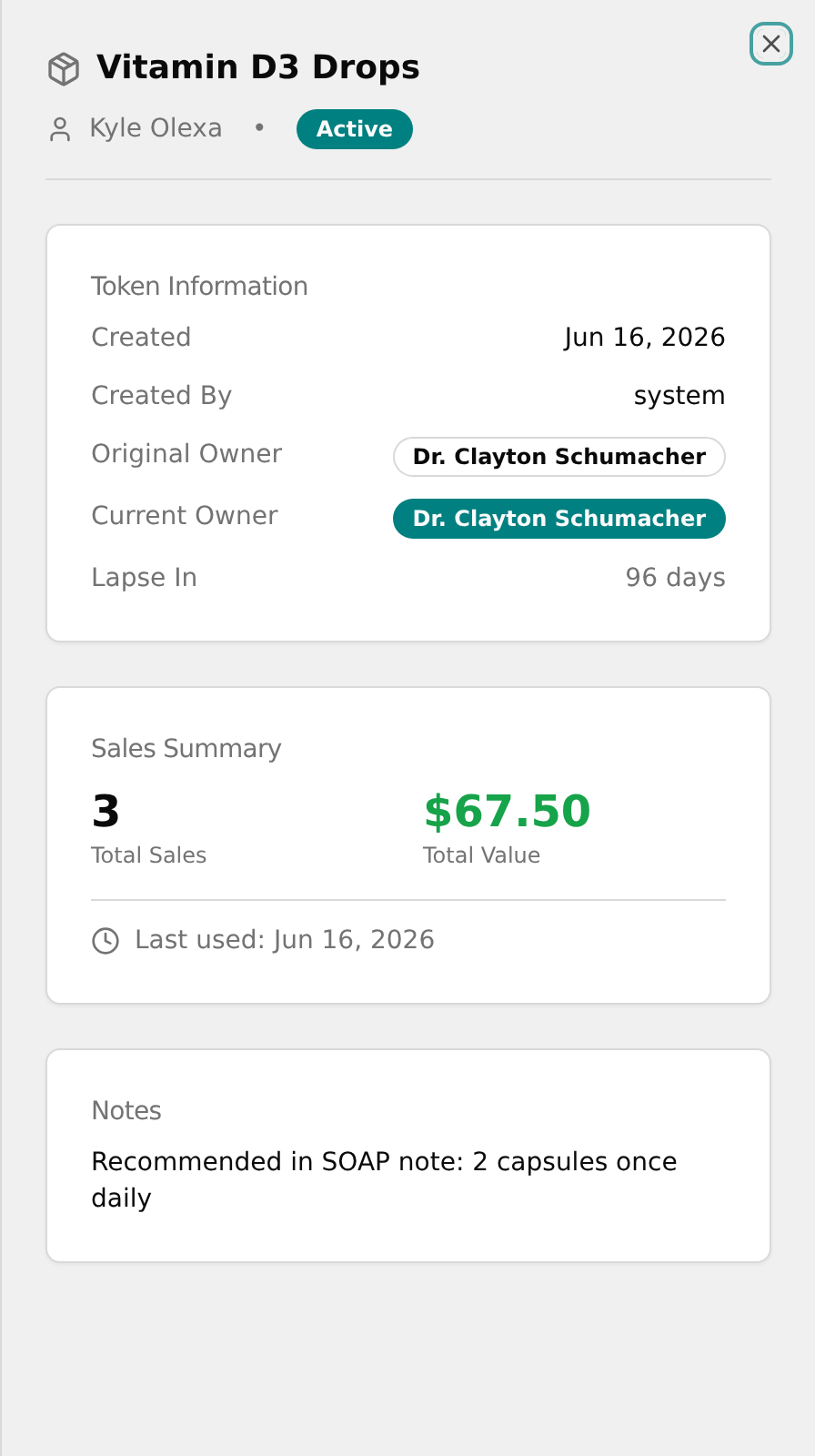
- Review Token Information (Created, Created By, Original Owner, Current Owner, Lapse In) and Sales Summary (Total Sales, Total Value, Last used).
- If present, review Transfer History and Notes (each shown only when there is data).
- To close the panel, click outside it or press Escape.
Transfer a token to another practitioner
Reassign who earns commission on this token.
- Open a token's details, then in the Actions section near the bottom click Transfer to Another Practitioner.
- In the Transfer Token dialog, open the New Practitioner dropdown and choose the new owner (the current owner is not listed).
- Open the Reason dropdown and pick a reason (for example, New doctor recommended this supplement).
- Optionally type into Additional Details (optional).
- Click Transfer Token to save (or Cancel to back out). A green "Token transferred successfully" toast confirms it worked.
💡 Tip: The Actions section only unlocks for a developer super-admin account and only for Active tokens, so this button does not appear with today's staff logins. Lapsed or revoked tokens can't be transferred.
Revoke a token
Permanently stop a token from earning future commission.
- Open a token's details, then in the Actions section click Revoke Token.
- In the Revoke Token dialog, read the warning that this permanently revokes the token and stops future commission.
- Type a reason into Reason for Revocation.
- Click the red Revoke Token button to confirm (or Cancel to back out). A green "Token revoked successfully" toast confirms it worked.
💡 Tip: Revoking is permanent. The button only appears for a developer super-admin account and only for Active tokens, so it's not available with today's staff logins.