Patient Portal
A safe Admin-only preview of what a sample patient sees in their own portal, where the only live action is the supplement-partner opt-in that claims a $50 credit.
Auto-generated from the in-app Help for /patient-portal — source of truth src/lib/help-content/.
Opt the patient in and claim the $50 credit
Turn on the offer toggle and confirm to add a $50 credit to the sample patient's account.
- Find the "A Special Offer for You" card in the left column.
- Read the agreement text and turn on the toggle next to "Yes, I agree to allow ChiroFlow to register accounts on my behalf with its supplement partners. I understand I will receive a $50 credit."
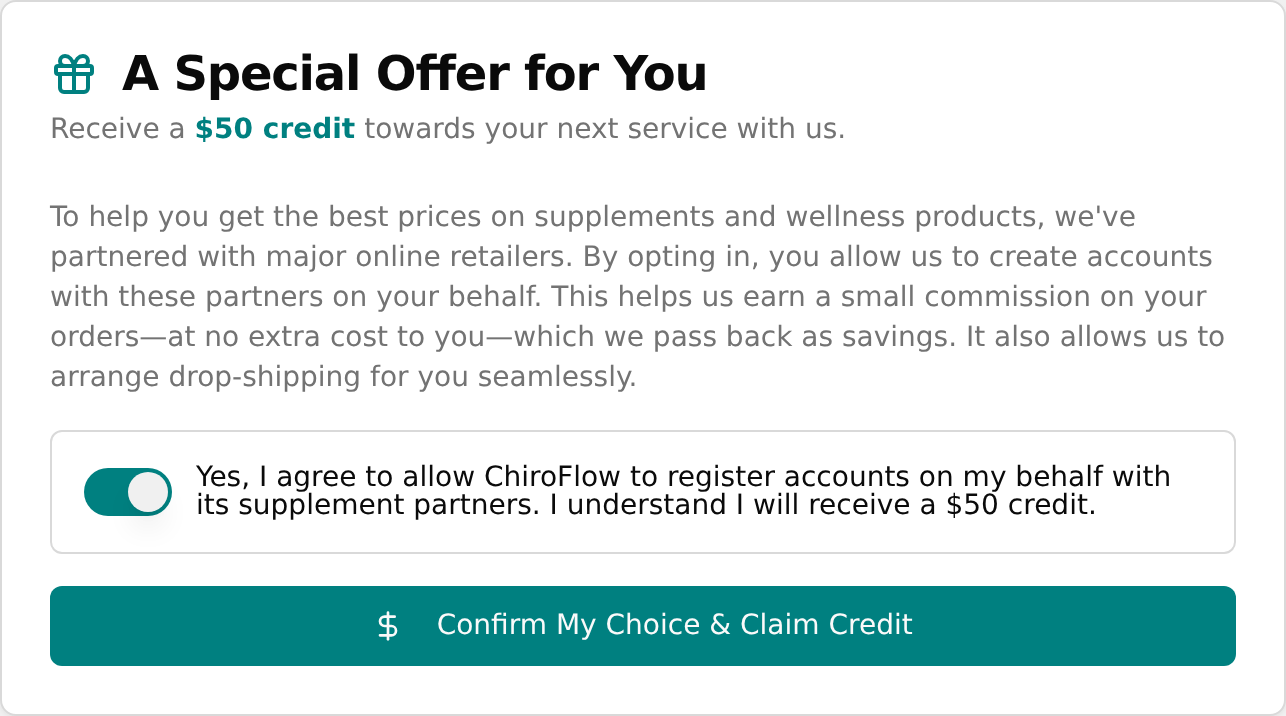
- Click "Confirm My Choice & Claim Credit" and wait for the button's spinner to finish.
- Confirm the toast titled "Preference Saved!" reads "Thank you! A $50 credit has been applied to your account."
- See the offer card replaced by the green "Thank You!" banner showing the new total (for example, "A $50.00 credit is available on your account").

💡 Tip: This action is live, not a preview — it permanently sets the first patient's opt-in status and adds a fixed $50 to their account credit. The "Account Credit" card on the right does not refresh on its own; reload the page to see the new total.
Save the preference without opting in
Record the patient's choice not to join the partnership program, with no credit added.
- In the "A Special Offer for You" card, leave the toggle off.
- Click "Confirm My Choice & Claim Credit".
- Confirm the toast titled "Preference Saved!" reads "Your preference has been updated."
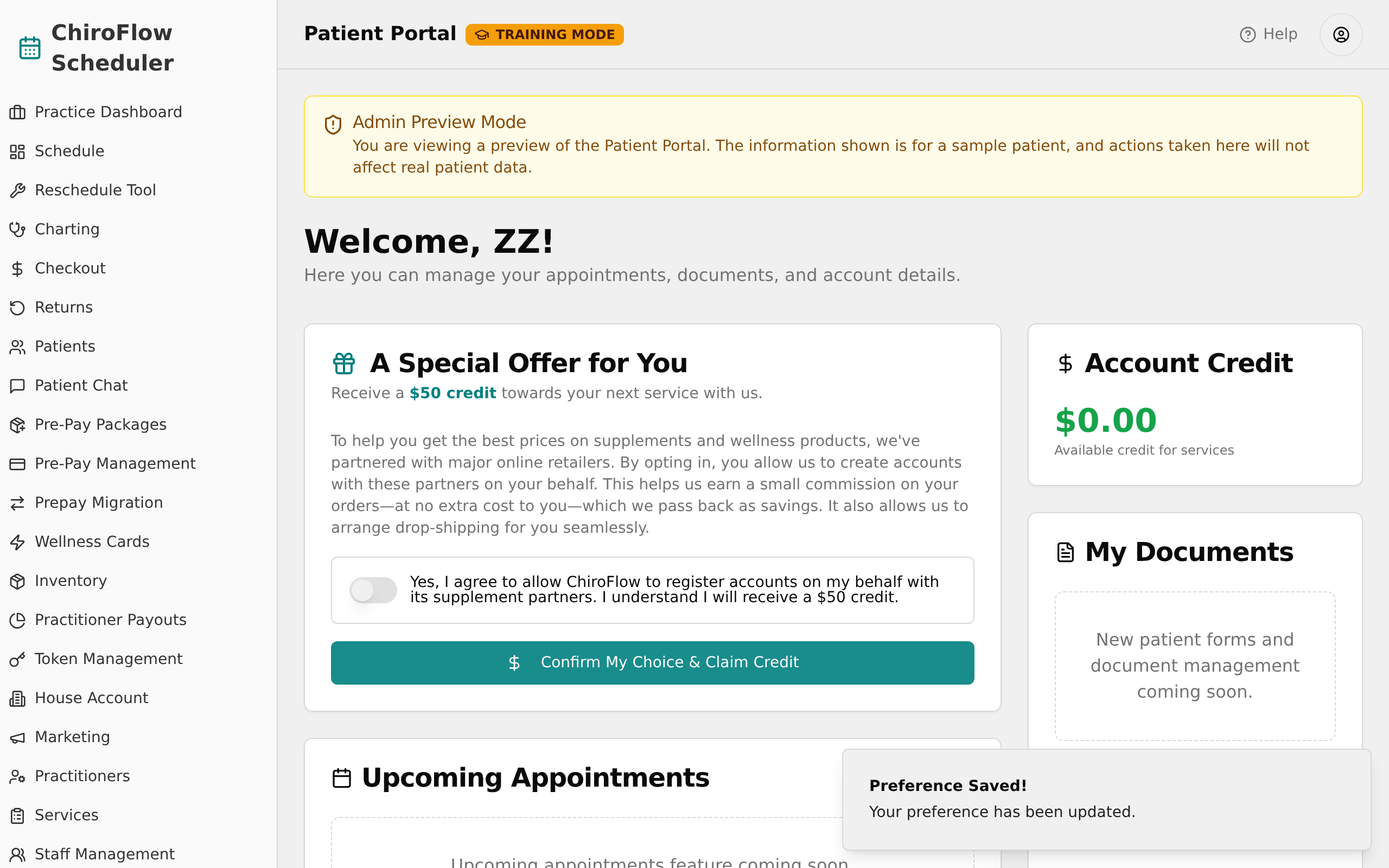
💡 Tip: No credit is added when the toggle is off. If the save fails, a red toast titled "Error" appears reading "Could not save your preference. Please try again."
Check the patient's account credit
View the credit currently available on the sample patient's account.
- Look at the "Account Credit" card in the right column.
- Read the green dollar amount; the caption below it reads "Available credit for services".

💡 Tip: This card does not update automatically after a new opt-in — reload the page to see the latest total.