Charting
Charting is where doctors write a patient's SOAP note for the visit they're currently seeing — quickly with Yes/No buttons, in full SOAP detail, or with help from voice dictation and the AI assistant.
Auto-generated from the in-app Help for /charting — source of truth src/lib/help-content/.
Quick-chart a routine visit
The fastest way to chart a standard visit using the Simplified tab.
- On the Current Patient card, make sure the Simplified tab is selected (it is by default).
- Under Quick Charting, answer Did patient have an adjustment? by clicking Yes or No. Clicking Yes opens a body diagram to mark the segments you adjusted.
- Answer Supplement Prescription? and Wellness Therapy Recommendations? with Yes or No, adding items if you choose Yes.
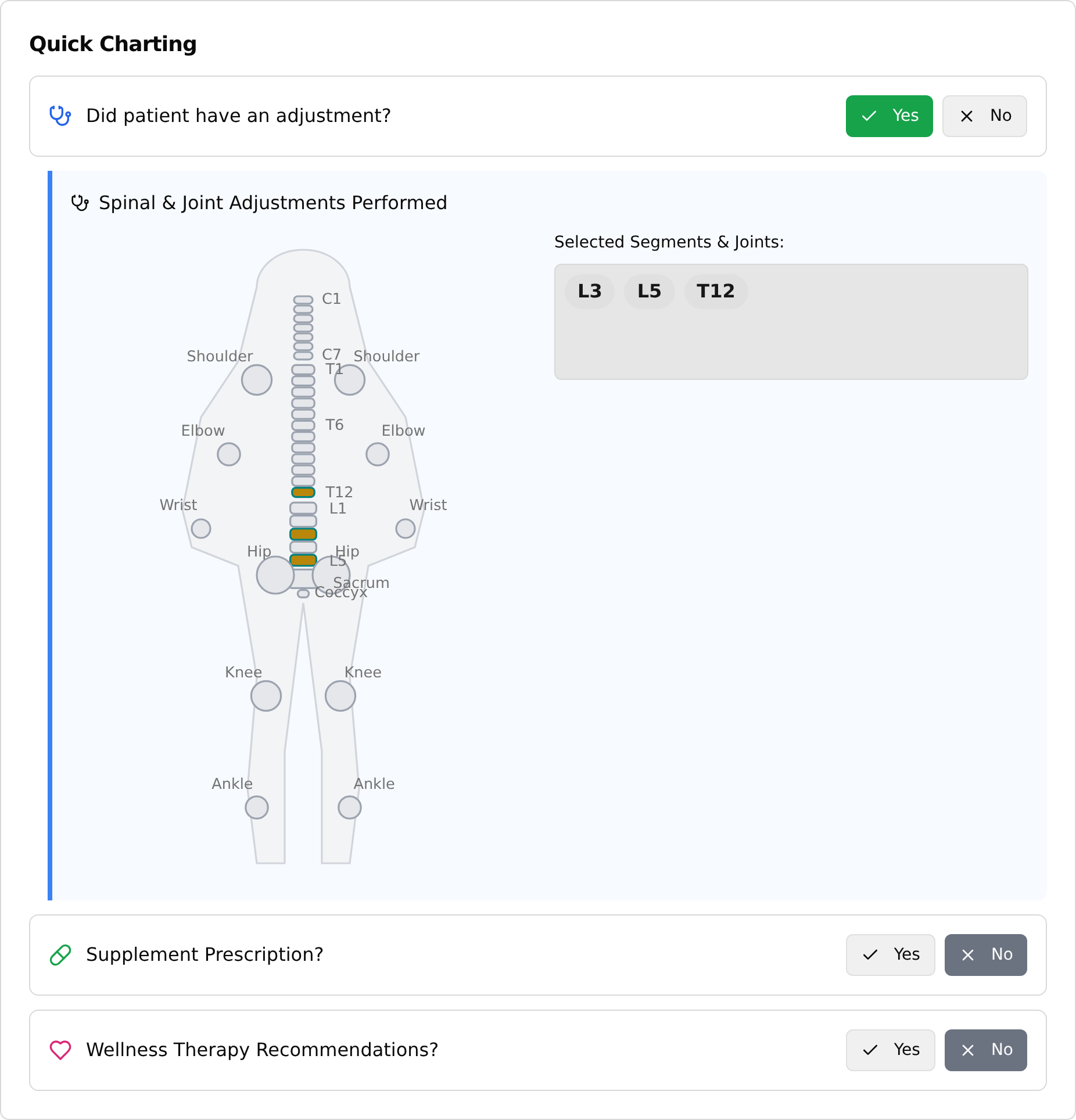
- Under Notes, type into Public Notes (visible to patient) and/or Private Notes (staff only).
- Click Complete & Finalize Chart.
💡 Tip: Simplified and Detailed both end with the same Complete & Finalize Chart button and the same 'Appointment Complete!' confirmation — Simplified is just faster for routine visits.
Write a full chart (Detailed tab)
Use the Detailed tab for complete SOAP documentation.
- On the Current Patient card, click the Detailed tab.
- Fill in the four sections (all open by default): Subjective (Chief Complaint required), Objective, Assessment (at least one Diagnosis required), and Plan (Other Treatments & Modalities required).
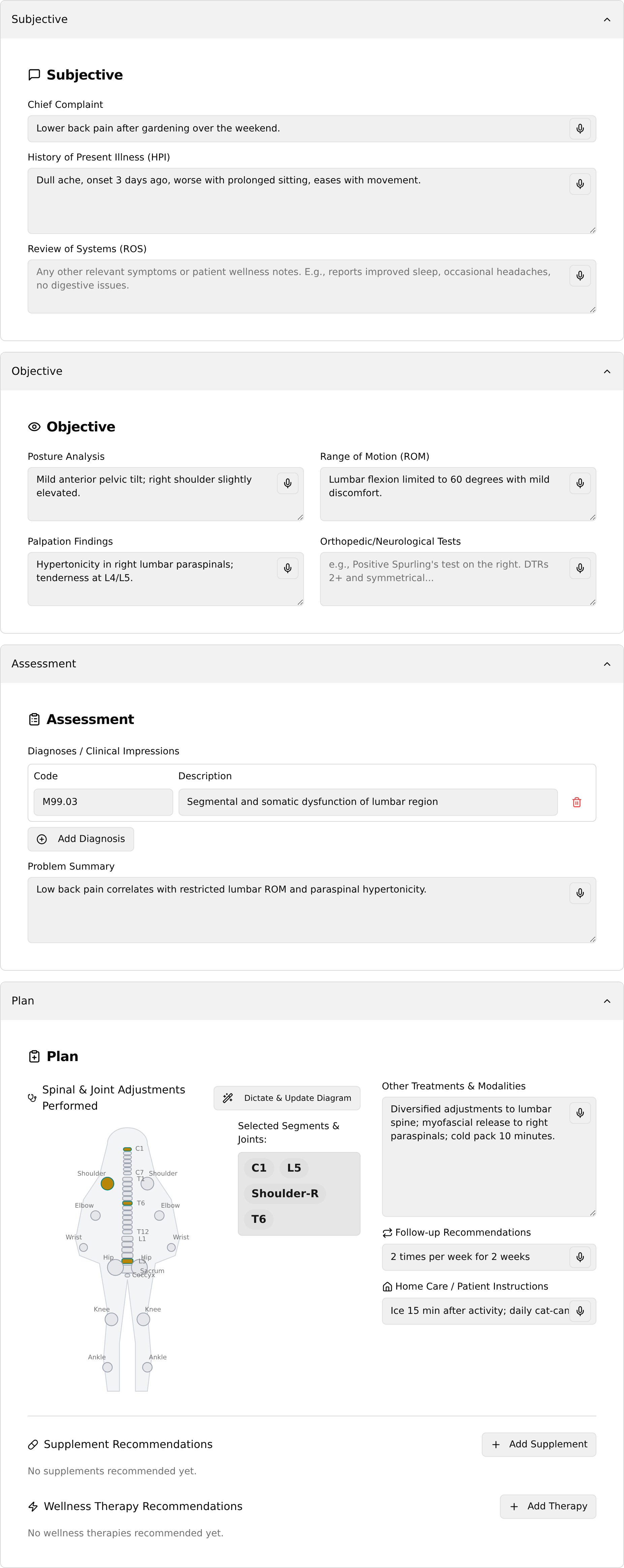
- Click any grey title bar to collapse or reopen a section.
- When finished, click Complete & Finalize Chart.
💡 Tip: To finalize you must have a Chief Complaint, at least one Diagnosis, and Treatment Details. Missing any triggers a red 'Cannot Complete Chart' message and jumps to the first empty required field.
Mark adjustments on the body diagram
Record which spinal segments or joints you adjusted.
- In the Plan section (Detailed) or after answering Yes to the adjustment question (Simplified), find the interactive body diagram.
- Click each vertebra or joint you adjusted — it highlights and is added as a tag under Selected Segments & Joints: (for example C1, L5, Shoulder-R).
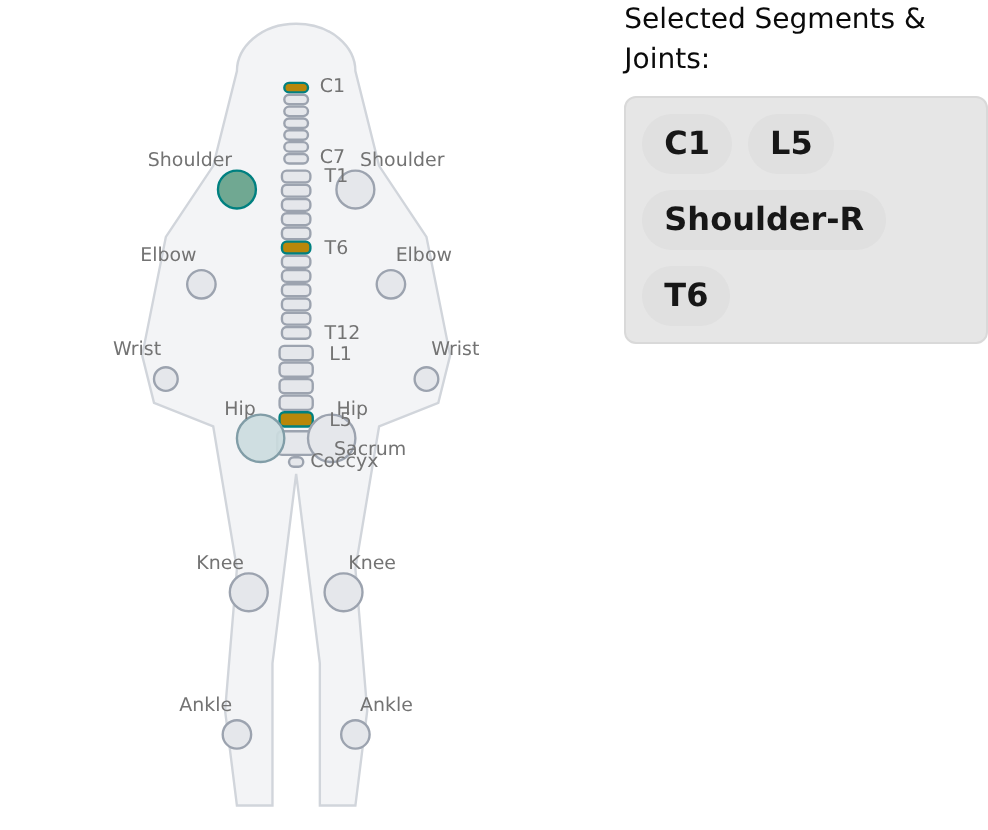
- Click a highlighted part again to deselect it.
💡 Tip: The tool changes with the service: chiropractic shows 'Spinal & Joint Adjustments Performed', an acupuncture service shows 'Acupuncture Points Used', and a muscle testing service shows 'Manual Muscle Test Results' — each with its own layout.
Pre-fill the chart with the AI assistant
Let the AI draft the SOAP note from a recording or transcript on the Detailed tab.
- On the Detailed tab, find the AI Charting Assistant box at the top.
- Choose Upload Audio File, Upload SSML/Text, or Record Visit (click again to Stop Recording).

- Wait while it shows Analyzing Appointment...; when done you'll see AI Analysis Complete and the SOAP fields filled in.
- Review every field for accuracy, then click Complete & Finalize Chart.
💡 Tip: Always review AI-filled fields before saving. Click a High/Medium/Low Confidence badge next to a field to open the AI Evidence popover and see the transcript the AI used.
Dictate notes by voice
Speak into a text field or straight onto the diagram instead of typing.
- Next to a text field (for example Chief Complaint), click the small microphone icon and speak — the button turns red while recording.
- Click the button again (now a stop icon) to finish; the transcribed words are appended and a Recorded Dictation player appears below the field.
- To mark adjustments by voice, in the Plan section click Dictate & Update Diagram, speak the segments (e.g. 'C1, T6, and the right shoulder'), then click Stop Dictating.
💡 Tip: Voice features need microphone permission and a Gemini API key (set on Settings). Failures show a red 'Transcription Error', and unclear audio shows 'No Points Identified.'
Recommend supplements or therapies
Add product or therapy recommendations that carry through to checkout.
- Click Add Supplement (or Add Therapy) in the matching area.
- Open the Select supplement... (or Select therapy...) dropdown, search, and pick an item.
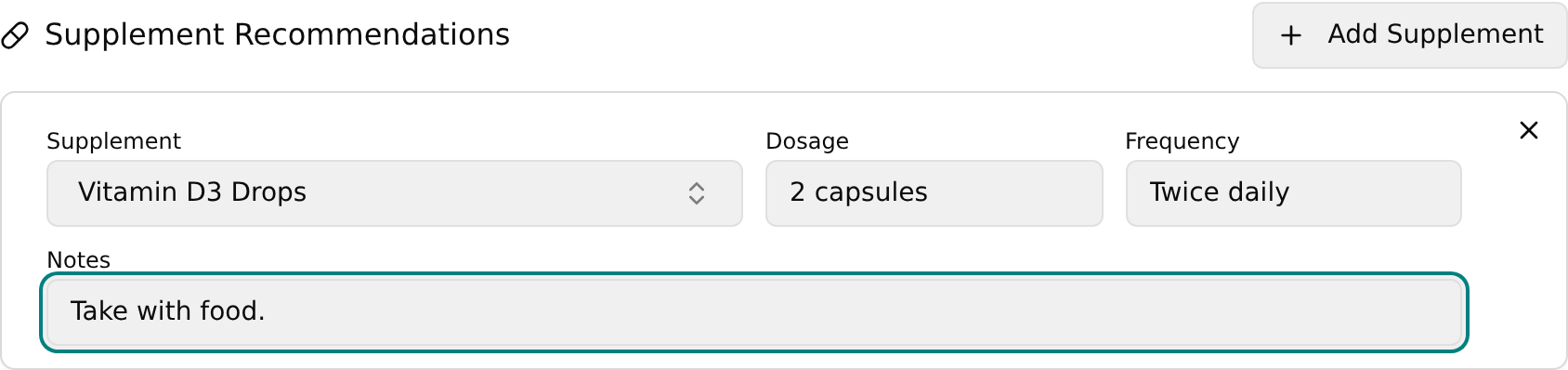
- Fill in Dosage and Frequency (or Sessions and Frequency for therapies) and any Notes.
- To remove an item, click the X in the top-right of its card.
💡 Tip: Supplement and therapy recommendations added here carry through to Checkout, where the front desk collects payment.
Review a patient's past SOAP notes
- Scroll to the Past SOAP Notes card, which lists the current patient's previous visits.
- Click a row to expand its date, payment-method badge, amount, and a Subjective/Plan summary.
- Click View Full Chart to open the complete note in a read-only Past Note: [date] popup.
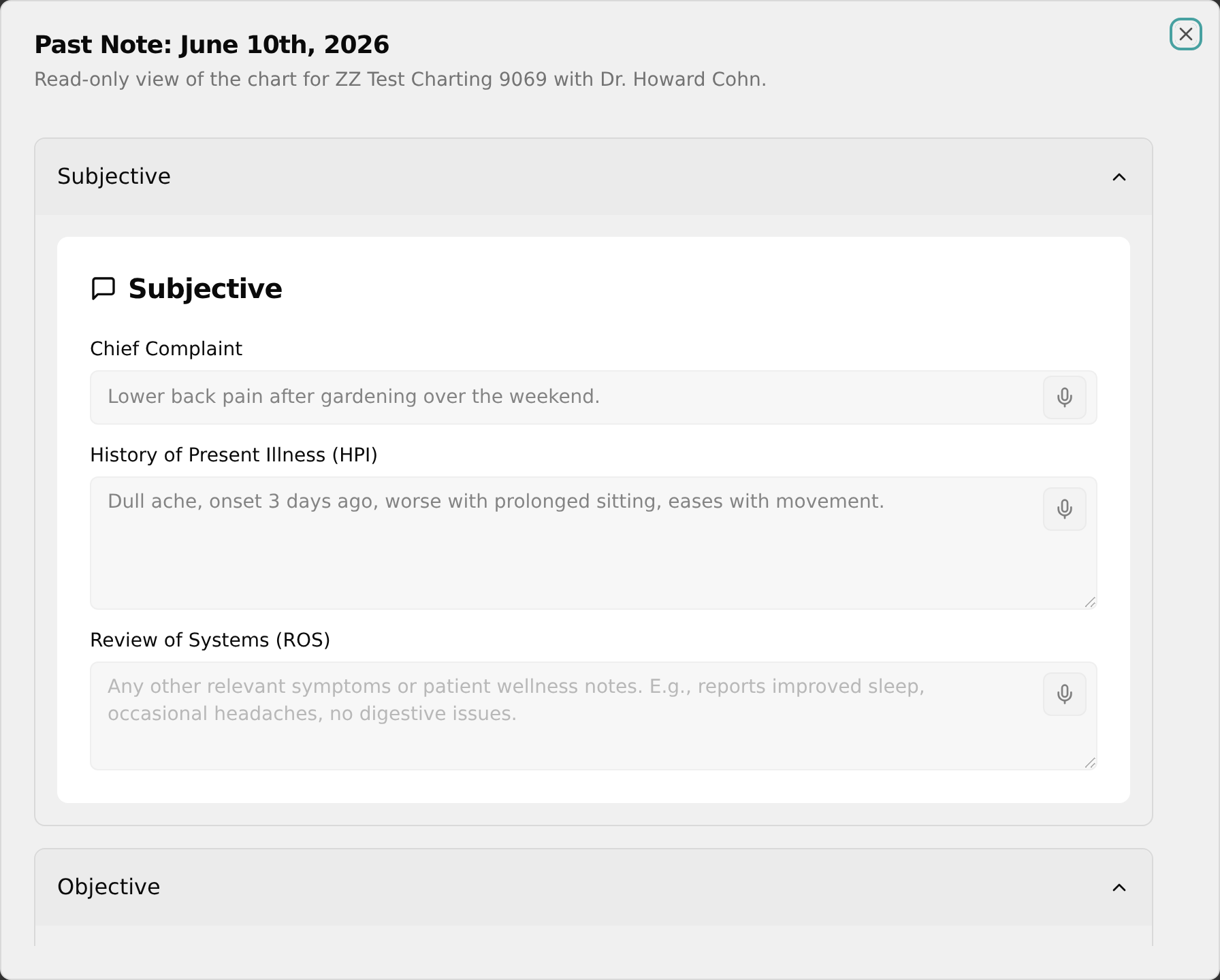
- Close the popup with the X or by clicking outside it.
💡 Tip: Past notes are read-only — you cannot edit a finalized chart from the View Full Chart popup.
Choose which practitioner to chart for
Admins can chart on behalf of any practitioner.
- At the top of the page, find the amber Viewing as: bar.
- Click the dropdown (shows Select practitioner if nothing is chosen) and pick a practitioner.
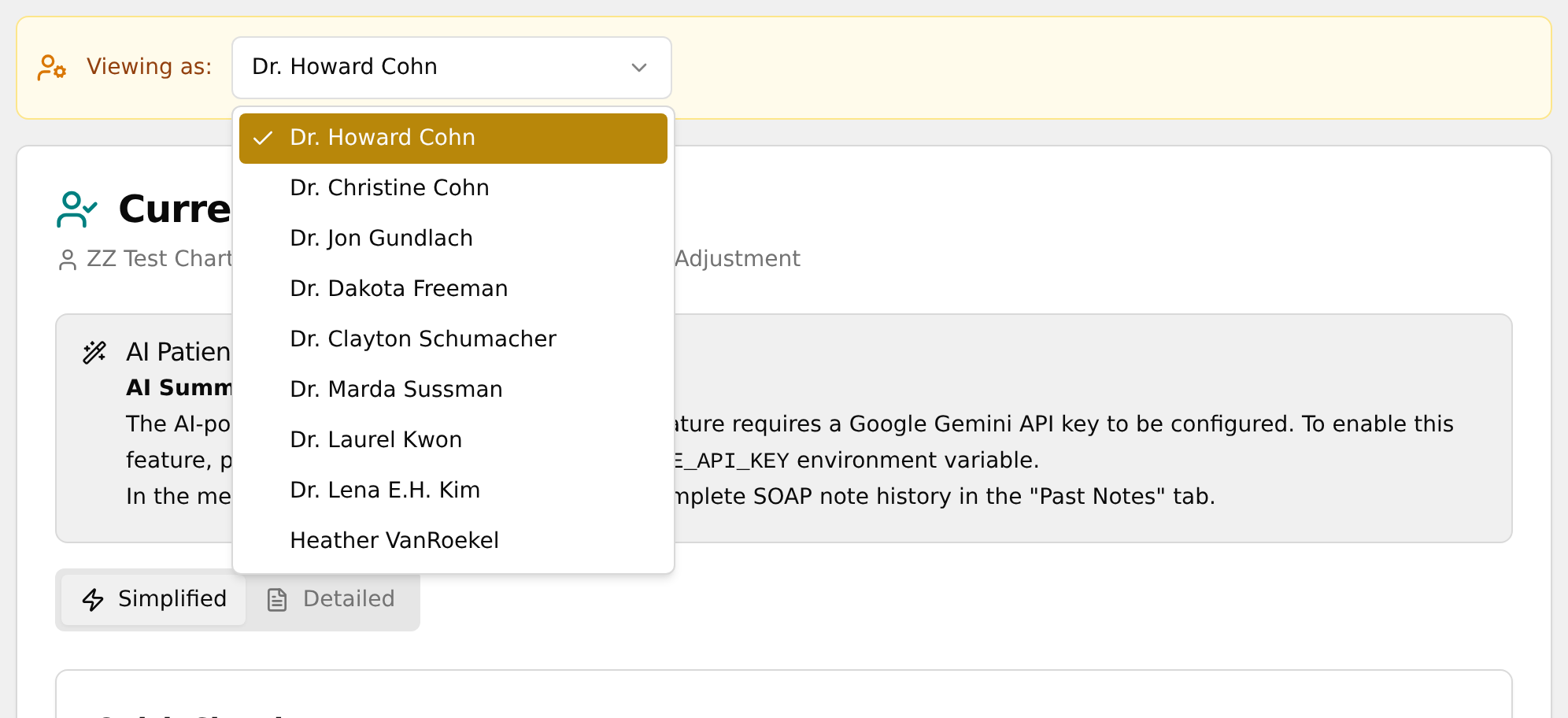
- The Current Patient, Past SOAP Notes, and Today's Queue all refresh to that practitioner's patients.
💡 Tip: Only Admins see the 'Viewing as:' bar — doctors are always charting their own checked-in patients.