Returns
Process product and supplement returns within 30 days of purchase, refund the patient, and review a searchable history of every return.
Auto-generated from the in-app Help for /returns — source of truth src/lib/help-content/.
Process a return from a recent sale
Find the patient's sale by hand and refund the returned product.
- Make sure you're on the Process New Return tab (it opens by default).
- Find the patient's sale in the table, or type a name into the Search by patient... box to narrow it down.
- Check the Time Left badge to confirm the return is still within the 30-day window.
- Click Process Return on that row to open the Process Product Return dialog.
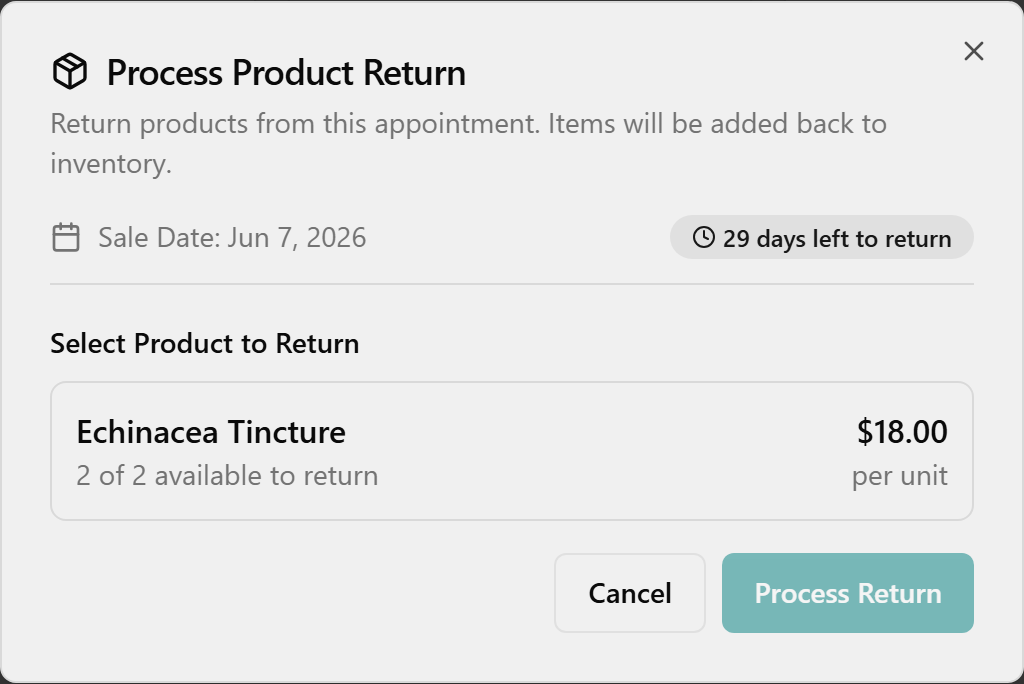
- Under Select Product to Return, click the product the patient is bringing back. Each option shows how many are available to return and the price per unit.
- In Quantity to Return, type how many units are coming back. The Refund Amount updates automatically.
- Optionally type a note in Return Reason (Optional).
- If the purchase was paid by card, leave the pre-checked Refund to card checkbox on to send money back to that card, or uncheck it to refund another way. Cash purchases show no checkbox.
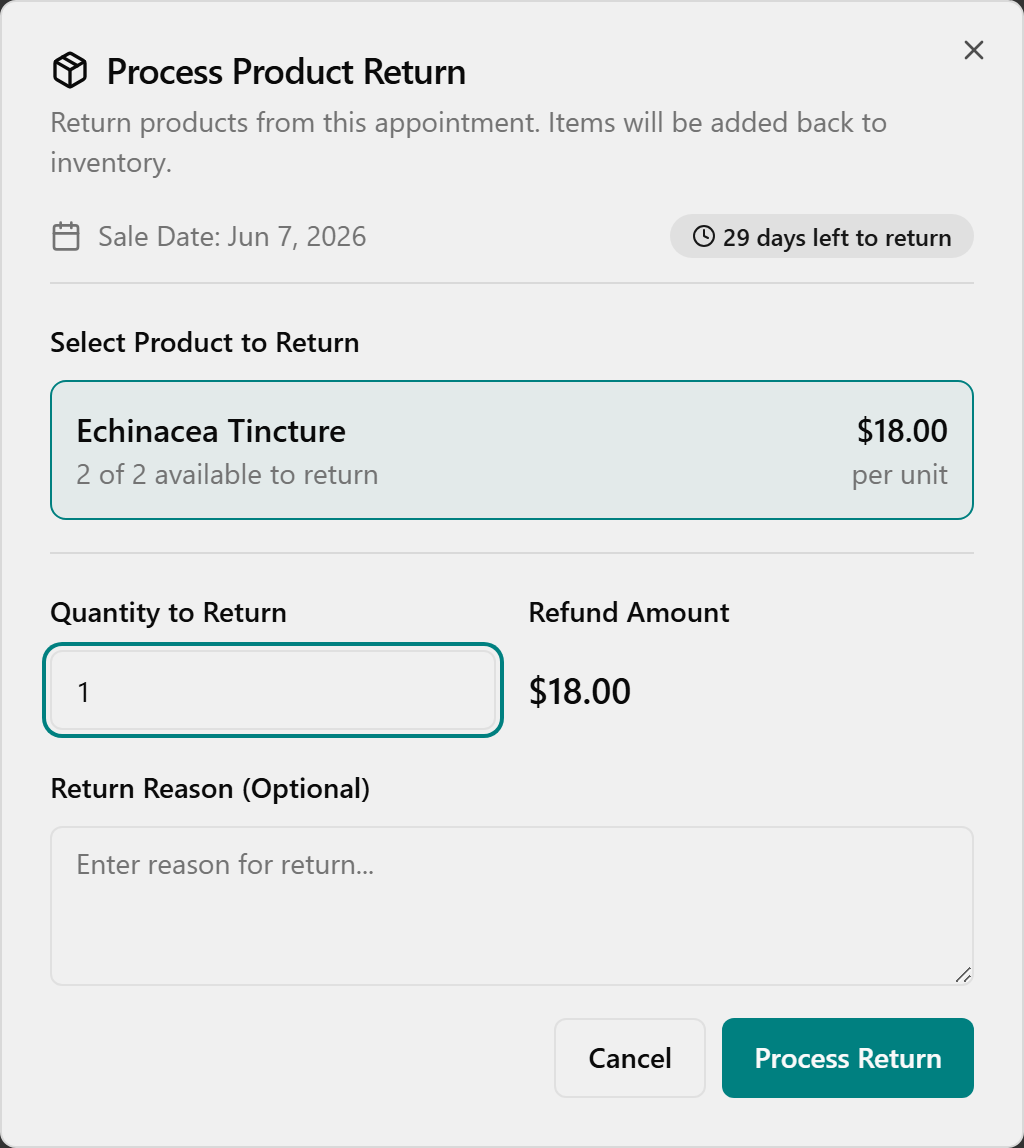
- Click Process Return.
- Wait for the green Return Processed toast confirming the item count and that inventory was updated. The dialog closes and the tables refresh.
💡 Tip: Returns are limited to 30 days. Past that the sale drops off this list and the dialog shows "The 30-day return window has expired for this purchase."
Process a return by scanning the bottle
Scan a bottle's barcode to look up its sale automatically.
- Click Scan to Return in the top-right of the page header to open the Process Return — Scan Bottle dialog.
- Scan the bottle's label, or type the serial barcode (e.g.
CHI000123), into the Serial barcode field and press Enter. - Confirm the green "Located..." banner appears with the Patient, Sale appointment date, and Refund amount. A red error means the barcode wasn't matched, so re-scan or check the code.
- Under Condition, choose Resellable to return it to inventory, or Damaged / opened to discard it.
- Optionally type a note in Reason (optional). If you scanned the wrong item, click Scan a different bottle to start over.
- Click Process Return.
- Wait for the Return processed toast confirming the bottle was returned to inventory or discarded. The dialog closes and the page refreshes.
💡 Tip: Each scan handles one bottle at a time. To return several bottles from the same sale, process one, then re-open Scan to Return for the next.
Search recent sales by patient
- On the Process New Return tab, click the Search by patient... box.
- Type part of the patient's name. The table filters as you type and resets to the first page.
- Clear the box to see all eligible sales again.
View and search return history
- Click the Return History tab.
- Review the processed returns, including each refund and any commission Clawback (shown in orange).
- To find a specific record, type into the Search by patient... box.

💡 Tip: The history search also matches the practitioner name and product name, not just the patient.
Change the return history date range
- On the Return History tab, click the date button at the top right (it shows the current range, e.g. the last 30 days).
- In the calendar pop-up, click the start date, then click the end date to set the range.
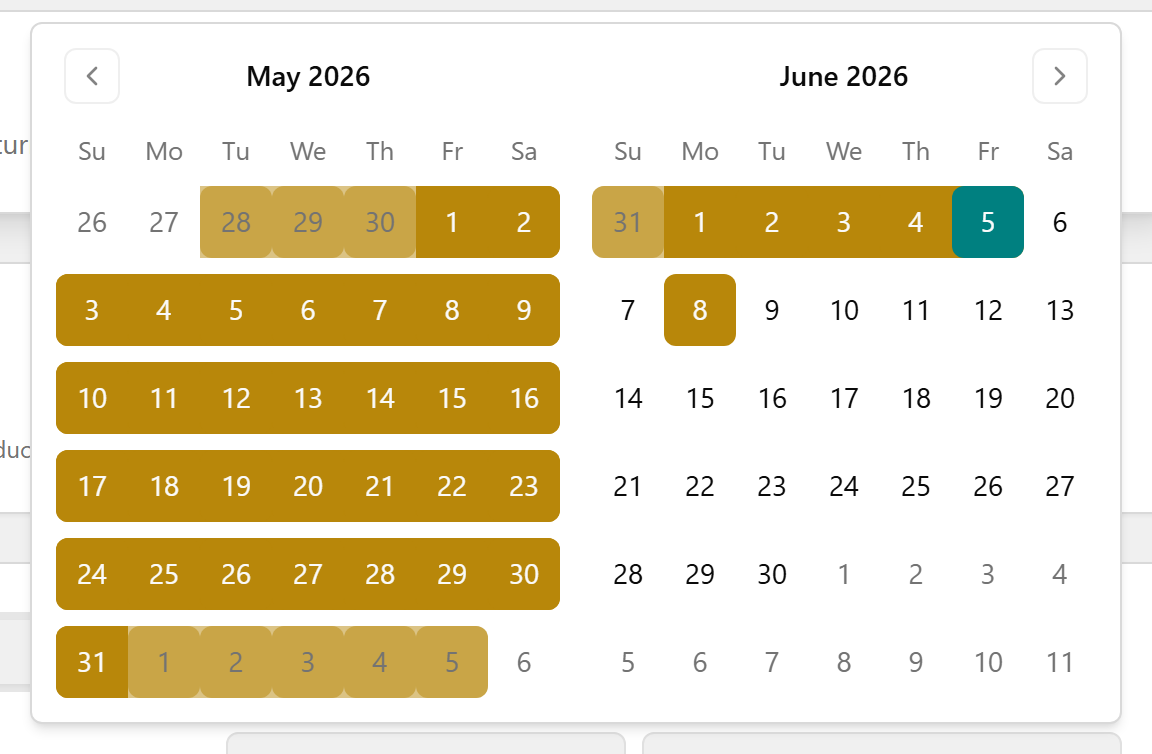
- The history table and all four summary cards update to cover the dates you picked.
💡 Tip: The date range controls the Return History table and the four summary cards only. The Process New Return tab always shows sales from the last 30 days.