Staff Management
Add and edit your non-practitioner staff, set their roles, capabilities, and weekly hours, and adjust the clinic's scheduling rules — all from one Admin-only page.
Auto-generated from the in-app Help for /staff-management — source of truth src/lib/help-content/.
Add a new staff member
Create a record for a new front-desk, purchasing, or admin staff member.
- In the Staff Profiles card, click Add Staff Member (top-right, person-plus icon).
- In the Add New Staff Member dialog, type the person's name in Full Name.
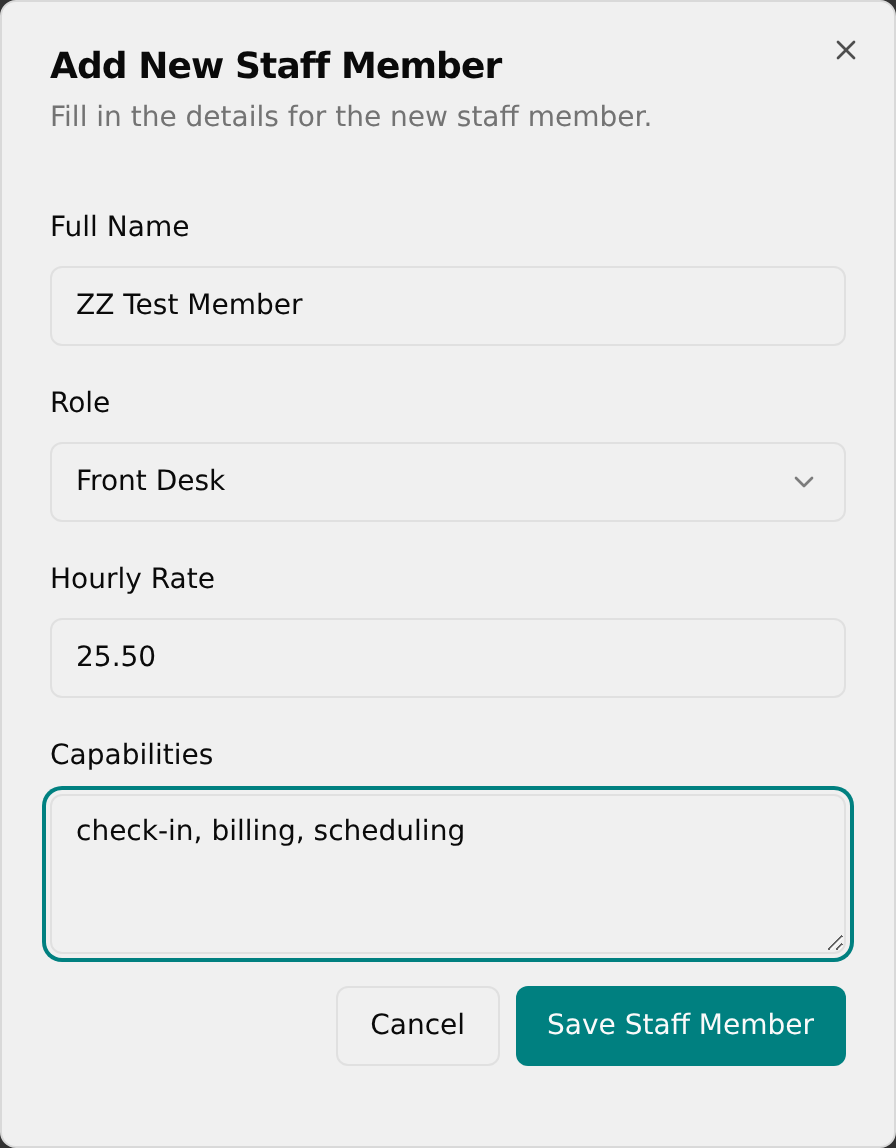
- Click the Role dropdown and choose Front Desk, Purchasing, or Admin.
- If the Hourly Rate field is shown, type their pay rate (for example, 25.50).
- In Capabilities, type their skills separated by commas (for example, "check-in, billing, scheduling").
- Click Save Staff Member. The dialog closes, a green "Success" toast confirms the save, and the new person appears in the table.
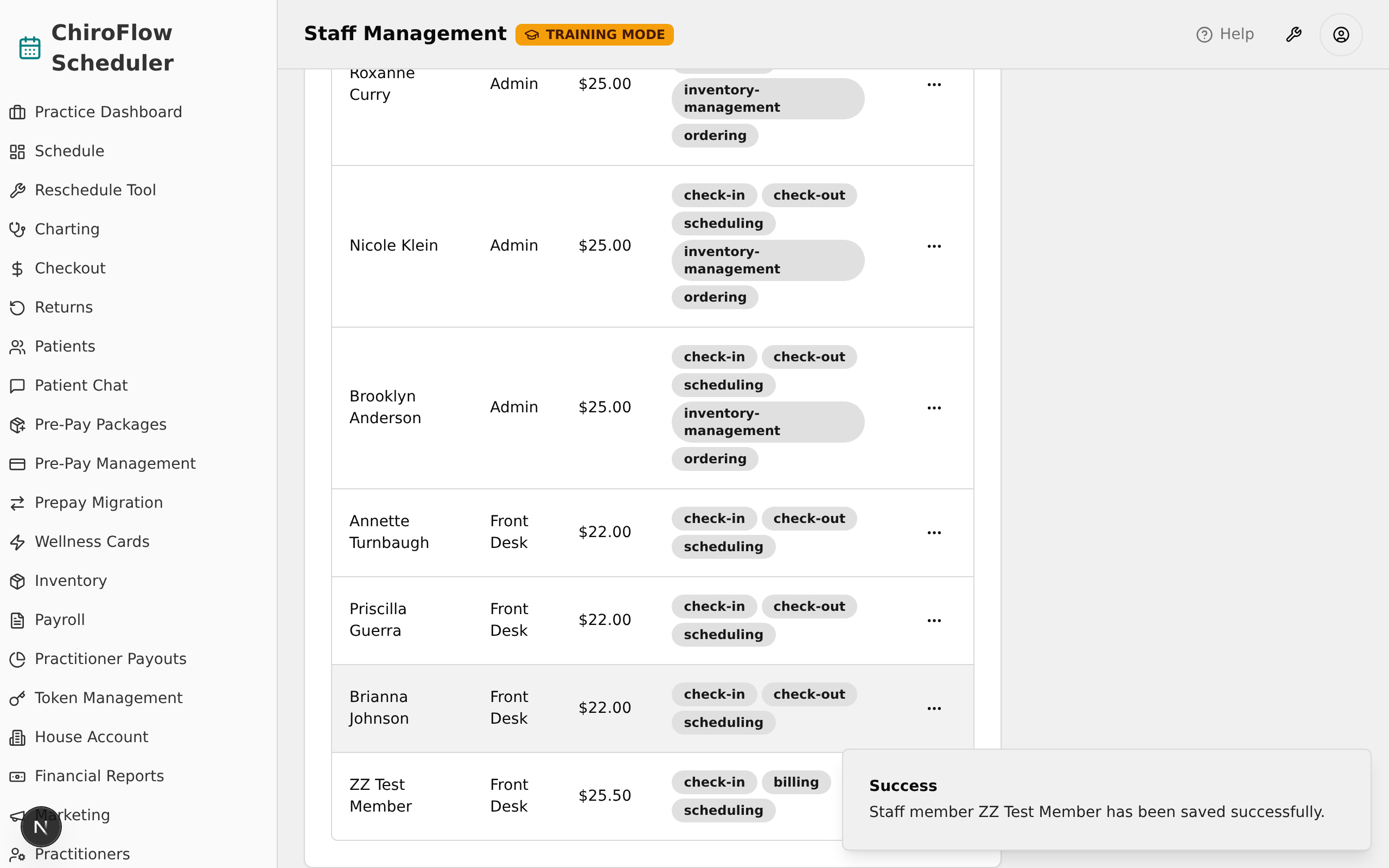
💡 Tip: The Role dropdown offers only Front Desk, Purchasing, and Admin — doctors and practitioners are managed on a separate page.
Edit a staff member's profile
Change someone's name, role, hourly rate, or capabilities.
- Find the person's row in the Staff Profiles table, then click the three-dot menu (⋯) at the end of the row.
- Choose Edit Profile (pencil icon).
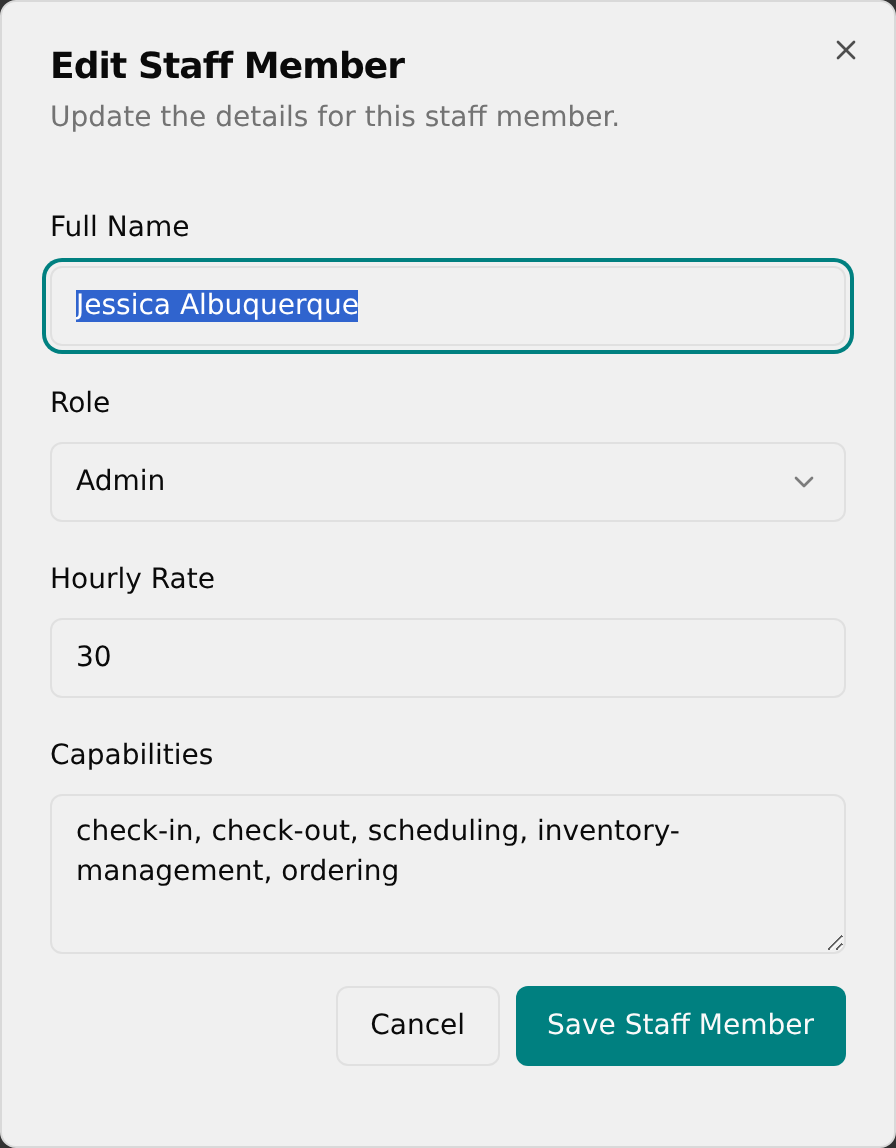
- Change any of the fields — Full Name, Role, Hourly Rate (if shown), or Capabilities.
- Click Save Staff Member. A "Success" toast confirms the save and the table updates.
Update a capability list
Add or remove the skill tags shown on a staff member's row.
- Open the person's row menu (⋯) and choose Edit Profile.
- In the Capabilities box, edit the comma-separated list — add a skill by typing a comma and its name, or remove one by deleting it from the list.
- Click Save Staff Member. The grey capability tags in that person's row update to match.

💡 Tip: Each comma-separated item becomes its own grey tag in the Capabilities column.
View and edit weekly availability
Set which days a staff member works and their start and end times.
- Click the three-dot menu (⋯) on the person's row and choose View Availability (calendar-clock icon).
- The Weekly Availability dialog opens, showing each day (Monday–Sunday) with its Start Time and End Time; non-working days show "N/A".
- Click Edit Availability (bottom-right) to switch to edit mode.
- Tick a day's Active checkbox to mark it as a working day (it fills in default hours of 09:00–17:00), or untick it to clear that day.
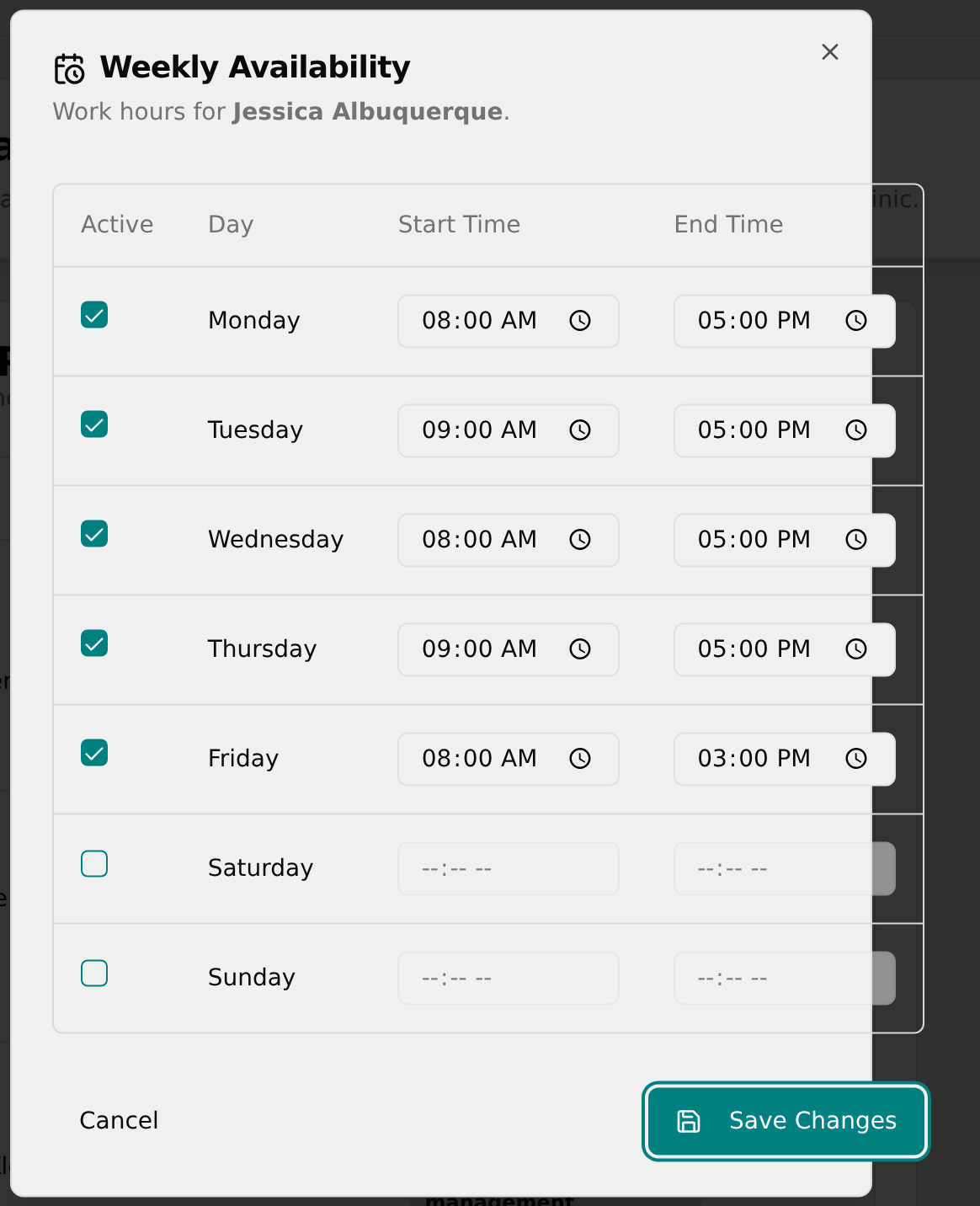
- For each active day, adjust the Start Time and End Time time fields (greyed-out days are not active).
- Click Save Changes. An "Availability Saved" toast confirms the update and the dialog returns to view mode.
💡 Tip: Time fields are disabled until you tick the day's Active checkbox. Click Cancel to discard changes.
Delete a staff member
Permanently remove a staff record.
- Click the three-dot menu (⋯) on the person's row.
- Choose Delete (red trash icon at the bottom of the menu).
- In the "Are you absolutely sure?" confirmation box, click Continue to remove them (or Cancel to keep them).
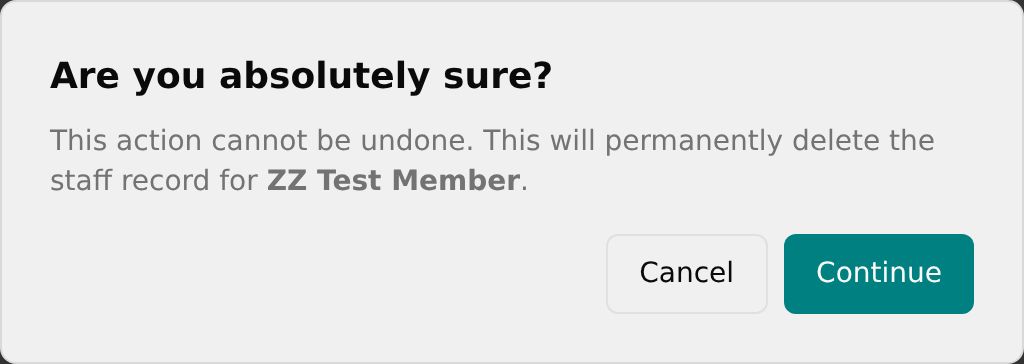
- A "Staff Member Deleted" toast confirms the removal and the row disappears from the table.
💡 Tip: Deleting is permanent — there is no undo. The confirmation box is your last chance to back out with Cancel.
Edit the scheduling rules
Adjust the clinic-wide values that feed the scheduling assistant.
- In the right-hand Scheduling Rules card, review the current Minimum Staffing Level, Staff per Doctor Ratio, and Staff per Appointment Ratio.
- Click Edit (top-right of the card, pencil icon).
- In the Edit Scheduling Rules dialog, update any of the three number fields.
- Click Save Rules. A "Success" toast confirms the update and the card shows the new numbers.
💡 Tip: These values feed the scheduling assistant used to generate work shifts. Click Cancel to discard changes.