Practitioner Payouts
Review each practitioner's commission for a pay period, drill into the transactions behind it, reassign product sales, and export daily reports — all on this Admin-only page.
Auto-generated from the in-app Help for /commissions — source of truth src/lib/help-content/.
Select a pay period
Set the period that every tab reports on.
- Make sure the Custom Range button is not highlighted, then click Previous or Next to step one pay period back or forward.
- Click Current at any time to jump back to the live pay period.
- Read the grey Period: / Pay Date: box to confirm which period is shown — all tabs update to match.
- To use your own dates, click Custom Range, then click the Pick a date range button and choose a start date and end date in the two-month calendar.
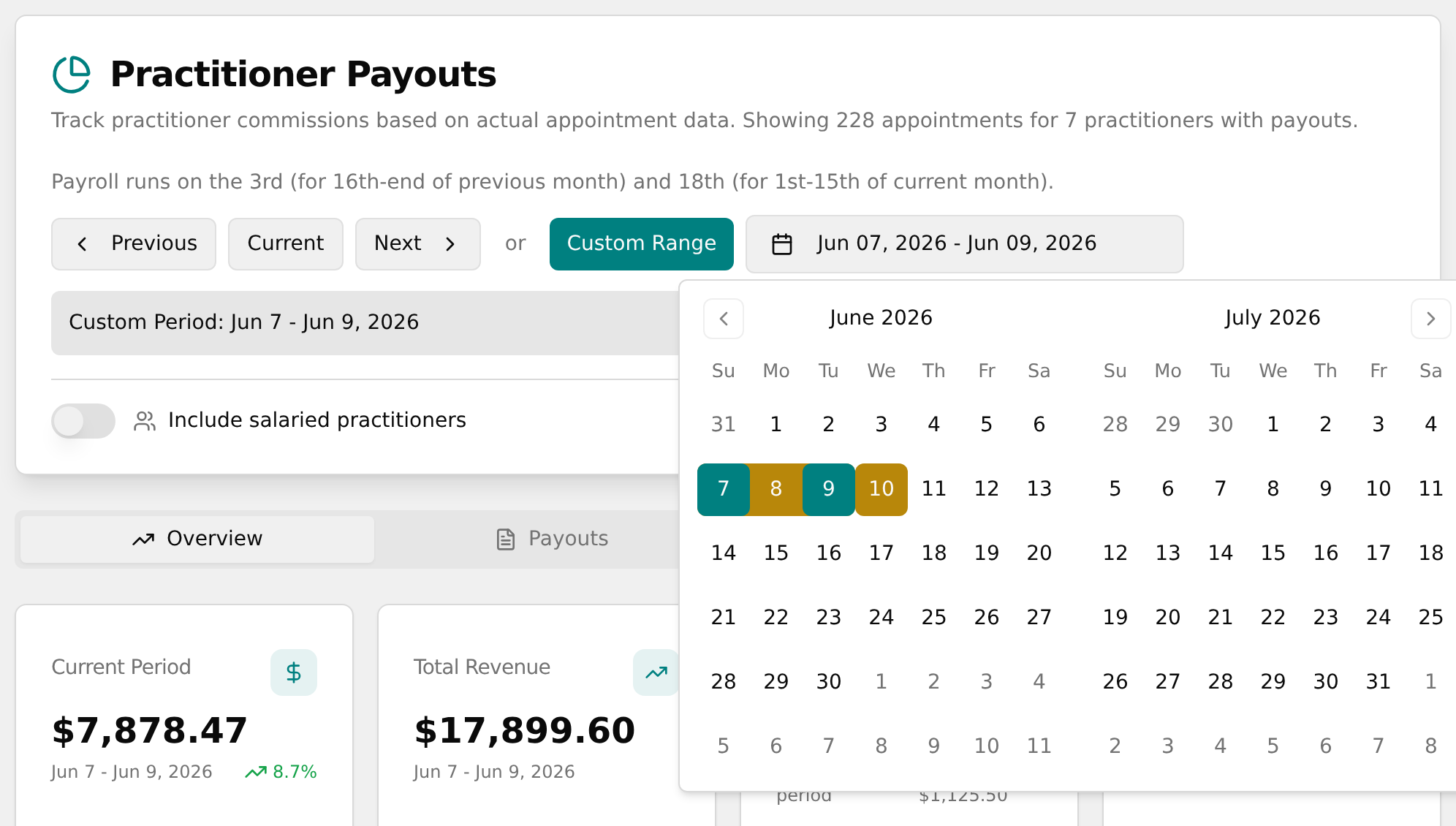
💡 Tip: Toggle Include salaried practitioners to add salaried staff (they show a Salaried badge instead of a payout). Every tab follows the period and toggle you set in the header.
Explore the Overview dashboard
Get period analytics at a glance.
- Click the Overview tab.
- Review the four KPI cards: Current Period, Total Revenue, Practitioners, and YTD Commission.
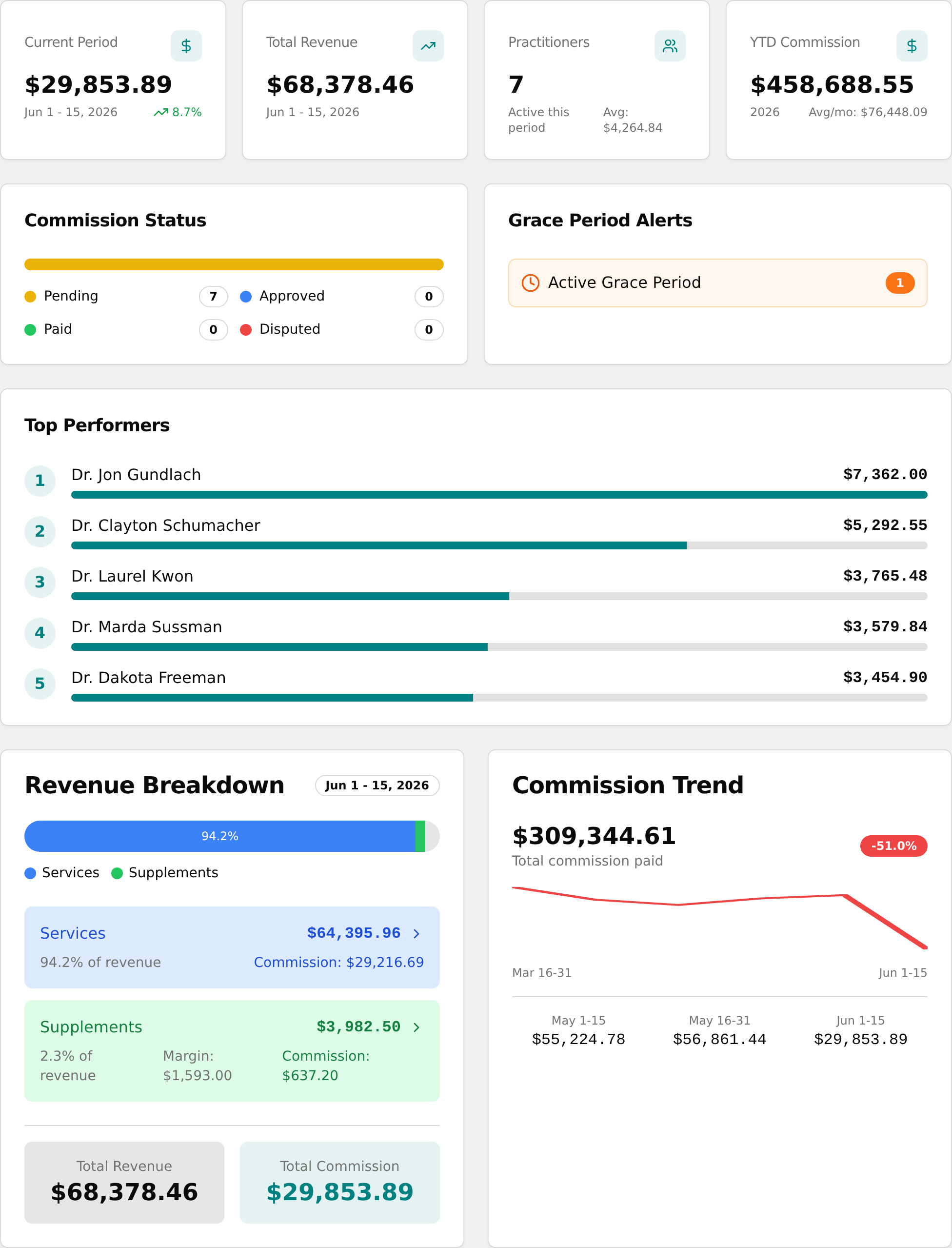
- Check the Commission Status bar, Grace Period Alerts (shows "All Clear" when there are no issues), and Top Performers.
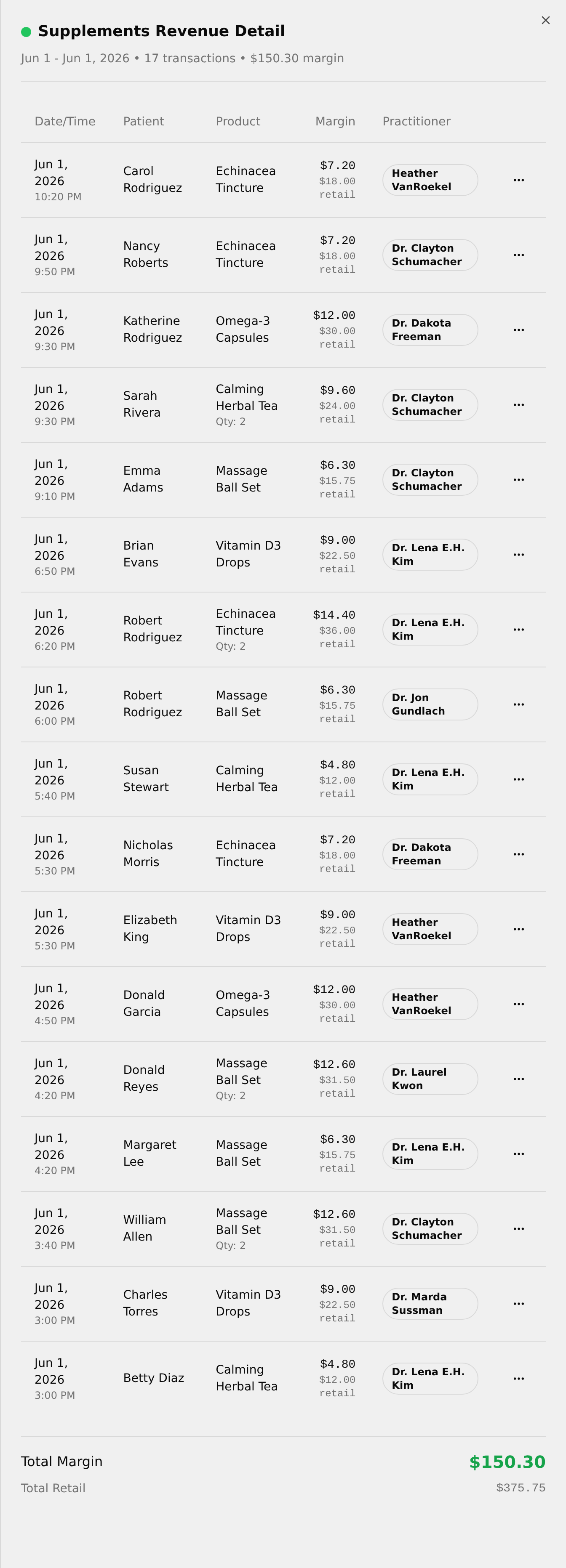
- In the Revenue Breakdown card, click the Services or Supplements row to open a side panel listing every transaction; close it with the X.
Review the Payouts table
- Click the Payouts tab and read the four summary cards: Total Net Payout, Total Revenue, Return Clawbacks, and Practitioners.
- In the Practitioner Payouts table, scan the columns and hover any Revenue figure to see its split into Services, Supplements, and Therapies.
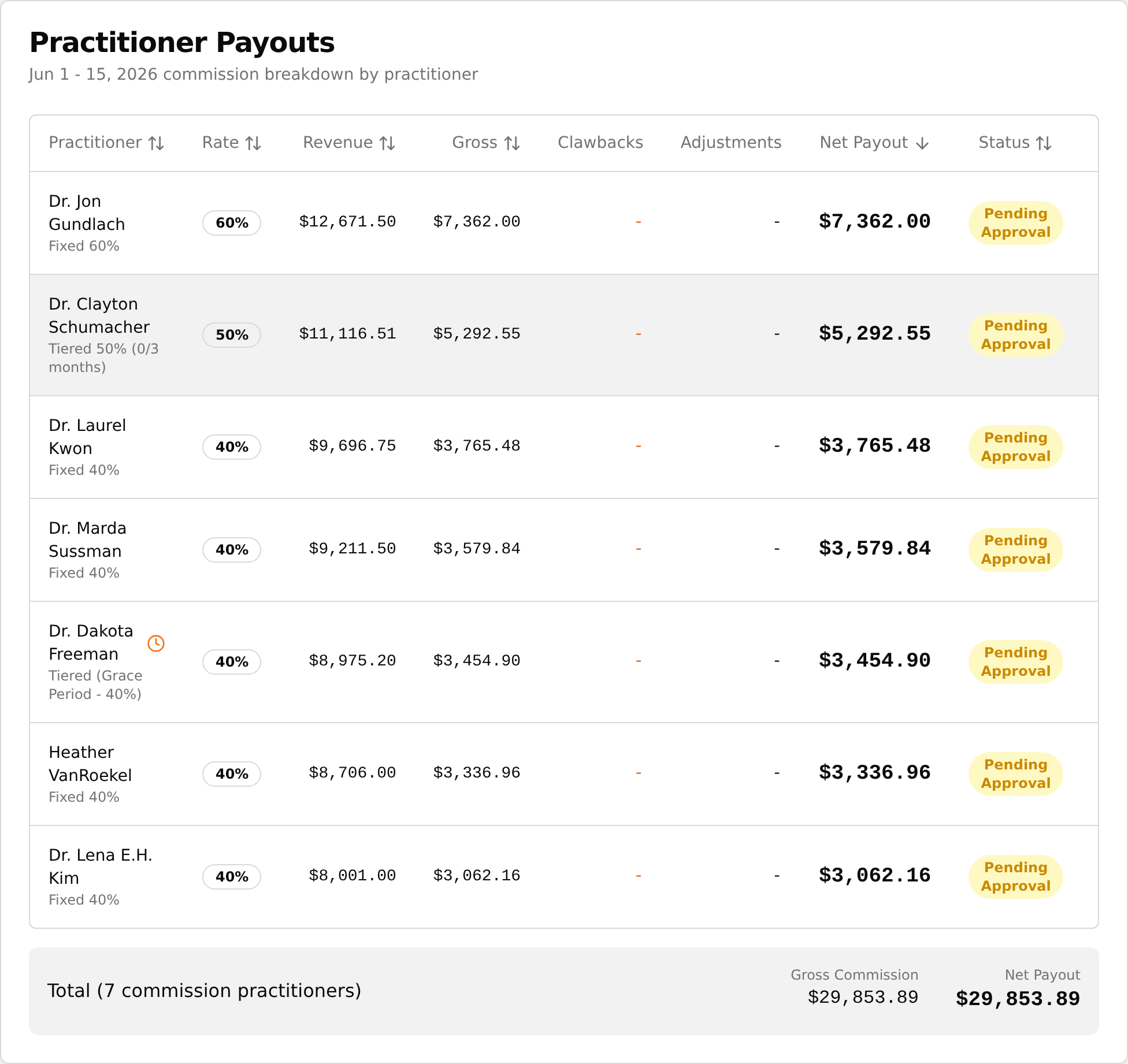
- Click a column header (e.g. Net Payout or Revenue) to sort — first click ascending, second descending, third clears it.
- Read the totals strip below the table for the Gross Commission and Net Payout sums.
💡 Tip: The table opens sorted by Net Payout, highest first. The Clawbacks and Adjustments columns are not sortable.
View a practitioner's commission detail
- On the Payouts tab, click anywhere on a practitioner's row, or use the ⋯ menu in the Actions column and choose View Details.
- In the panel that slides in, read the summary cards: Gross Commission, Return Clawbacks, and Net Payout.
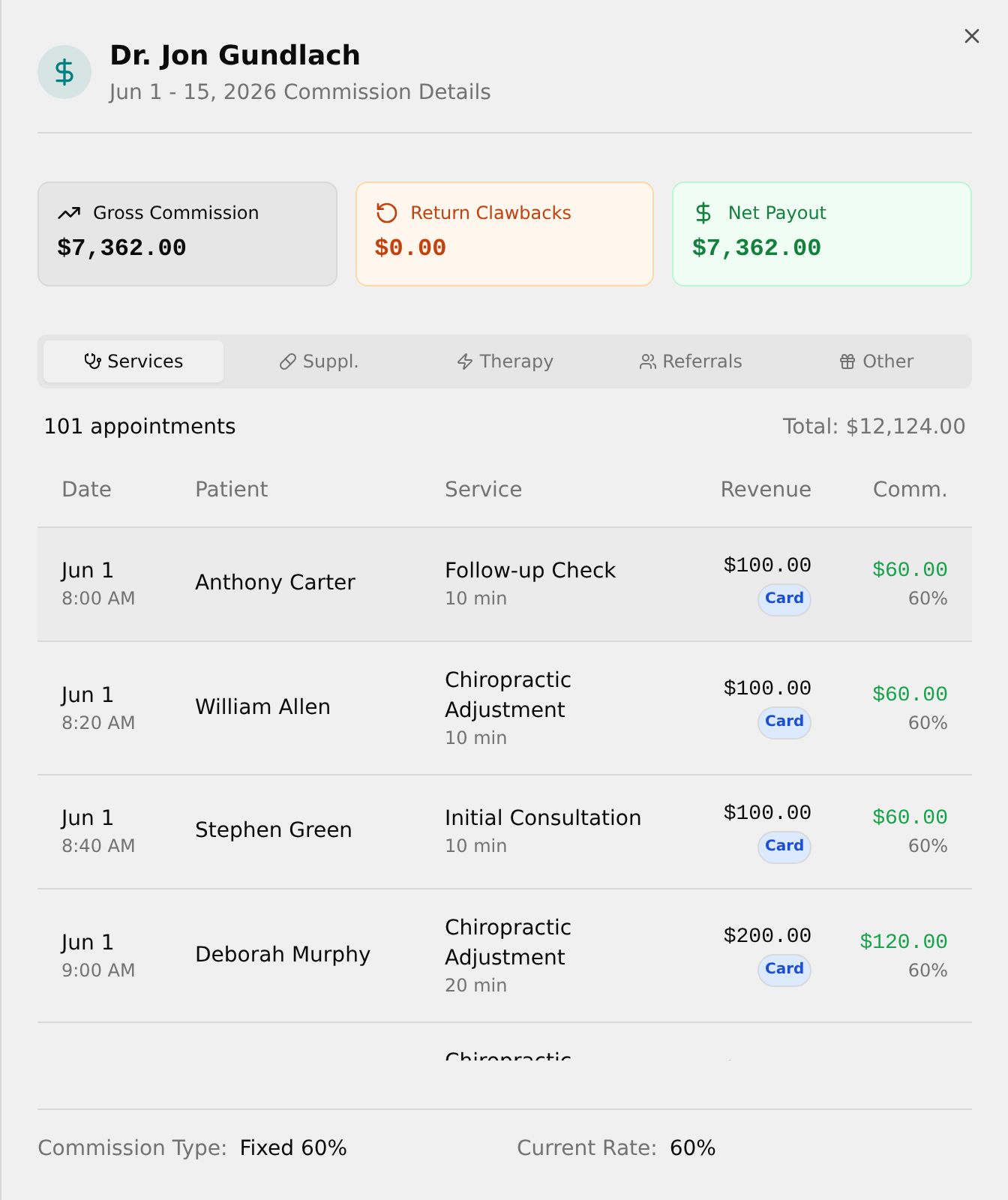
- Switch between the inner tabs — Services, Suppl., Therapy, Referrals, Other — to see each category's line items (the Other tab holds Gratuities and Return Clawbacks).
- Check the footer for Commission Type and Current Rate, then close with the X.
💡 Tip: Approve appears only on "Pending Approval" rows and is not wired up in this version — clicking it has no effect.
View a practitioner's statement
Read one practitioner's full commission statement and filter it by day.
- Click the Statement tab.
- Next to Select Practitioner:, open the dropdown and choose a name (salaried staff are marked "(Salaried)").
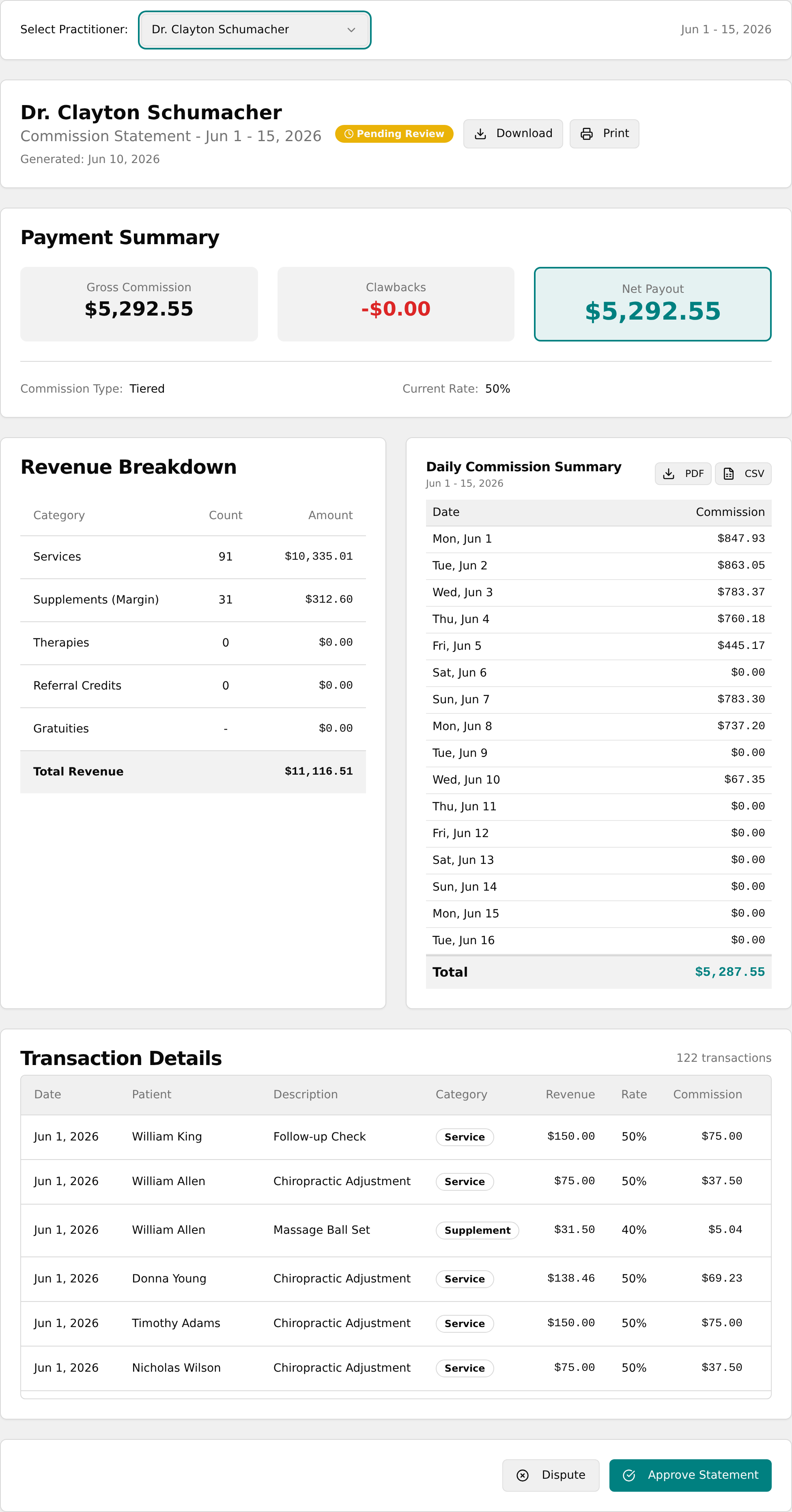
- Read the Payment Summary card, the Revenue Breakdown table, and the Transaction Details table.
- To focus on specific days, click any row in the Daily Commission Summary — a checkmark appears and Transaction Details shows only those days.
- Click Clear at the top-right of the Daily Commission Summary to remove all day filters.
💡 Tip: The Download, Print, Approve Statement, and Dispute buttons are not wired up in this version — to export figures, use the PDF / CSV buttons instead.
Export a daily commission report
- On the Statement tab, select the practitioner and pay period you want.
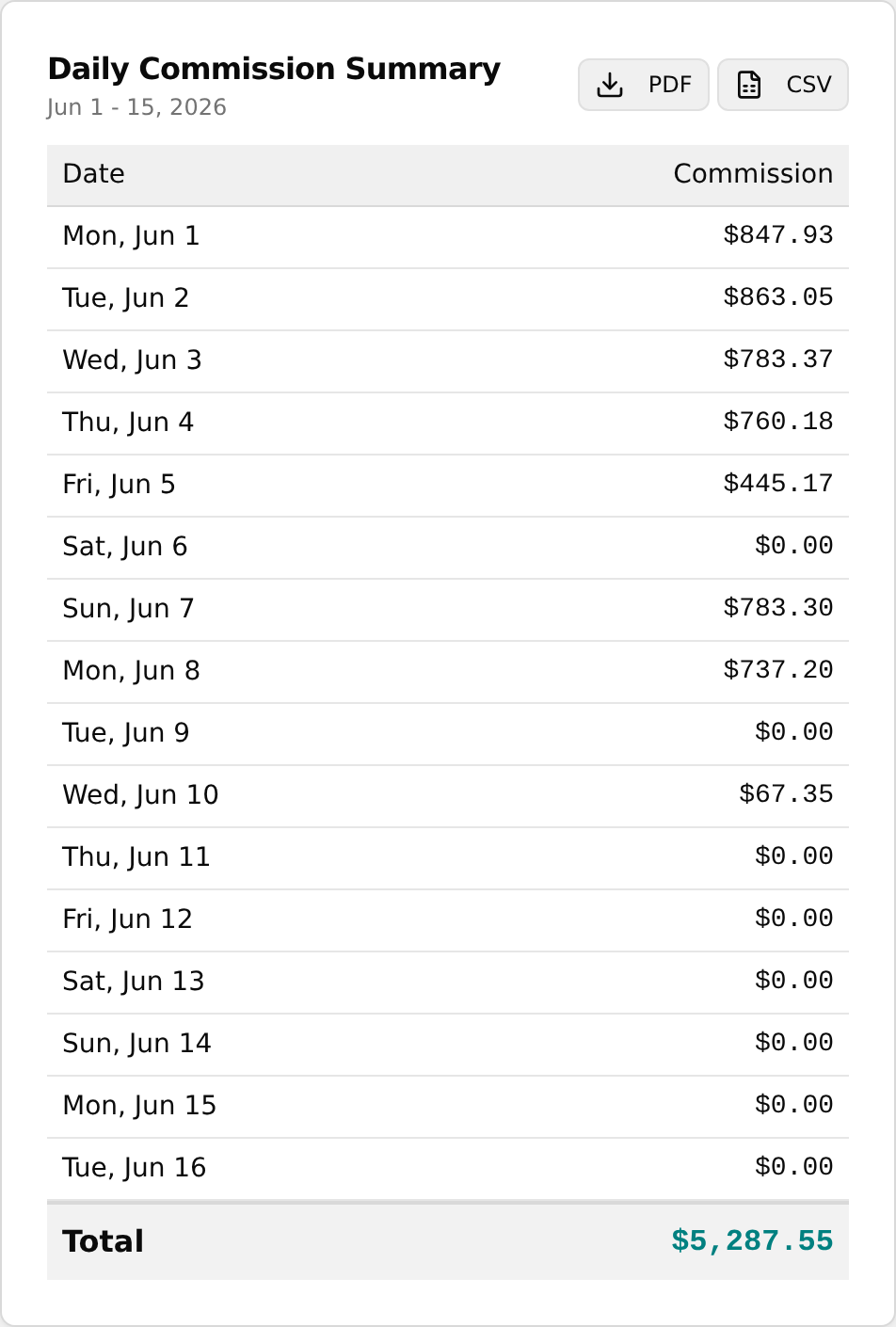
- In the Daily Commission Summary card, click PDF to open a printable daily report, or CSV to download a spreadsheet of the daily totals.
Reassign a product sale to another practitioner
Move a product sale's commission to a different practitioner.
- On the Statement tab, select the practitioner who currently holds the sale (you can also start from the Supplements Revenue Detail panel on the Overview tab).
- In Transaction Details, find a supplement line, click its ⋯ menu, and choose Reassign to Another Practitioner.
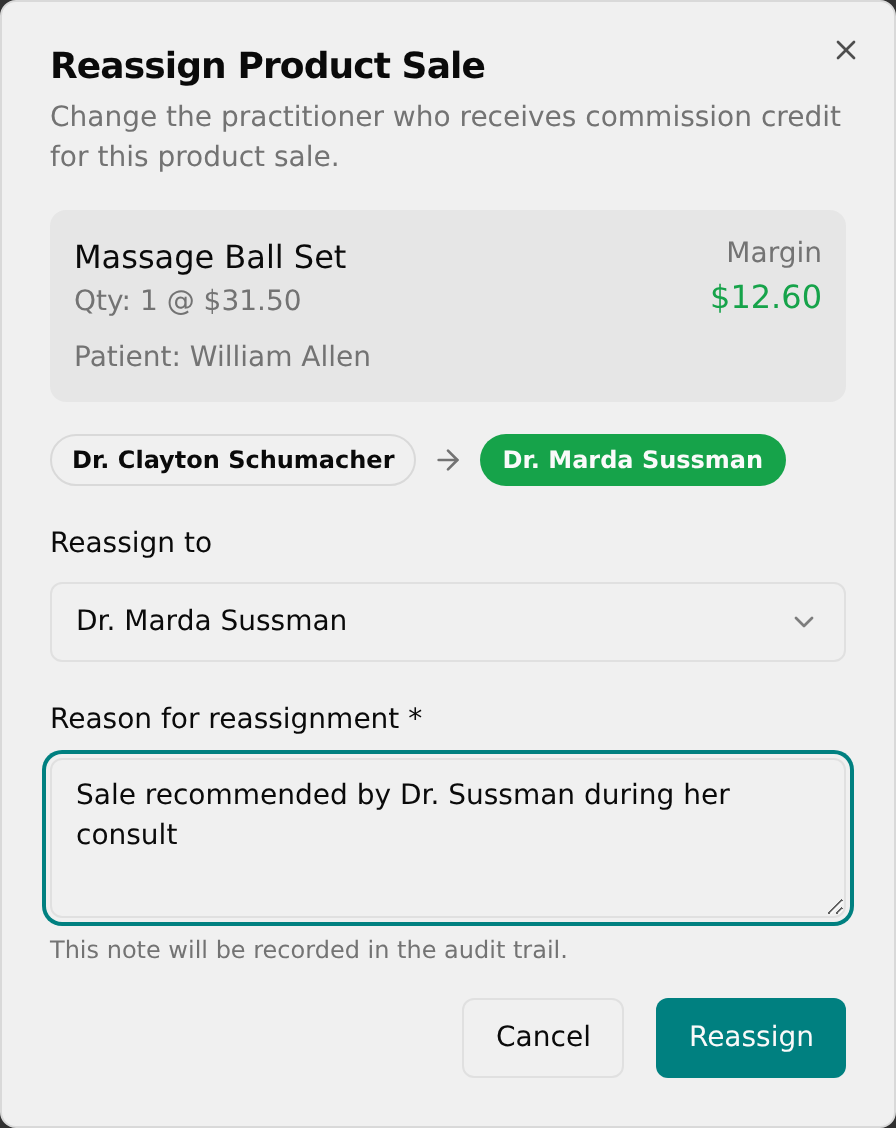
- In the Reassign Product Sale dialog, review the product, quantity, margin, and patient shown at the top.
- Open the Reassign to dropdown and pick the new practitioner, then type a required note in Reason for reassignment (recorded in the audit trail) and click Reassign.
- Confirm the change by the amber refresh icon on the line — hover it to see who it was reassigned from, by whom, and the reason.
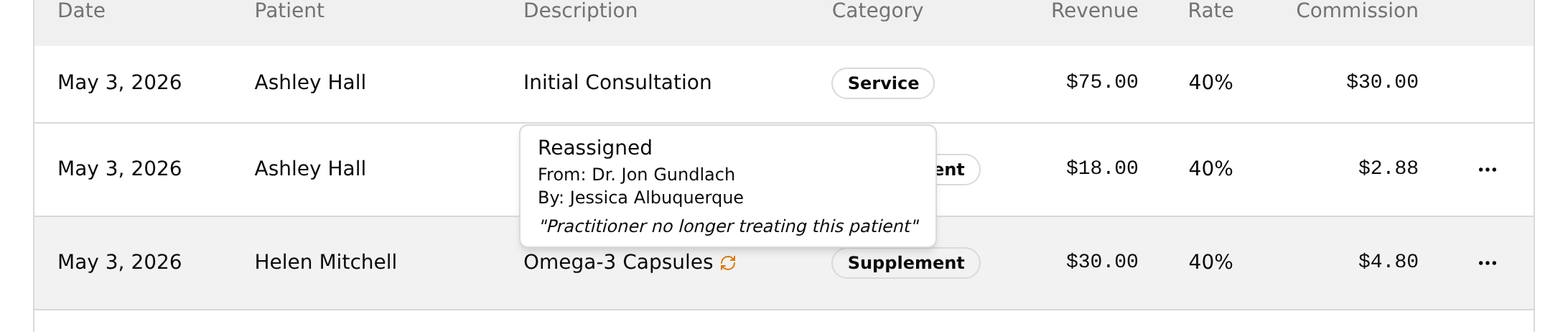
💡 Tip: There is no success toast — confirm the change via the amber refresh icon. Quick-sale supplement lines and house-account sales cannot be reassigned (no ⋯ menu appears on those rows).