Patient Chat
Patient Chat is your messaging inbox for reading and replying to patient messages and sending direct messages to coworkers.
Auto-generated from the in-app Help for /chat — source of truth src/lib/help-content/.
Open a conversation
View any chat's full message history.
- In the left panel, find the chat under Direct Messages, New Patient Chats, or In Progress.
- Click anywhere on its row.
- The message history loads in the right panel and any unread badge clears.
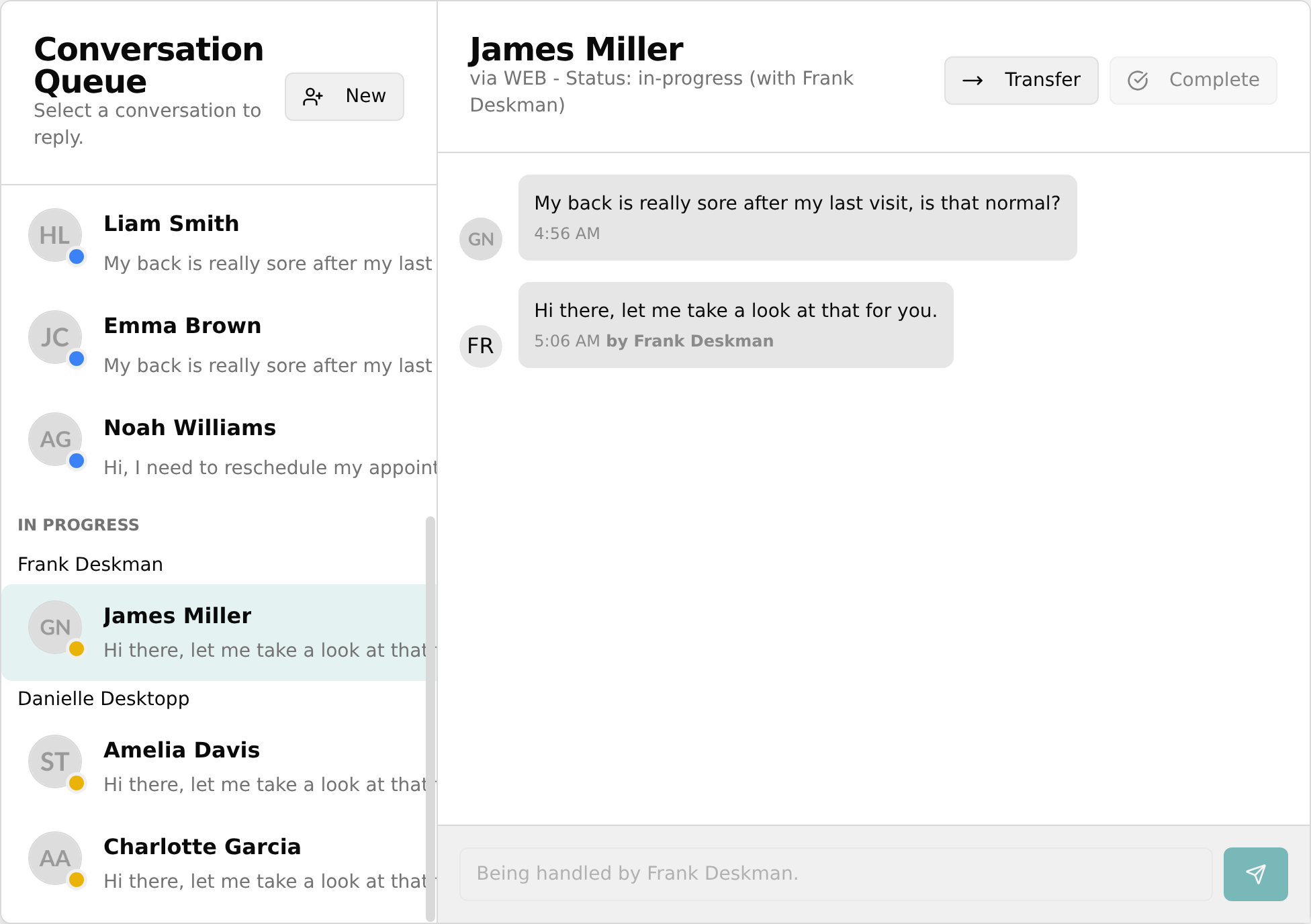
💡 Tip: A teal number badge marks unread messages, and a red star with a PRIORITY tag floats important chats to the top of the list.
Take (claim) a new patient chat
Claim an unassigned patient message so you can reply.
- Under New Patient Chats, click the chat you want to handle.
- In the right panel header, click the Take button (hand icon).
- The chat moves into the In Progress group under your name (You) and the message box becomes active.
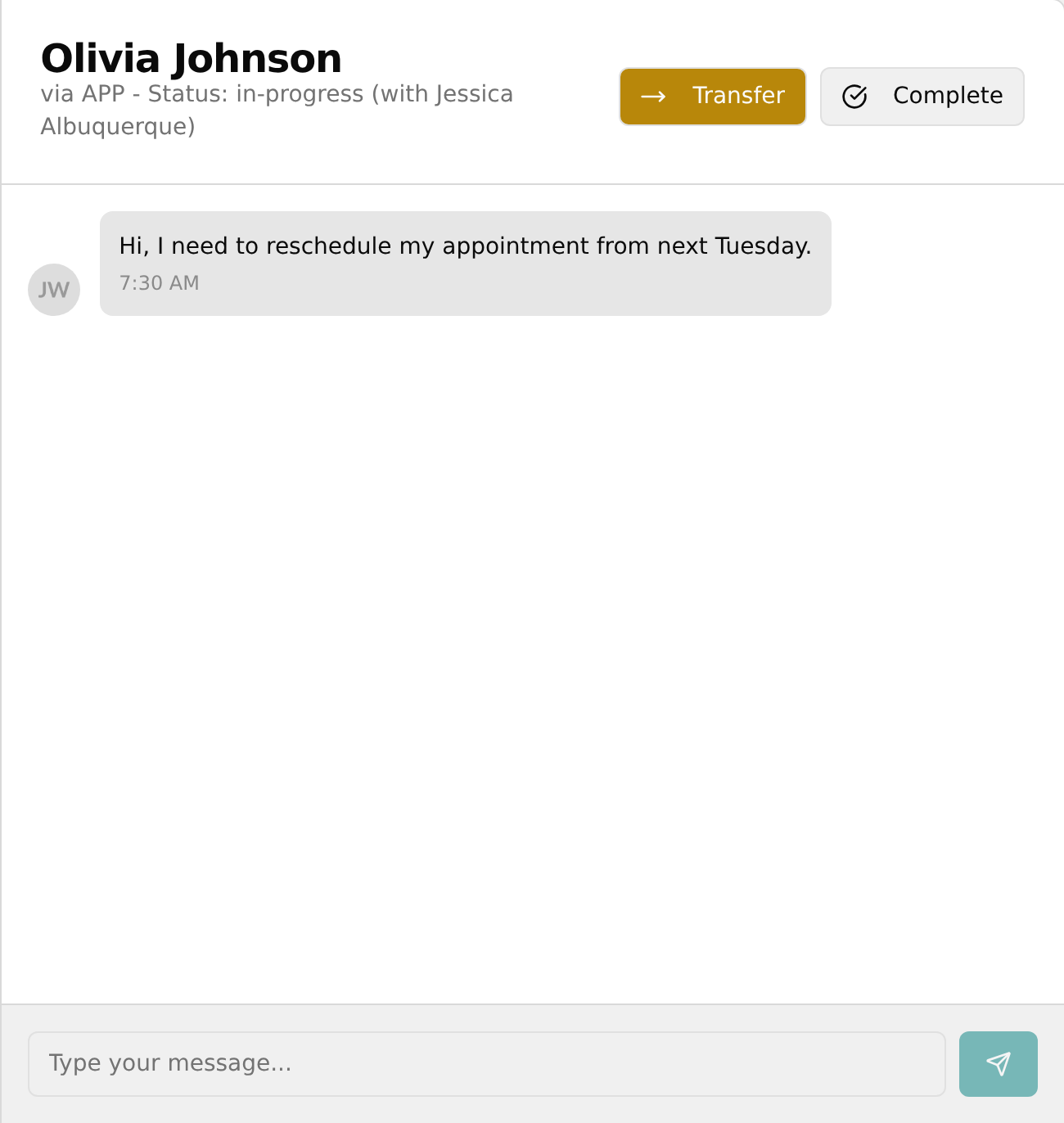
💡 Tip: A new patient chat is read-only until you Take it — the message box shows Take this conversation to reply. until you do.
Reply to a patient
Send a message in a patient chat assigned to you.
- Open the patient chat assigned to you under In Progress → [your name] (You).
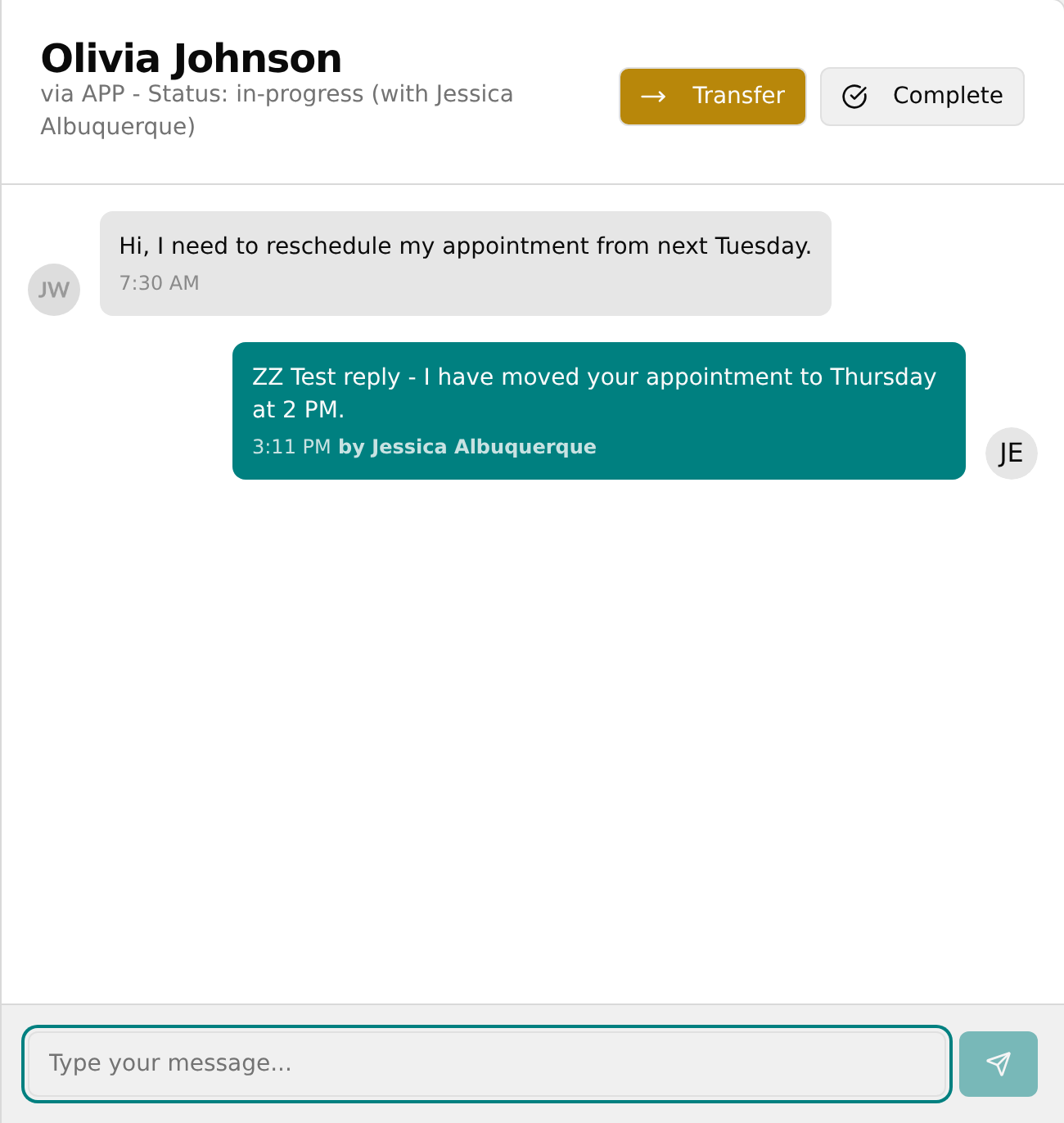
- Click the message box (placeholder Type your message...) and type your reply.
- Press Enter or click the Send button (paper-plane icon).
- Your message appears in the history and the chat jumps to the top of the queue with your text as the new preview.
💡 Tip: You can only reply once a chat is assigned to you. If someone else has it, the box reads Being handled by [name]. and stays locked.
Complete (close) a patient chat
Close a finished patient chat and remove it from the queue.
- Open the patient chat that is assigned to you.
- In the right panel header, click the Complete button (check-circle icon).
- The chat is closed and removed from the queue, and the window returns to the Select a Conversation screen.
💡 Tip: The Complete button is greyed out unless the chat is assigned to you, so you can't accidentally close someone else's chat. Completed chats drop off the list permanently.
Transfer a patient chat to another staff member
Hand a chat assigned to you off to a coworker from the header.
- Open the patient chat (it must be In Progress and assigned to you).
- In the right panel header, click the Transfer button (arrow icon).
- In the Transfer to... menu, click the name of the person who should handle it.
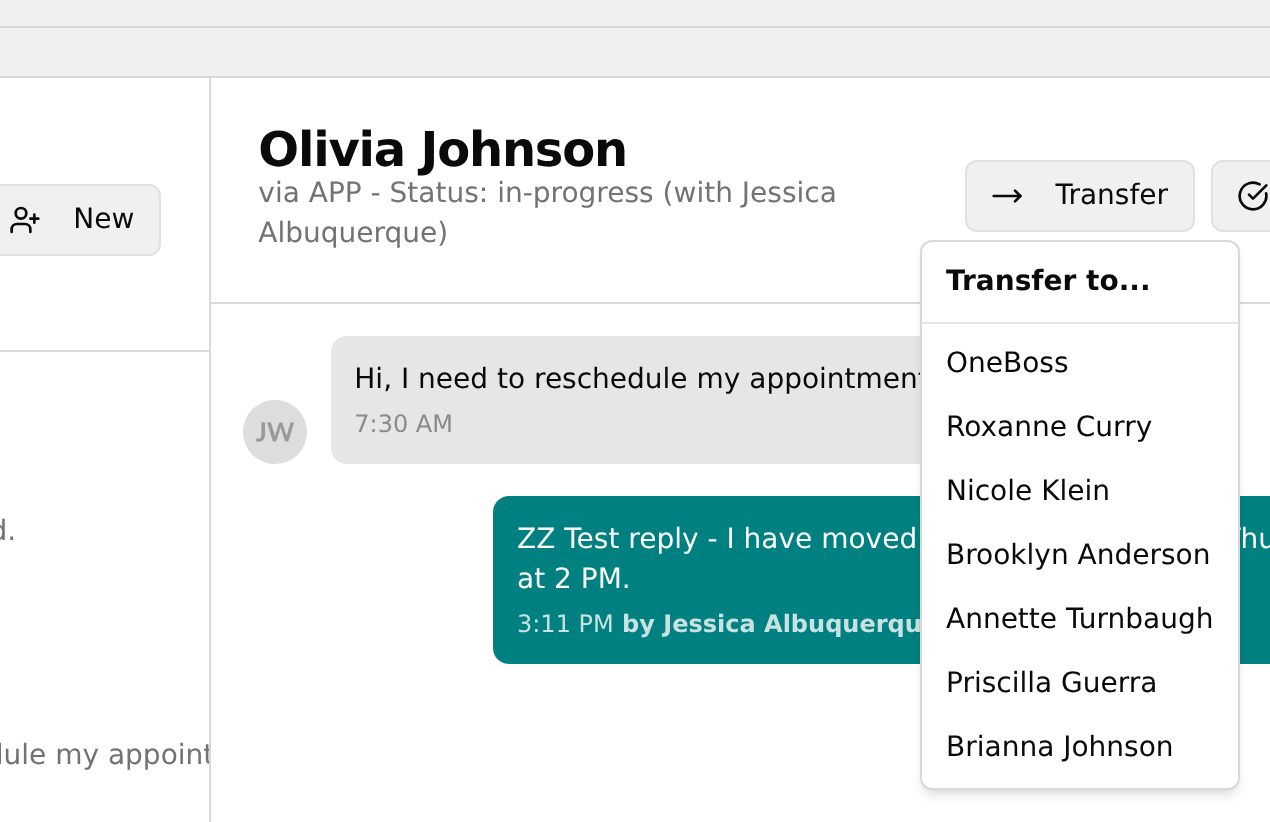
- The chat moves to that person and your window clears back to the Select a Conversation screen.
💡 Tip: This header Transfer does not show a confirmation pop-up — the chat simply leaves your window. If no one else is available, the menu shows No other staff available.
Start a direct message with a coworker
Begin a staff-to-staff chat.
- In the top-right of the Conversation Queue header, click the New button (person-with-plus icon).
- In the Start a new conversation dialog, click the dropdown (placeholder Select a staff member...) and choose a coworker.
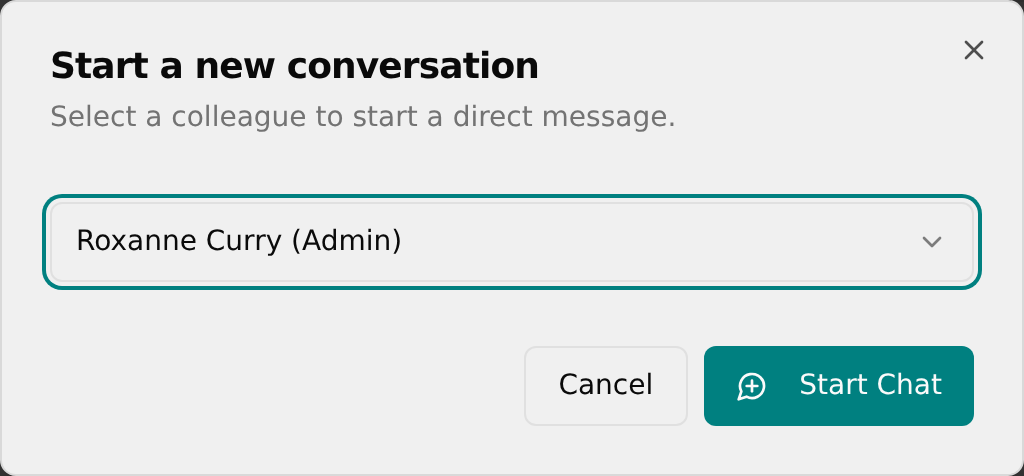
- Click Start Chat (message-with-plus icon).
- The new chat opens under Direct Messages, ready for you to type.
💡 Tip: Start Chat stays disabled until you pick someone; Cancel closes the dialog without starting anything.
Transfer a patient chat from inside a direct message
Hand one of your patient chats to a coworker while chatting with them.
- Open the Direct Messages chat with the coworker you want to give the patient chat to.
- In the right panel header, click Transfer Patient Chat (forward arrow icon).
- In the Transfer a Patient Chat dialog, click the patient chat you want to transfer to select it.
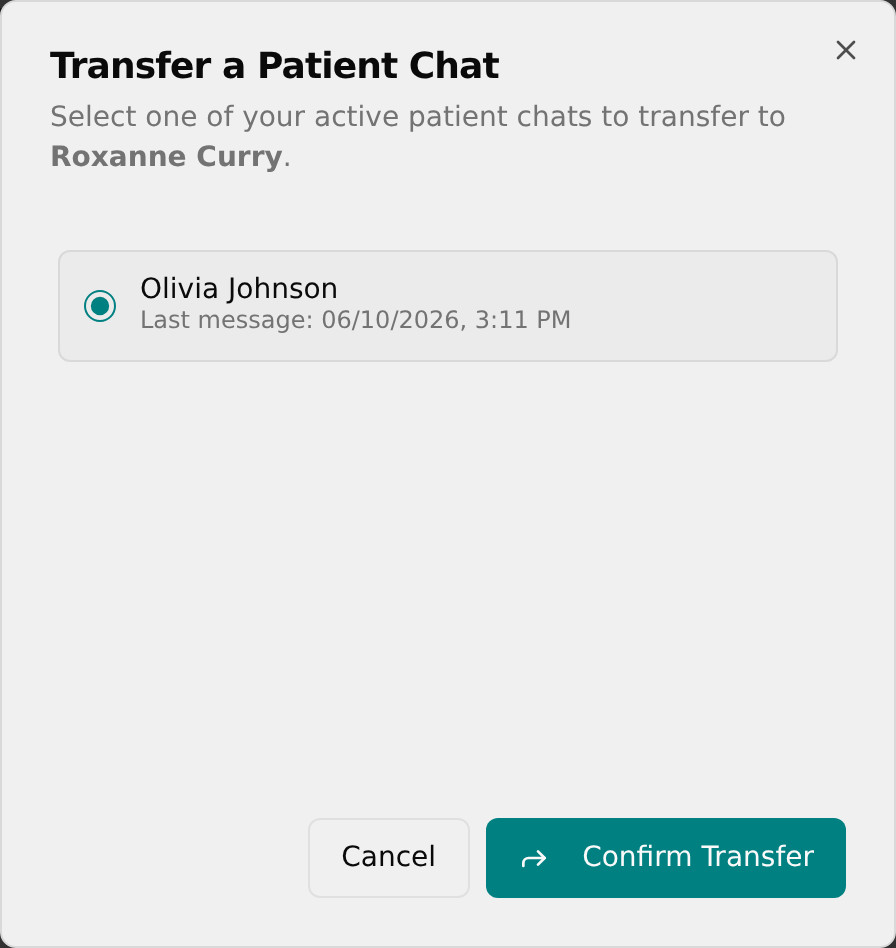
- Click Confirm Transfer (forward arrow icon).
- A Chat Transferred! confirmation appears and a system note is posted into the direct message so your coworker sees it.
💡 Tip: If you have no chats to move, the dialog reads You have no active patient chats assigned to you to transfer. Only this dialog shows the Chat Transferred! pop-up — the header Transfer does not.