Wellness Cards
Sell prepaid therapy wellness cards (10 therapies for $500) to patients, track how many sessions each card has left, view usage history, and check the clinic's total outstanding balance.
Auto-generated from the in-app Help for /wellness-cards — source of truth src/lib/help-content/.
Sell a new wellness card
Create a prepaid card for a patient who already exists in the system.
- Make sure you're on the Wellness Cards tab.
- Click the New Wellness Card button in the top-right corner.
- In the Purchase Wellness Card dialog, open the Patient dropdown (Select patient...) and choose the patient.
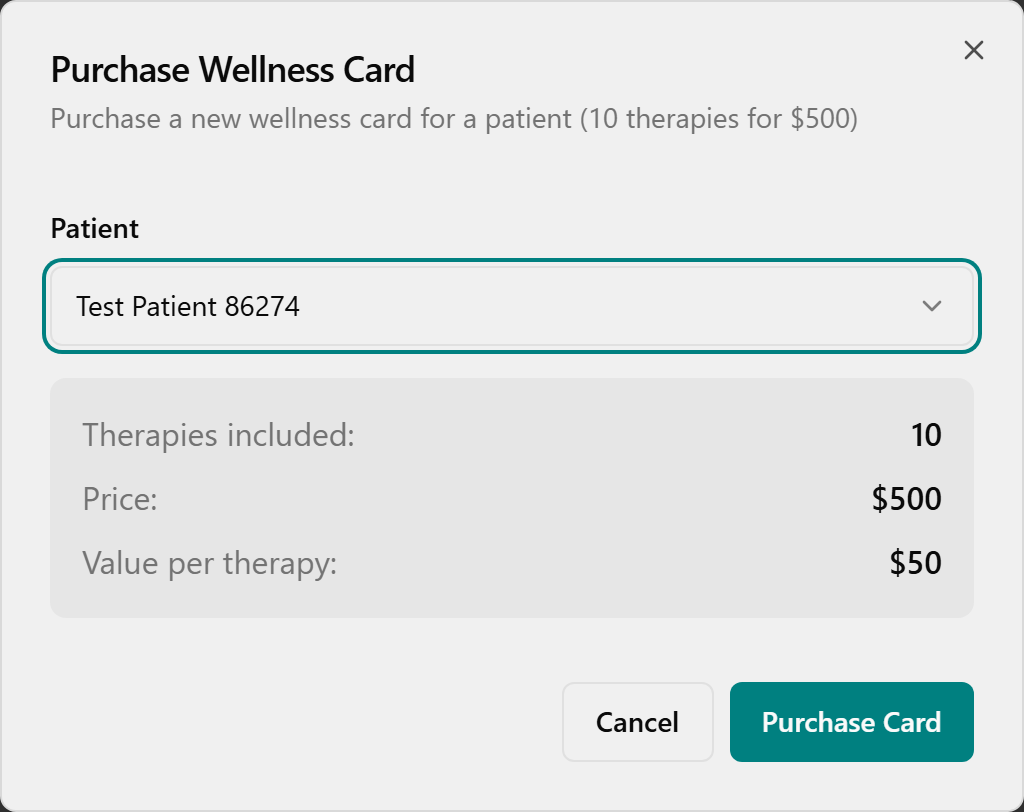
- Review the summary box showing Therapies included: 10, Price: $500, and Value per therapy: $50 (these are fixed and read-only).
- Click Purchase Card to complete the sale, or Cancel to back out.
- A green Success toast reads "Wellness card purchased for [patient name]" and the new card appears under that patient.
💡 Tip: Every card is the same fixed package: 10 therapies for $500 — you can't change the count or price. If you click Purchase Card without choosing a patient, you'll get an error toast: "Please select a patient".
Search for a patient's cards
- On the Wellness Cards tab, click into the Search patient... box.
- Type part of the patient's name — the list filters instantly and the results count on the right updates.
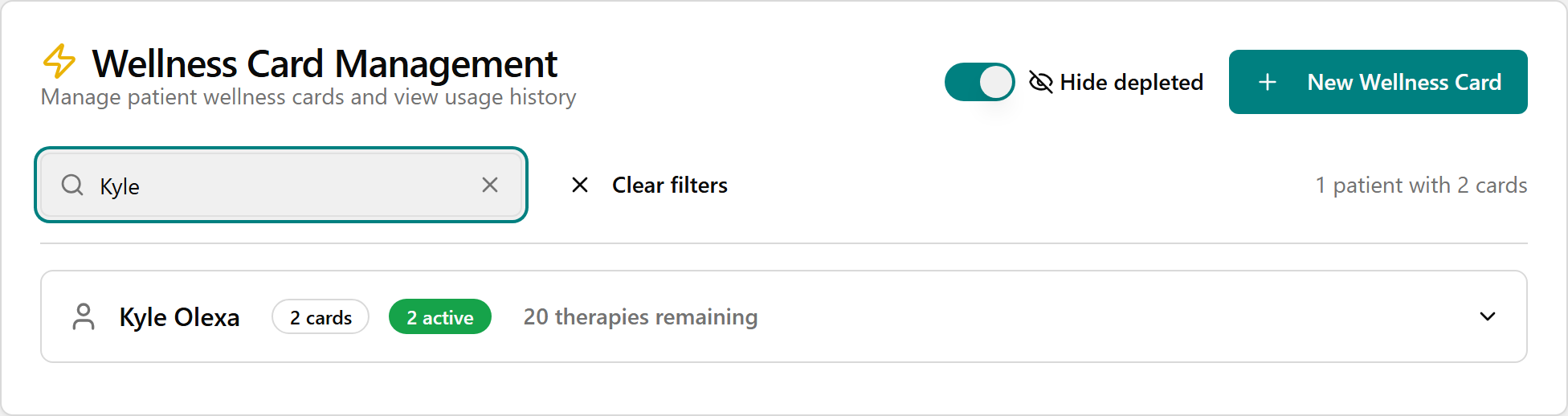
- To clear your search, click the X inside the search box, or click the Clear filters button that appears.
View a patient's cards and balances
- On the Wellness Cards tab, find the patient in the list (use search if needed).
- Click the patient's row to expand it.
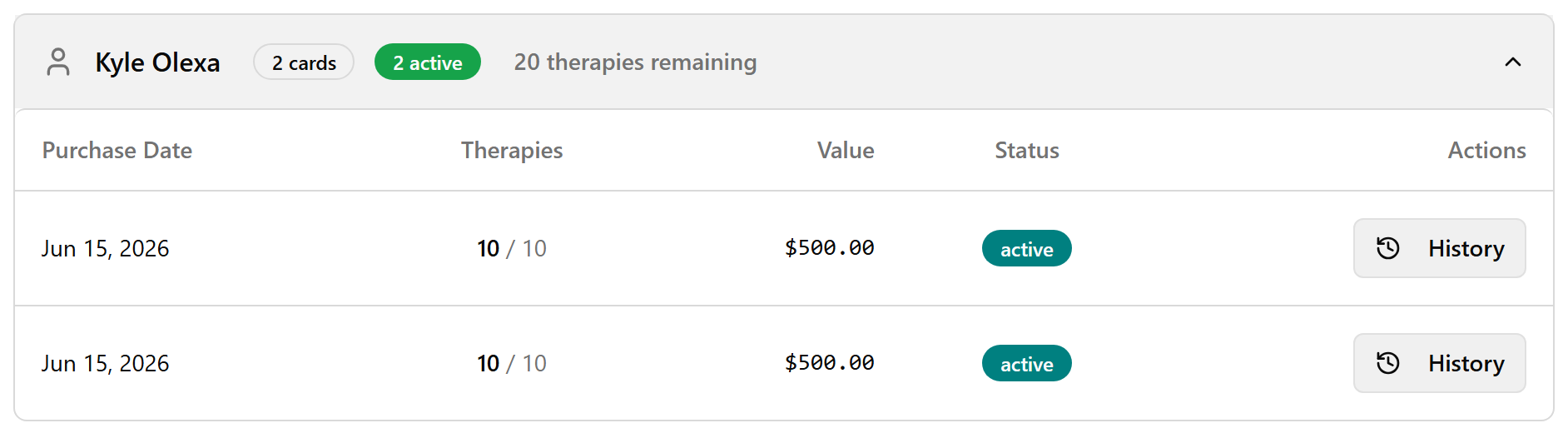
- Review the table: Purchase Date, Therapies (remaining / total, e.g. "7 / 10"), Value (remaining dollar value), and Status (a badge such as "active" or "depleted").
💡 Tip: Status is set automatically — "active" while therapies remain, "depleted" once they're all used. There is no manual edit or delete here.
Show or hide depleted cards
Control whether used-up cards appear in the list.
- Find the Hide depleted toggle in the top-right of the Wellness Card Management card.
- Leave it on (the default) to show only active cards that still have therapies left. The number in parentheses tells you how many depleted cards are hidden.
- Turn it off to also show cards that are depleted or expired.
💡 Tip: This toggle and the search box only change what's shown, not the underlying data.
View a card's usage history
- Expand the patient's row to see their cards.
- In the Actions column of the card you want, click History.
- The Usage History dialog opens, showing the patient name and purchase date, and lists each redemption with the columns Date, Therapy, Commission, and Practitioner.
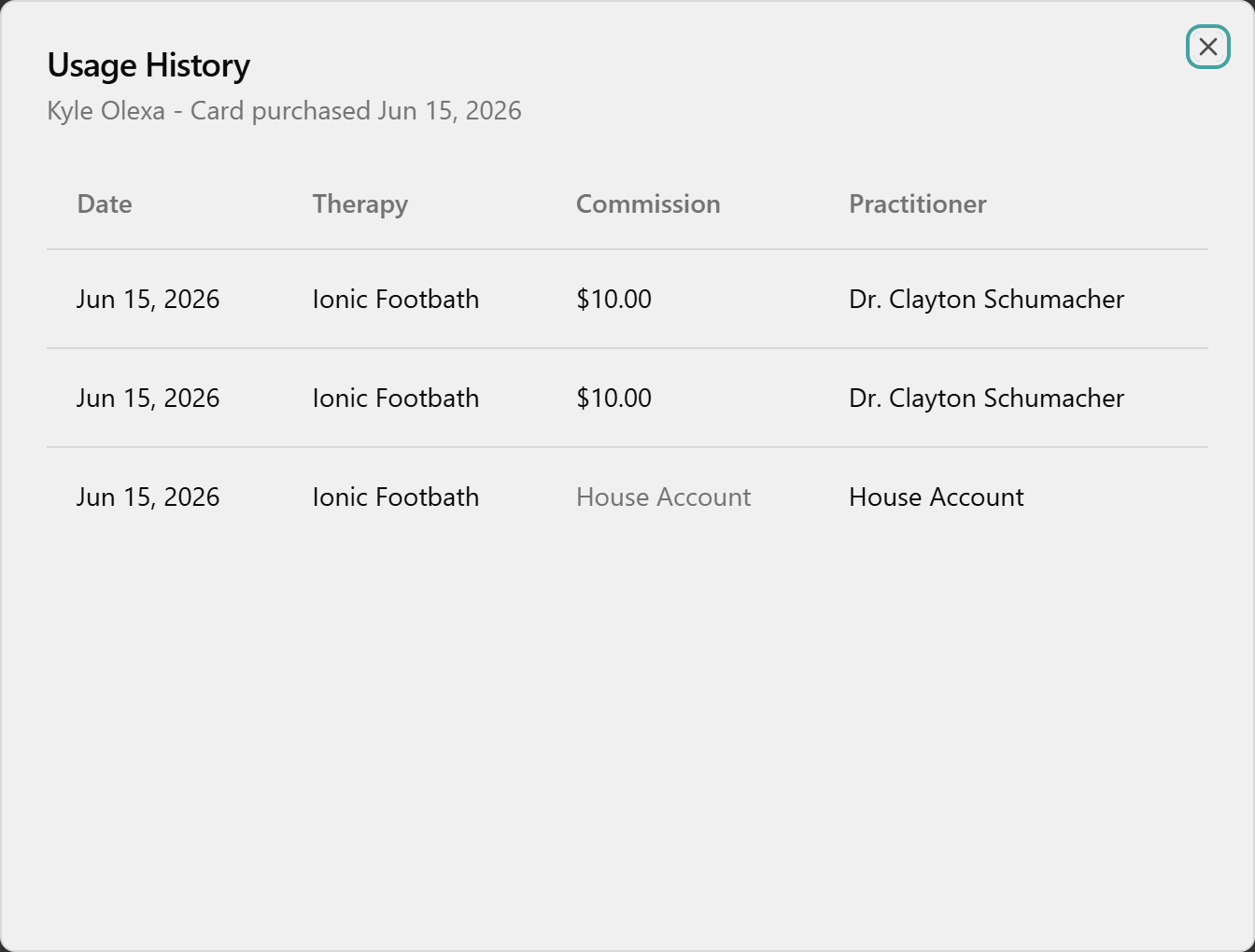
- If the card has never been used, you'll see "No usage history yet". Close the dialog when finished.
💡 Tip: When no practitioner is attributed to a redemption, its commission shows as "House Account" in the History table.
Redeem a therapy from a card
Redeeming a session is not done on this page — it happens during checkout of a therapy appointment.
- Go to Checkout (or check out the appointment from the Schedule) for a patient who has an active card and a therapy service.
- In the checkout dialog, a Wellness Card section appears with the note "Patient has wellness cards available."
- Choose the card to use, or choose Pay without wellness card to skip it.
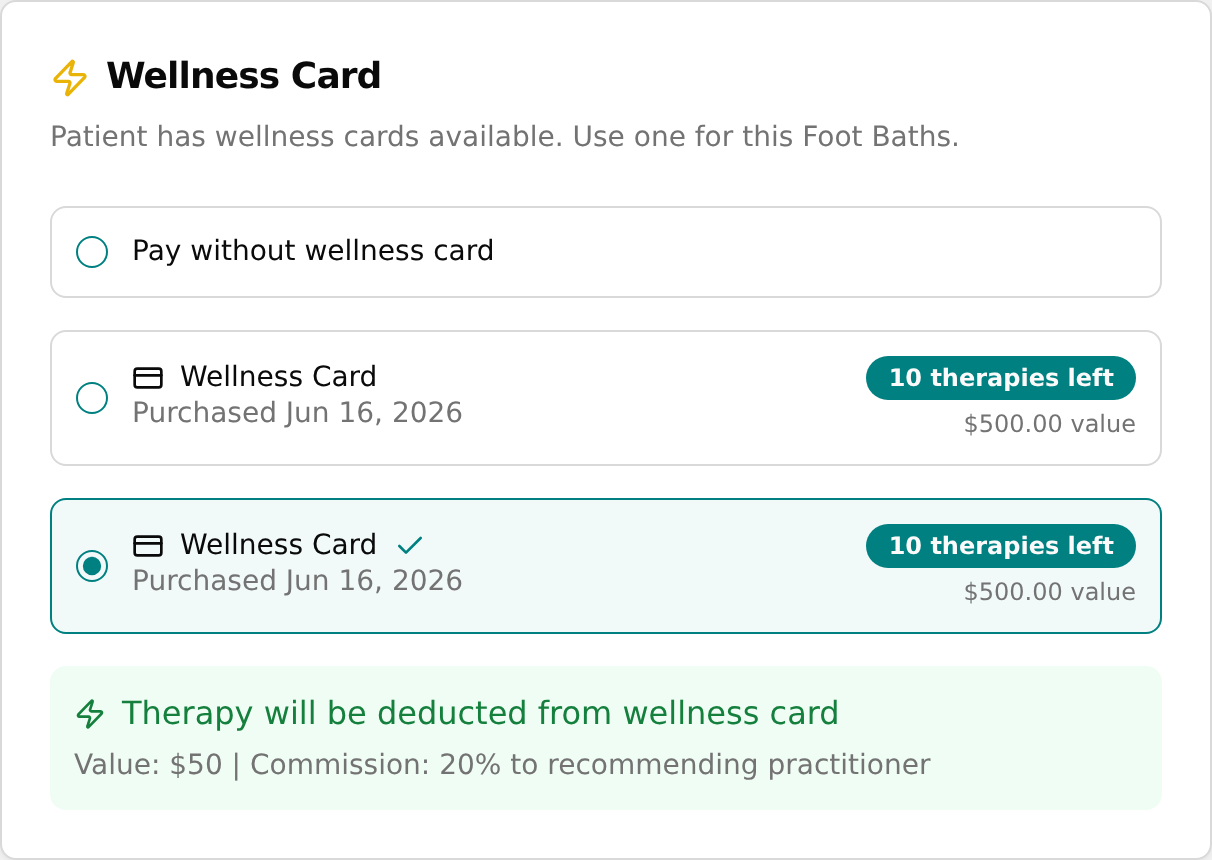
- With a card selected, you'll see "Therapy will be deducted from wellness card" plus "Value: $50 | Commission: 20% to recommending practitioner".
- Complete the checkout. One therapy is deducted and the visit appears in that card's History back on the Wellness Cards page.
💡 Tip: The Wellness Card selector appears only for therapy services and only when the patient has an active card. A card covers the therapy cost only — any products in the same checkout are paid separately.
Review clinic-wide liability
See the clinic's total outstanding wellness-card balance on the Management tab.
- Click the Management tab.
- Review the three summary tiles: Active Cards (total outstanding), Therapies Outstanding (unredeemed sessions), and Total Liability (value of unredeemed therapies).
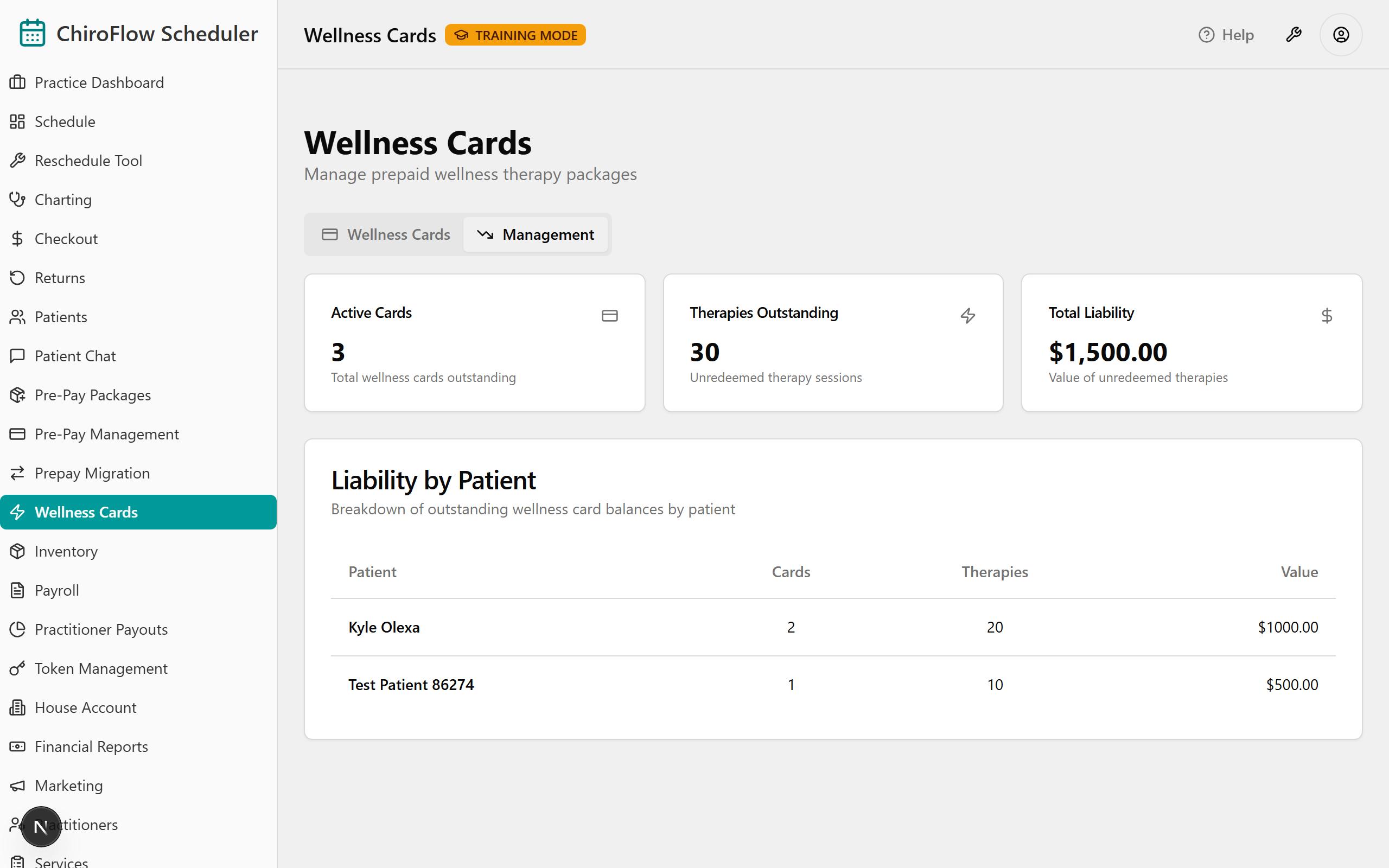
- Below the tiles, the Liability by Patient table breaks the balance down per patient with Patient, Cards, Therapies, and Value columns (sorted highest value first).
- If nothing is outstanding, you'll see "No outstanding balances".
💡 Tip: This page has no export or download button — there's no built-in way to download the card list or liability report.