Payroll
Use the Payroll page to see projected and actual hourly wages for staff based on their scheduled shifts and pay rates.
Auto-generated from the in-app Help for /payroll — source of truth src/lib/help-content/.
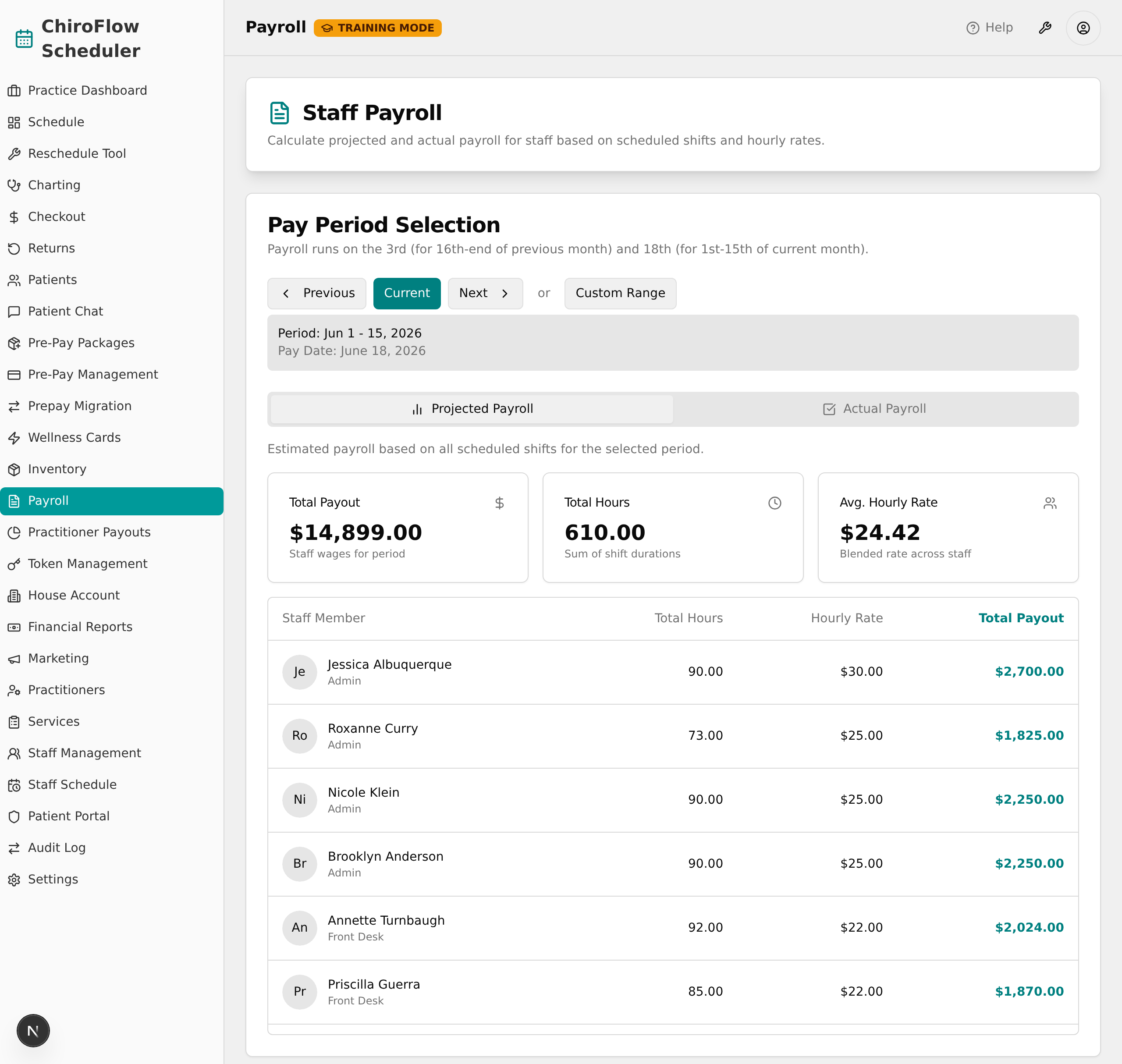
Open the Payroll page
Payroll is Admin-only and appears in dev mode.
- Click the round user icon at the top right, choose Log in as..., and pick an Admin (e.g. Jessica Albuquerque or Roxanne Curry).
- In the left sidebar, click Payroll.
- Wait for the page to finish loading — the spinner stops and figures appear.
💡 Tip: If you see Access Denied, you are not logged in as an Admin. If you see Page Not Available, the app is in production mode and this page is intentionally turned off.
Move between pay periods
- Check the grey box to confirm which Period and Pay Date you are viewing.
- Click Previous to step back one pay period (the prior half-month).
- Click Next to step forward one pay period.
- Click Current at any time to jump back to the period you are in now (it stays highlighted when selected).
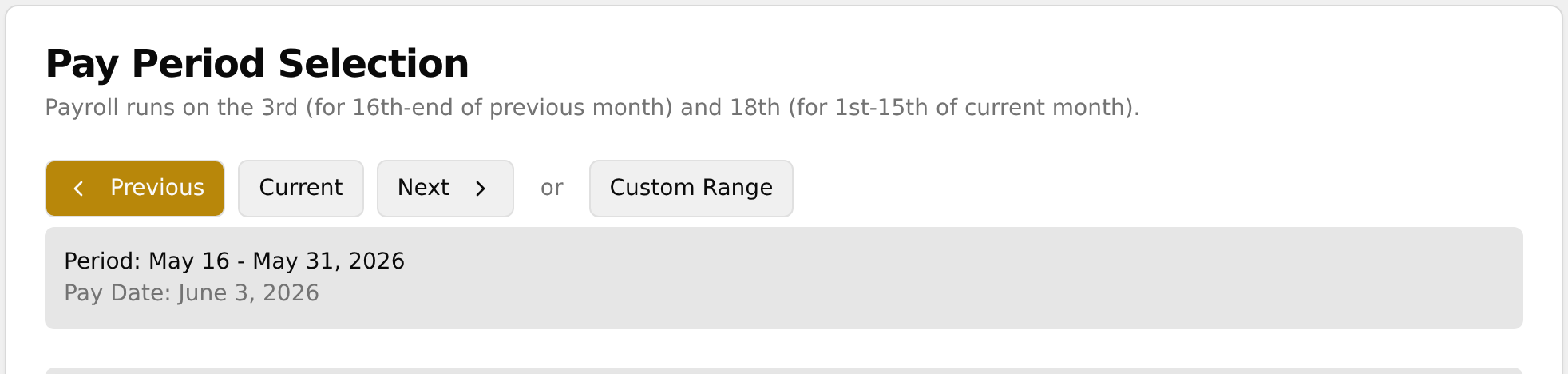
💡 Tip: Payroll runs on the 3rd (for the 16th–end of the previous month) and the 18th (for the 1st–15th of the current month).
View a custom date range
- Click Custom Range. A Pick a date range button appears next to it.
- Click Pick a date range to open the calendar.
- In the two-month calendar, click your start date, then click your end date.
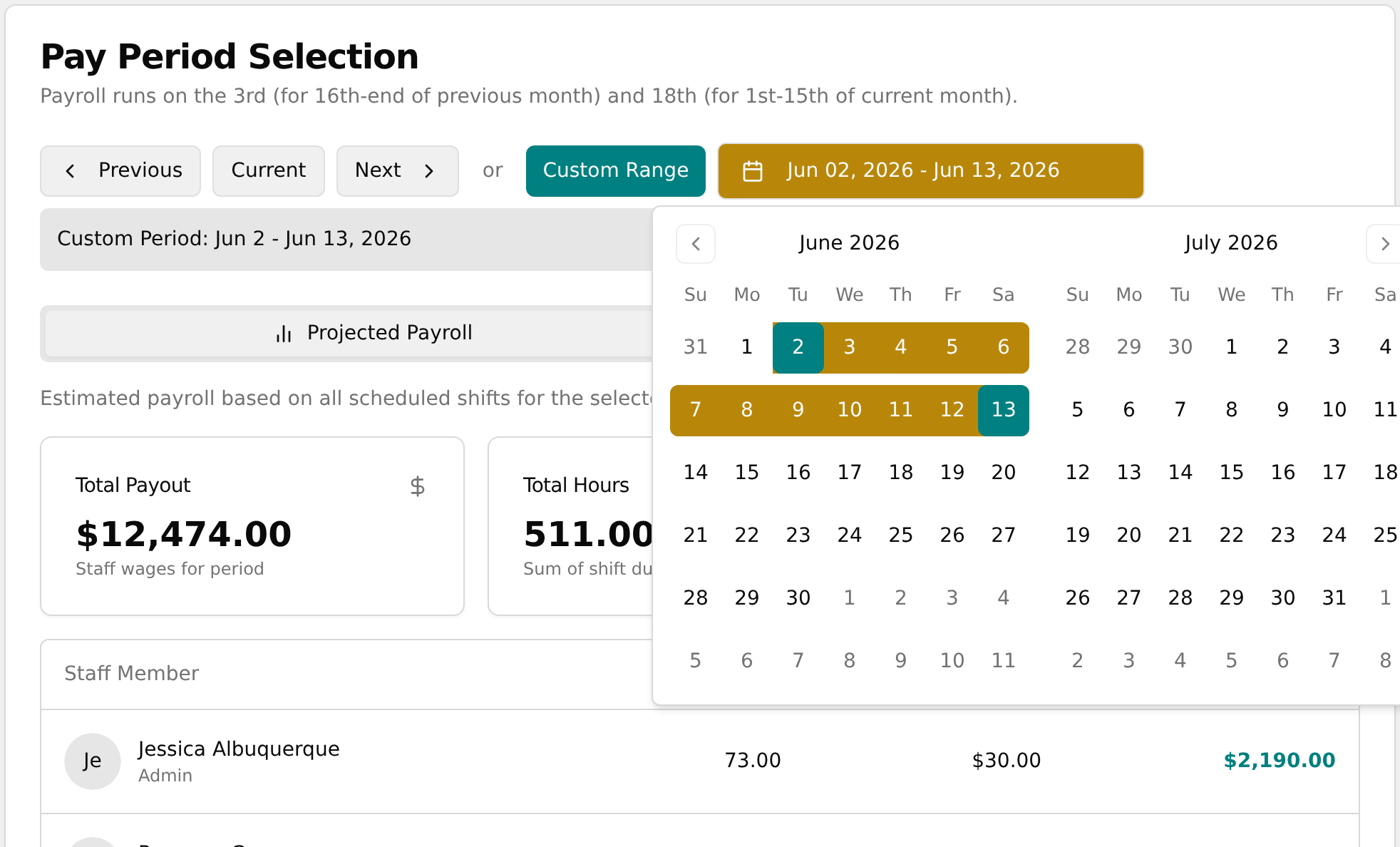
- The grey box updates to show Custom Period: with your dates, and the table recalculates.
- To return to standard pay periods, click Previous, Current, or Next — this turns custom mode off.
Read the payroll summary cards
The three cards above the table summarize the period.
- Read Total Payout — total staff wages for the period.
- Read Total Hours — the sum of all shift durations, shown to two decimals.
- Read Avg. Hourly Rate — the blended rate across all staff.
- These numbers update automatically when you change the period, adjust the custom range, or switch tabs.

💡 Tip: Total Payout covers hourly staff wages only. Practitioner service and product commissions are calculated separately on the Practitioner Payouts page.
Compare Projected vs. Actual payroll
- On the default Projected Payroll tab, note it counts every scheduled shift, including shifts that have not happened yet.
- Click the Actual Payroll tab — it counts only shifts whose end time has already passed.
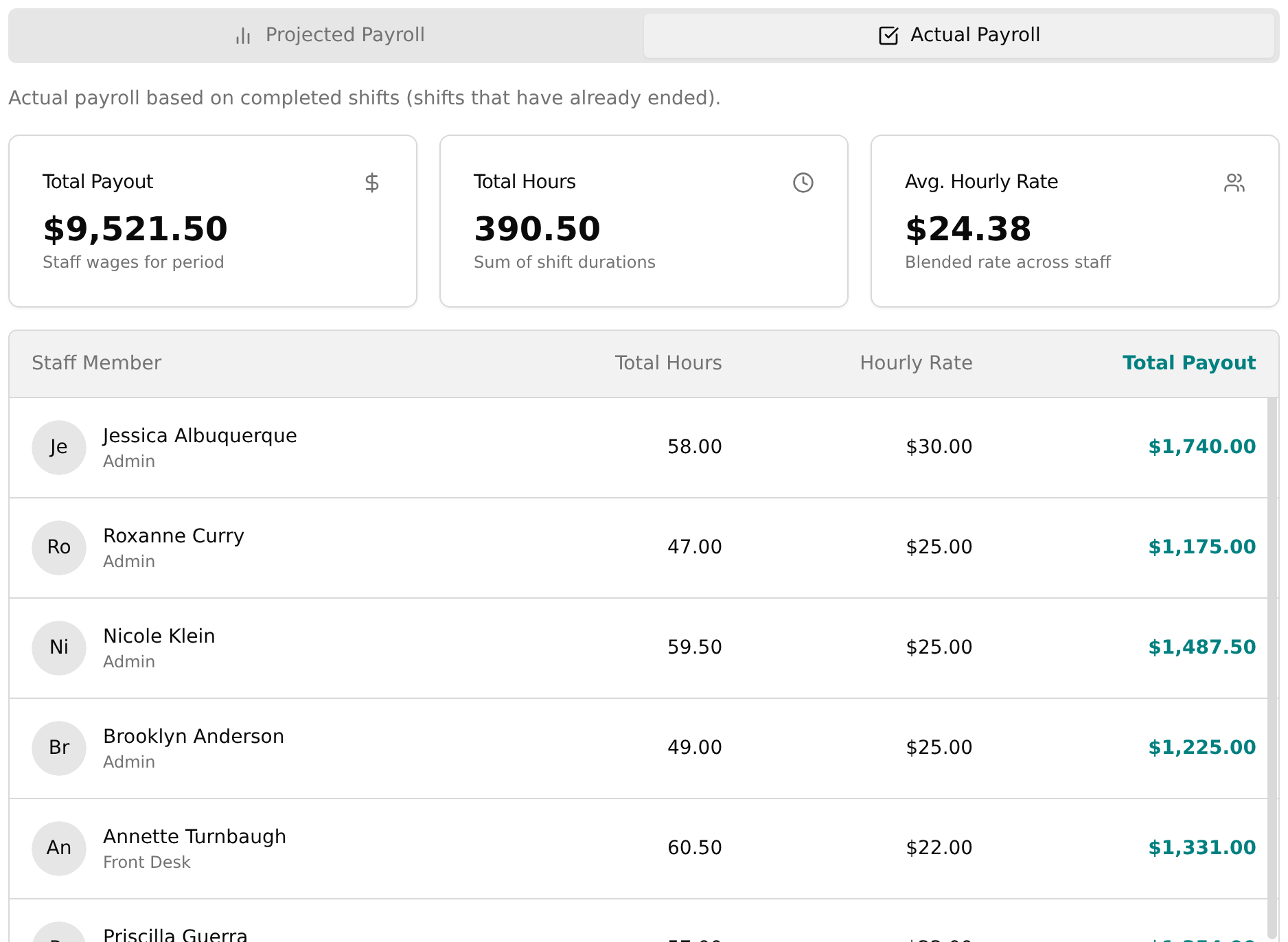
- Compare the Total Payout and Total Hours cards between the two tabs to see how much projected payroll has already been earned.
Read the staff payout table
- In either tab, scroll the table to review each staff member.
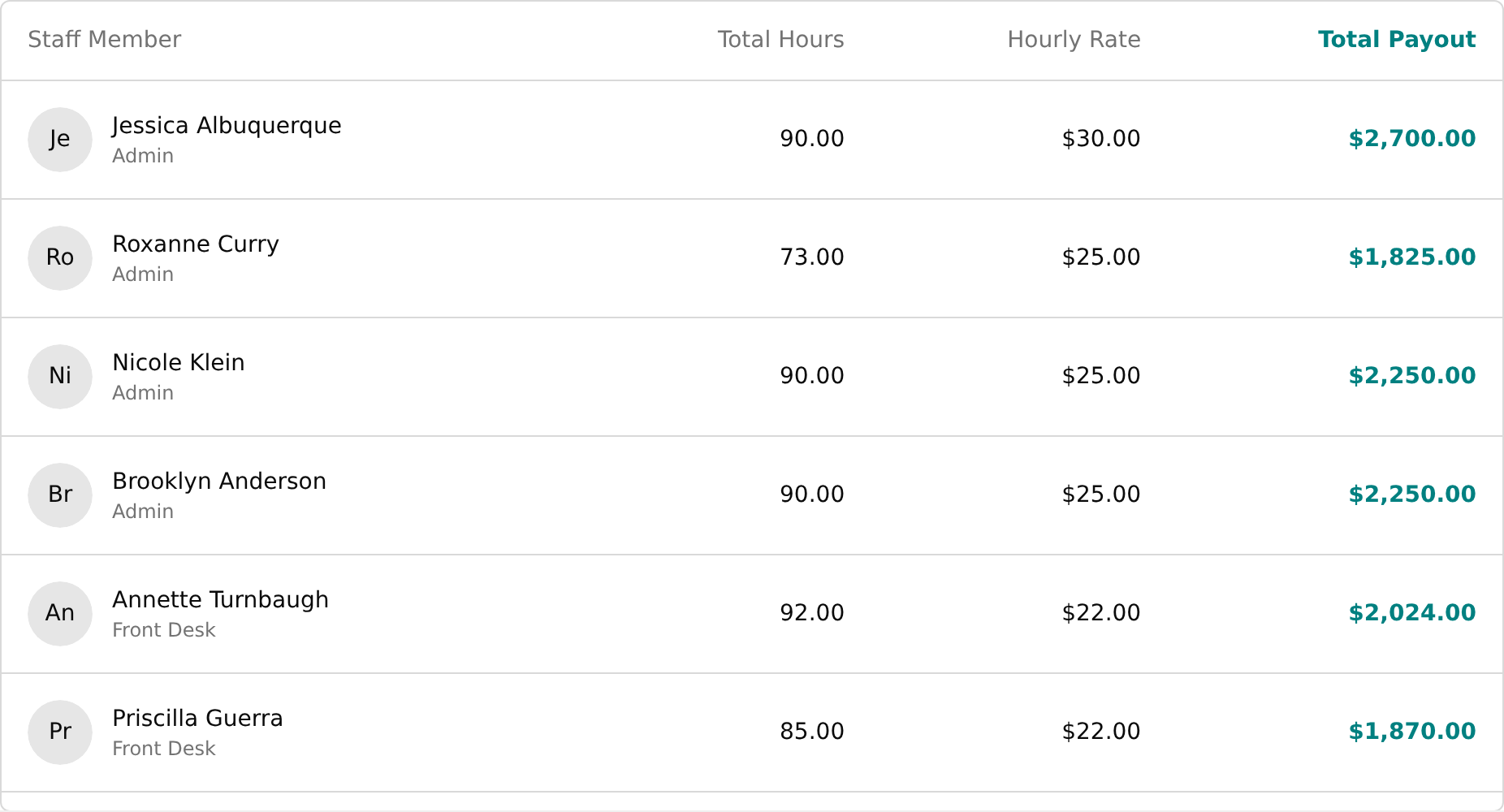
- Each row shows the person's photo, name, and role, plus Total Hours, Hourly Rate, and Total Payout (hours × rate, in bold).
- Note that only staff with hours in the period appear; people with no shifts are left out, and the header row stays pinned as you scroll.
💡 Tip: This page is view-only — there is no Export, Download, or Run payroll button. Figures recalculate on their own when you change the period, switch tabs, or adjust the range. If the table reads "No staff shifts found for the selected period," add shifts on Staff Schedule first.