Financial Reports
Pick a time range, then read three ready-made reports — Profit & Loss, Sales Breakdown, and Cash Flow — for your clinic's financial performance.
Auto-generated from the in-app Help for /financial-reports — source of truth src/lib/help-content/.
Open the Financial Reports page
Start here to view your clinic's financial reports.
- Log in as an Admin using the round user icon in the top-right corner, then Log in as... and pick an Admin.
- In the left sidebar, click Financial Reports.
- Wait for the page to load — it opens on the Profit & Loss tab for the current pay period.
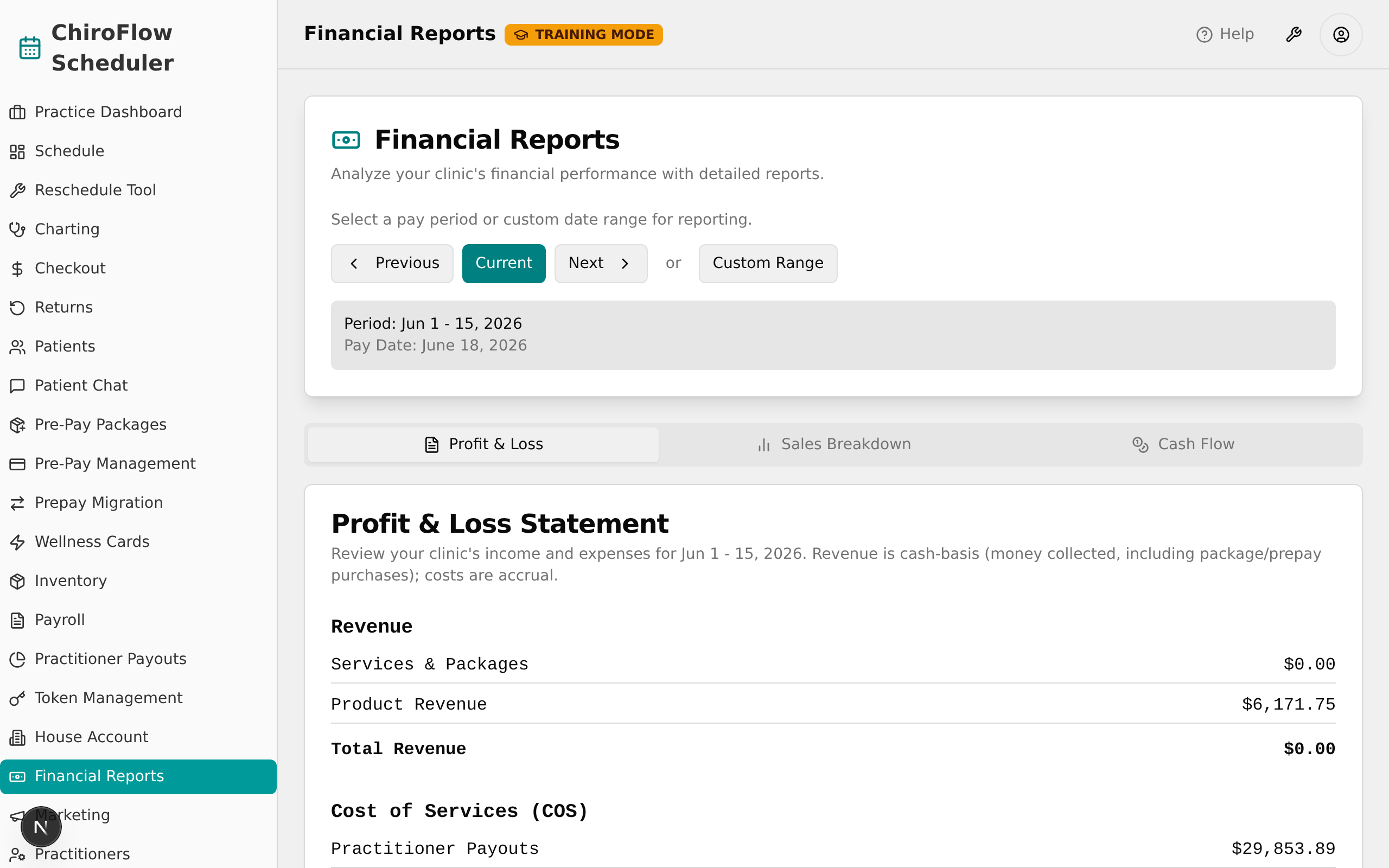
💡 Tip: Only Admins can open this page — everyone else sees an "Access Denied" card. It is also a development-only page, hidden in the live/production build.
Move between pay periods
- Click Previous to go to the earlier pay period.
- Click Current to jump back to the period you're in (it becomes highlighted).
- Click Next to move to the following pay period.
- After each click, check the grey box — the Period: label and Pay Date: update and all three reports refresh automatically.

💡 Tip: Pay periods are semi-monthly: the 1st–15th (paid the 18th) and the 16th–end of month (paid the 3rd of the next month).
Report on a custom date range
Use this when you need a range that isn't a standard pay period.
- Click Custom Range. A Pick a date range button (with a calendar icon) appears next to it.
- Click Pick a date range to open a two-month calendar.
- Click your start date, then click your end date on the calendar.
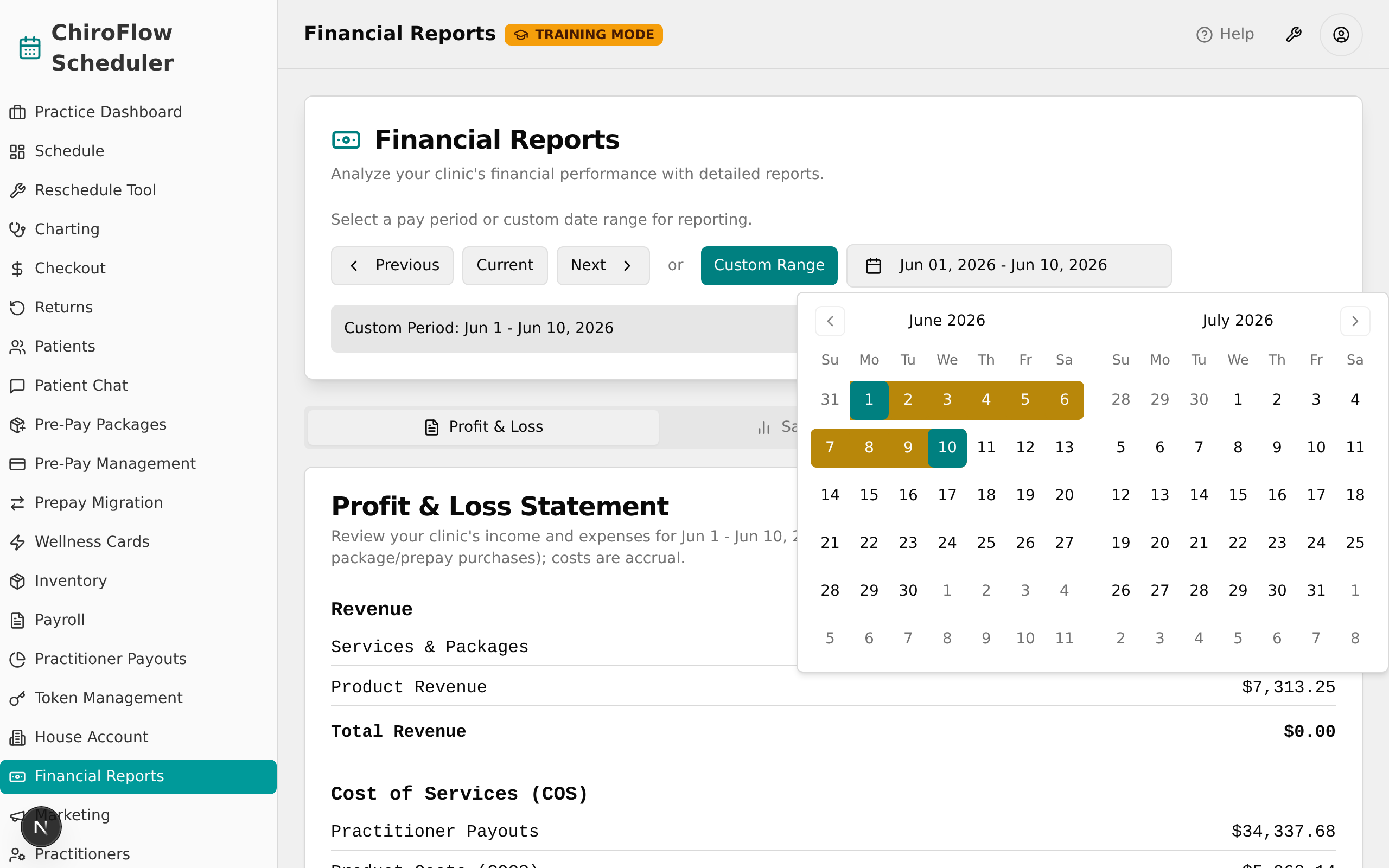
- The grey box now shows Custom Period: with your dates, and all three reports refresh to cover that range.
- To return to standard pay periods, click Previous, Current, or Next — this turns off the custom range.
Read the Profit & Loss statement
- Click the Profit & Loss tab.
- Read the Profit & Loss Statement card — revenue is cash-basis (money collected, including package/prepay purchases) and costs are accrual.
- Review the sections top to bottom: Revenue (Services & Packages, Product Revenue, Total Revenue), Cost of Services (COS) (Practitioner Payouts, Product Costs, Total COS in red), Gross Profit, Operating Expenses (Staff Payouts, General & Admin, Total Operating Expenses in red), and Net Profit.
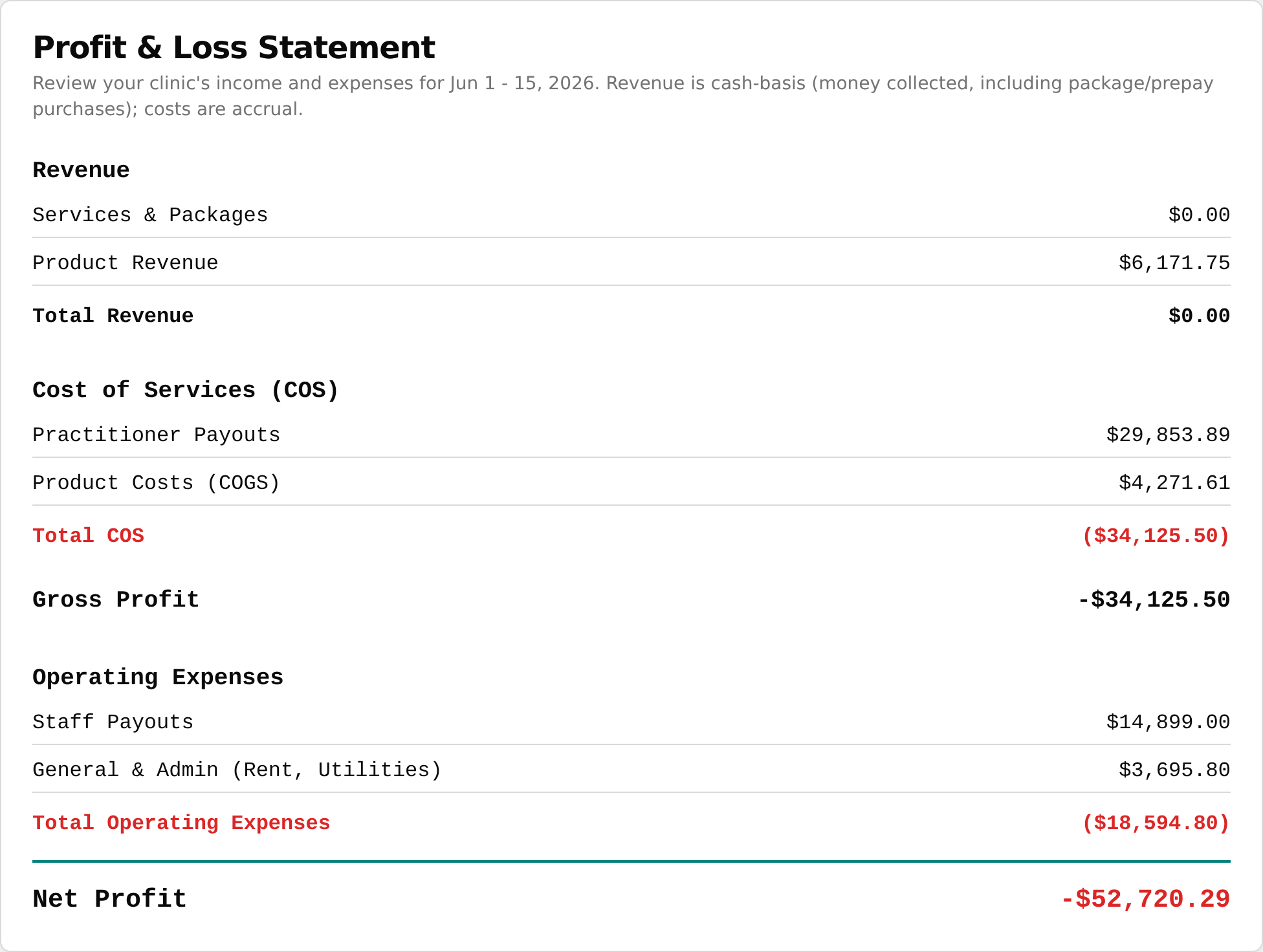
💡 Tip: Net Profit is the bottom line — shown in green if positive, red if negative.
Read the Sales Breakdown
- Click the Sales Breakdown tab.
- Read the three side-by-side tables: Revenue by Service, Revenue by Practitioner, and Revenue by Payment Method (each payment method shows a small icon).
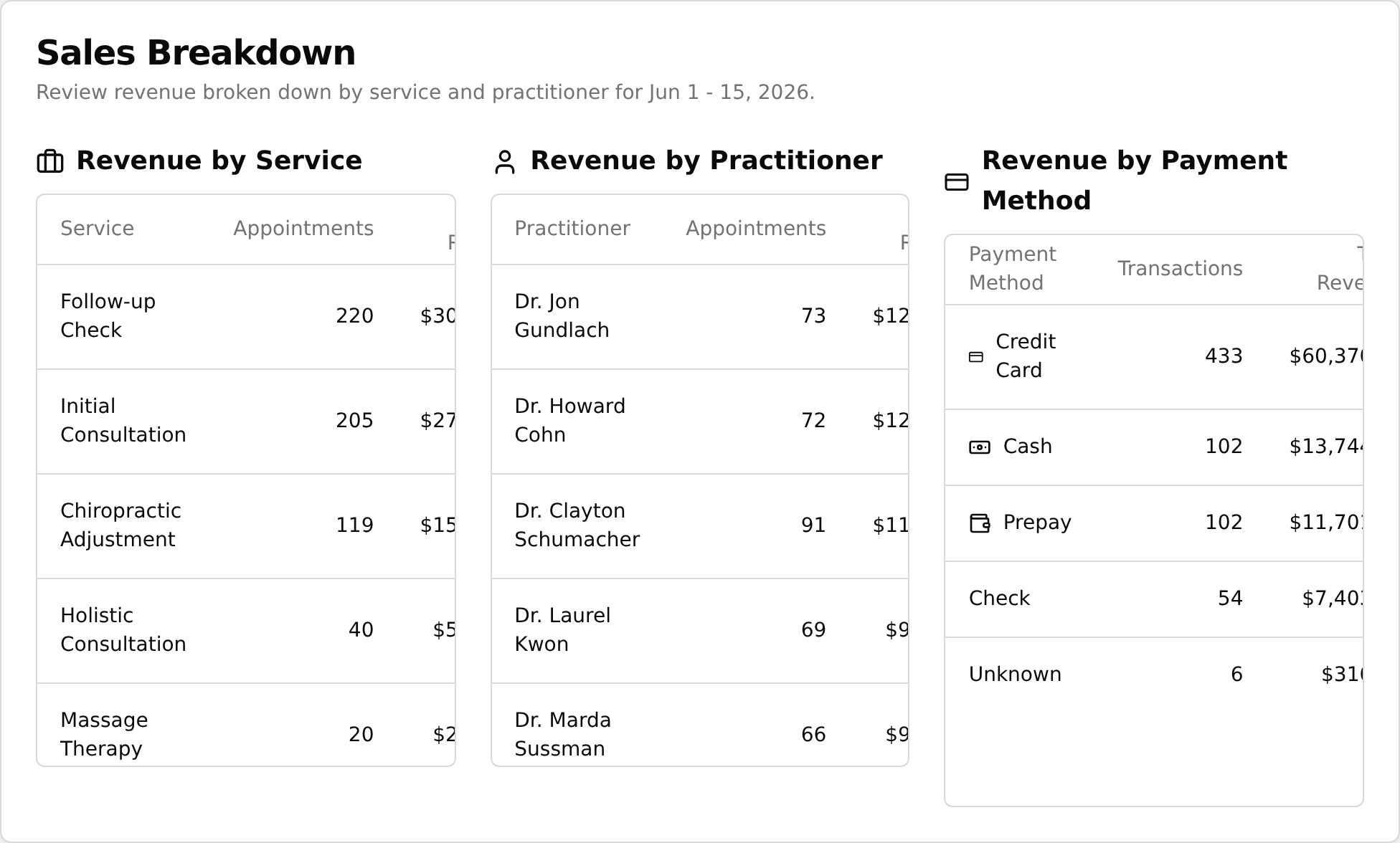
- Scroll within any table if its list is long — the column headers stay pinned at the top.
Read the Cash Flow statement
- Click the Cash Flow tab.
- Read the Cash Flow Statement card — "Cash in" is the actual payments collected (it reconciles to the card processor plus cash/check).
- Review Cash from Operations: Cash from Sales (green, money in), Practitioner & Staff Payouts, Product Costs (COGS), and Operating Expenses (all red, money out), then Net Increase/Decrease in Cash at the bottom.
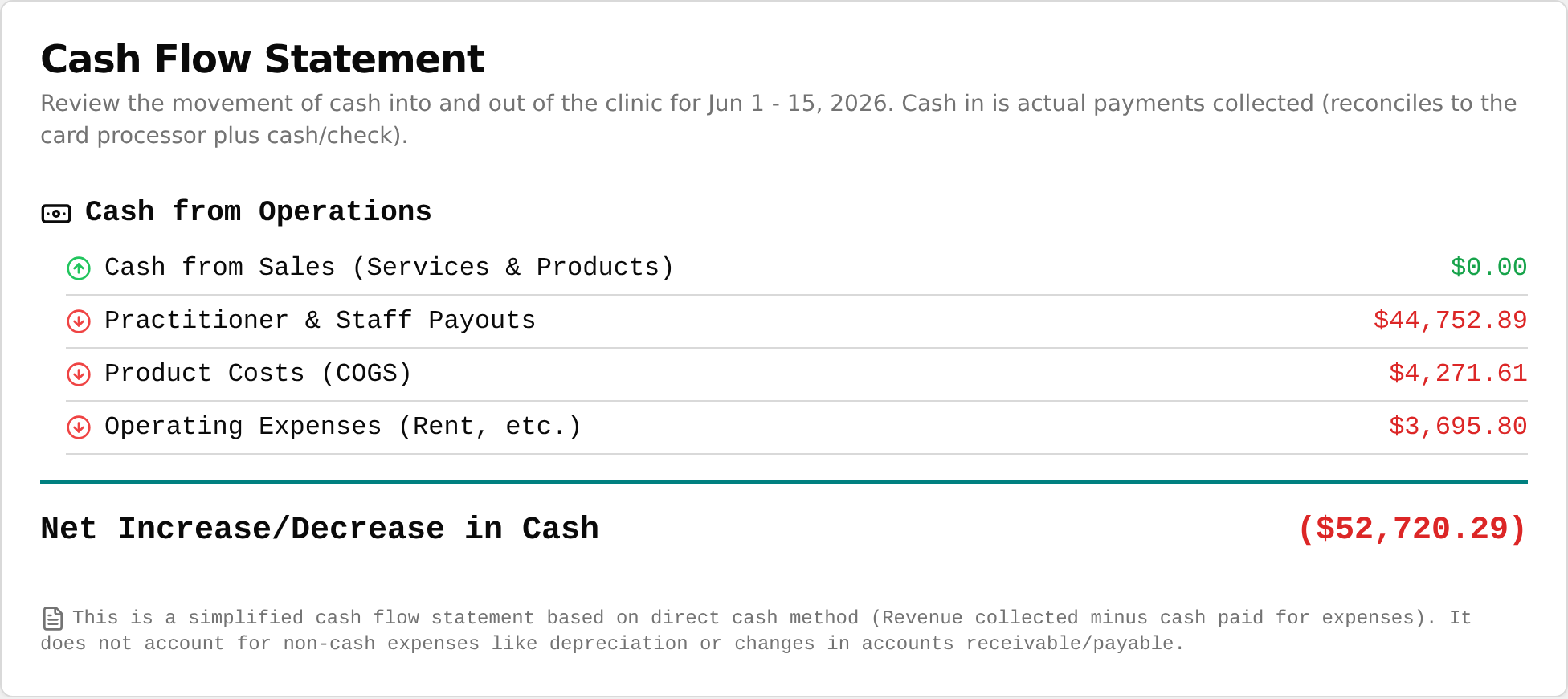
💡 Tip: This is a simplified statement — it does not account for non-cash items like depreciation or changes in accounts receivable/payable.