Settings
The Settings page is where an Admin configures app-wide options: AI feature setup, the app's color theme, and the operational cost figures used in profitability calculations.
Auto-generated from the in-app Help for /settings — source of truth src/lib/help-content/.
Set up the AI / Gemini API key
Read the on-page instructions for enabling AI features like transcription and SOAP notes.
- Scroll to the top card, AI Features & API Configuration.
- Read the blue AI Features Configuration box explaining that the app uses Google's Gemini AI and that the key lives in the
.env.localconfiguration file. - Under How to Get Your API Key, click the Google AI Studio link, sign in with your Google account, create a new key, then copy it.
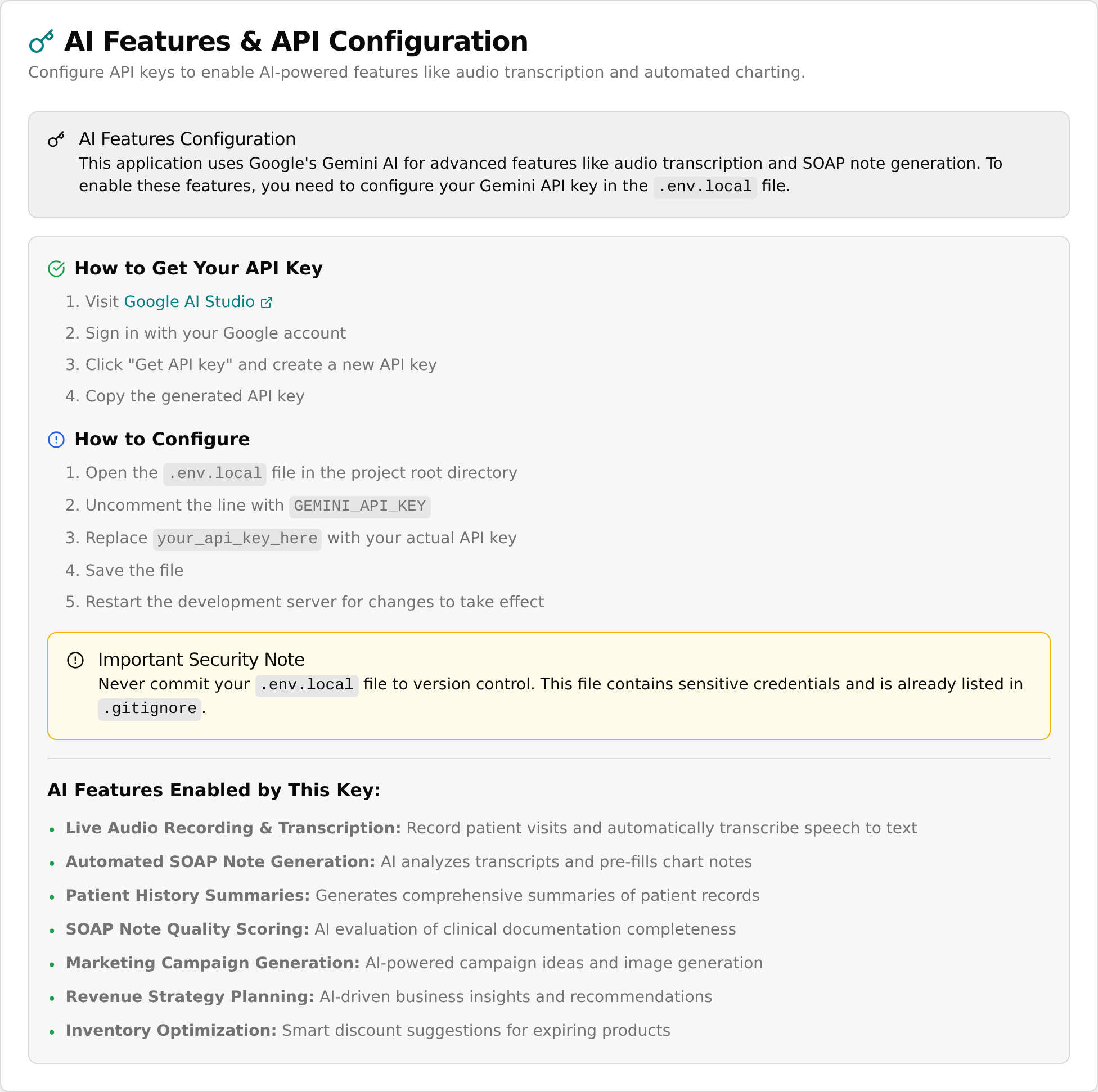
- Under How to Configure, follow the five steps to put the key into the configuration file and restart.
- Note the yellow Important Security Note warning never to share or commit that file.
- Review the AI Features Enabled by This Key: list to see what the key unlocks.
💡 Tip: This card is instructions only — there is no field to paste the key and no Save button. The key is entered in a setup file by whoever installed the app, so ask your technical setup person if AI features are not working.
Change the app's color theme
Adjust the app's colors from the Customize Theme panel.
- Scroll to the Application Settings card and find the Customize Theme panel.
- For the main color, use Primary Color (Teal) — click the color swatch to pick visually, or type a color code in the text box.
- For the highlight color, use Accent Color (Gold) the same way.
- For the page background, use Background Color (Light Gray) the same way.
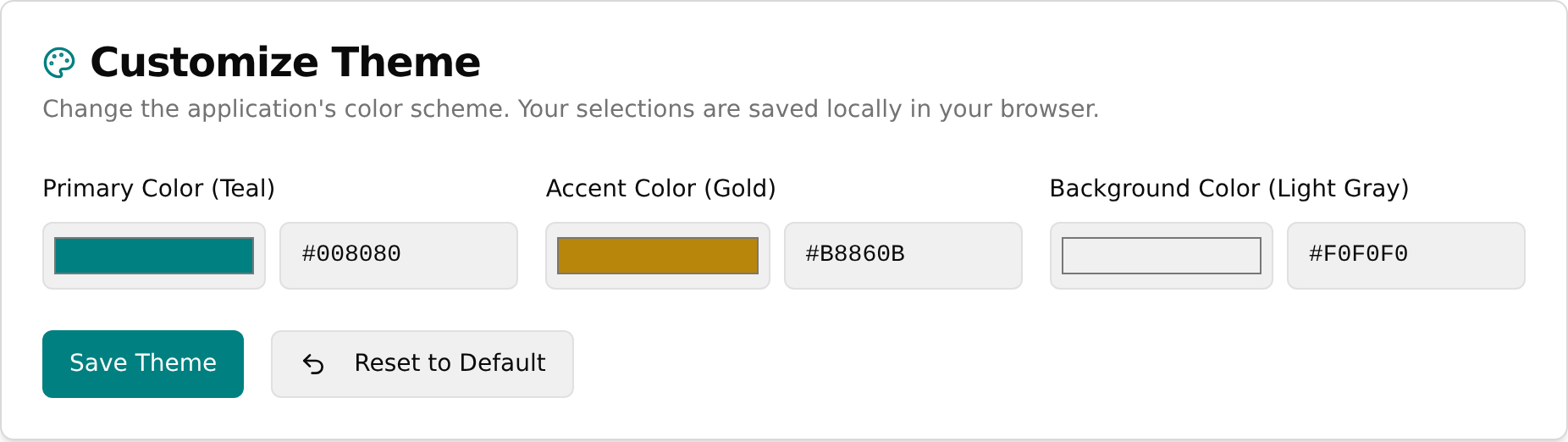
- Watch the app update its colors live as you change each value to preview before saving.
- Click Save Theme and wait for the Theme Saved! confirmation message.
💡 Tip: Theme colors are saved only in your own browser on this device — they do not change what other staff see and will not carry to another computer or browser. An invalid color code shows an Invalid Color message.
Reset the theme to default colors
- In the Customize Theme panel, click Reset to Default (the undo / circular-arrow button).
- The three colors return to the standard teal, gold, and light gray, and the screen updates immediately.
- Confirm the Theme Reset message appears.
Set operational cost metrics
Define the cost figures that feed the Practice Dashboard's profitability calculations.
- Scroll to the Operational Costs card; the two fields load with your current saved values.
- In Monthly Operational Cost per Square Foot, type the dollar amount (the field shows a "$" prefix). Decimals are allowed and the value must be zero or higher.
- In Appointment Buffer (minutes), type the buffer time between appointments for the same practitioner (the field shows a "min" suffix). It must be between 0 and 60.
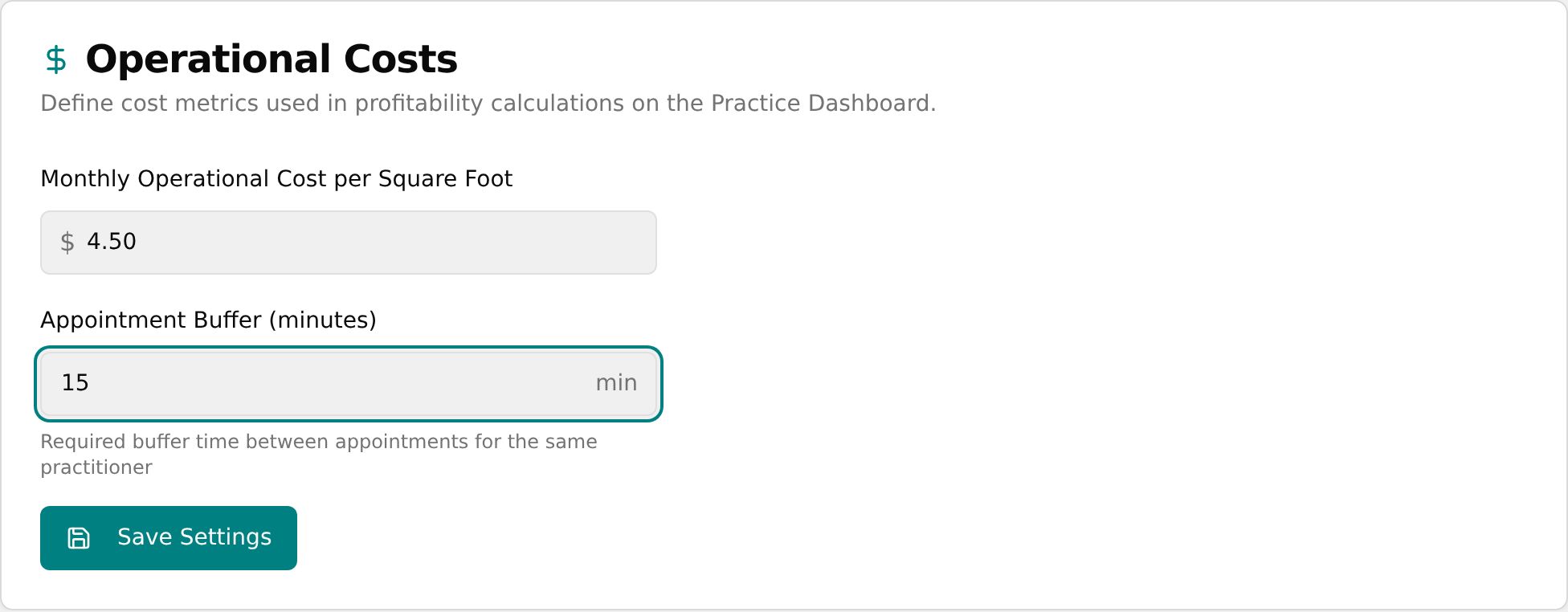
- Click Save Settings (a spinning loader shows while saving).
- Confirm the Settings Saved message appears.
💡 Tip: Invalid entries block the save and show a red error under the field — e.g. a negative cost shows "Cost must be a positive number." and a buffer over 60 shows "Buffer cannot exceed 60 minutes." These costs are saved for the whole clinic, unlike theme settings.