Marketing
Create, manage, and track marketing campaigns for your clinic, either by hand or with AI tools that suggest ideas, draft copy, generate images, and build a revenue-driven plan.
Auto-generated from the in-app Help for /marketing — source of truth src/lib/help-content/.
Write and save a campaign by hand
Use the Campaign Composer to draft a campaign yourself.
- Scroll to the Campaign Composer panel (pencil icon).
- In Campaign Title / Email Subject, type a title (at least 5 characters).
- (Optional) Fill in Target Audience Description (Optional) to describe who it's for.
- In Campaign Body, type your message (at least 20 characters; simple markdown is supported).
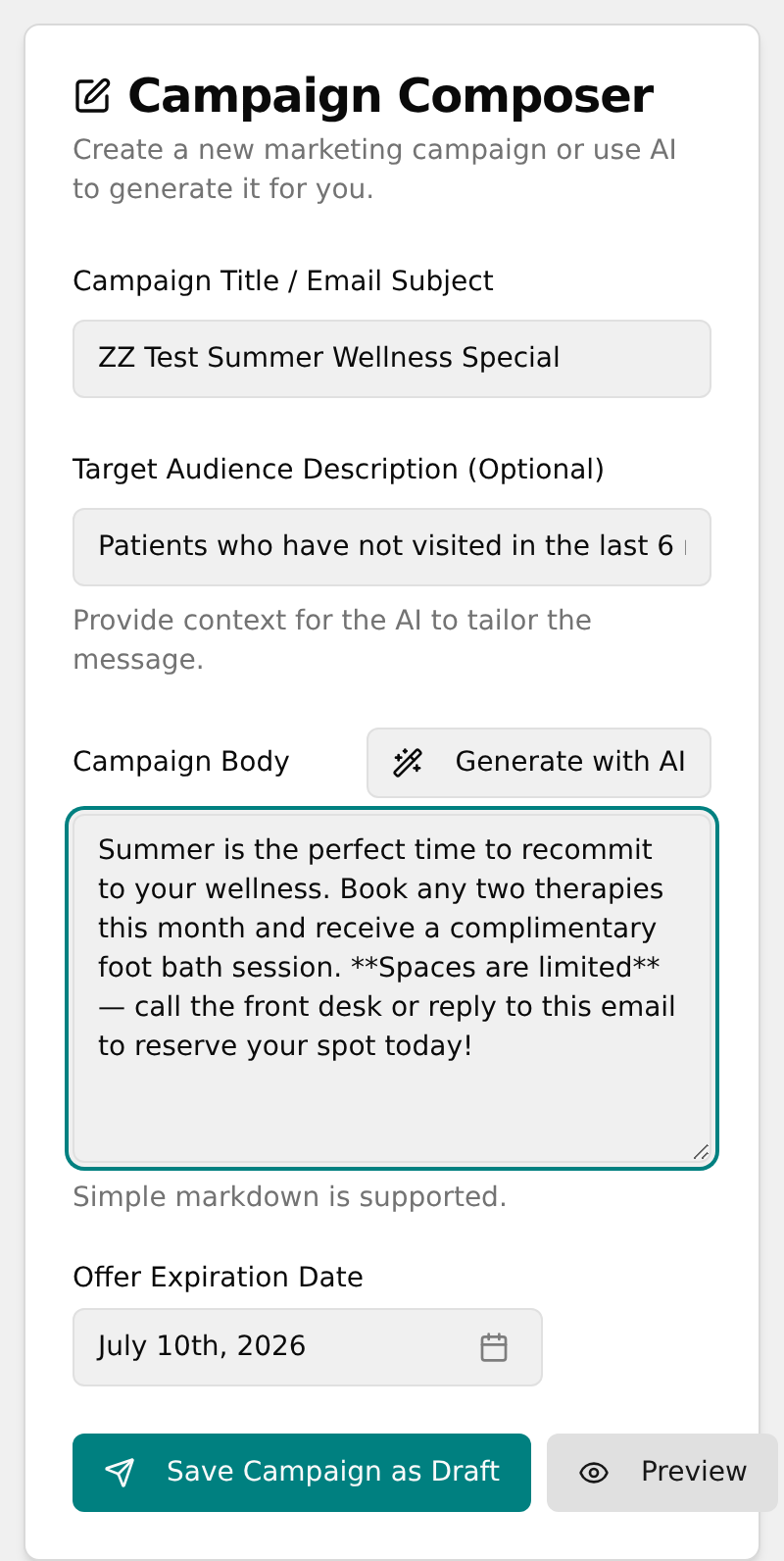
- Under Offer Expiration Date, click the date button and pick a date (past dates are disabled).
- Click Save Campaign as Draft.
- Confirm the green Campaign Saved! toast; the form clears and the new draft appears in the Campaign Manager table.
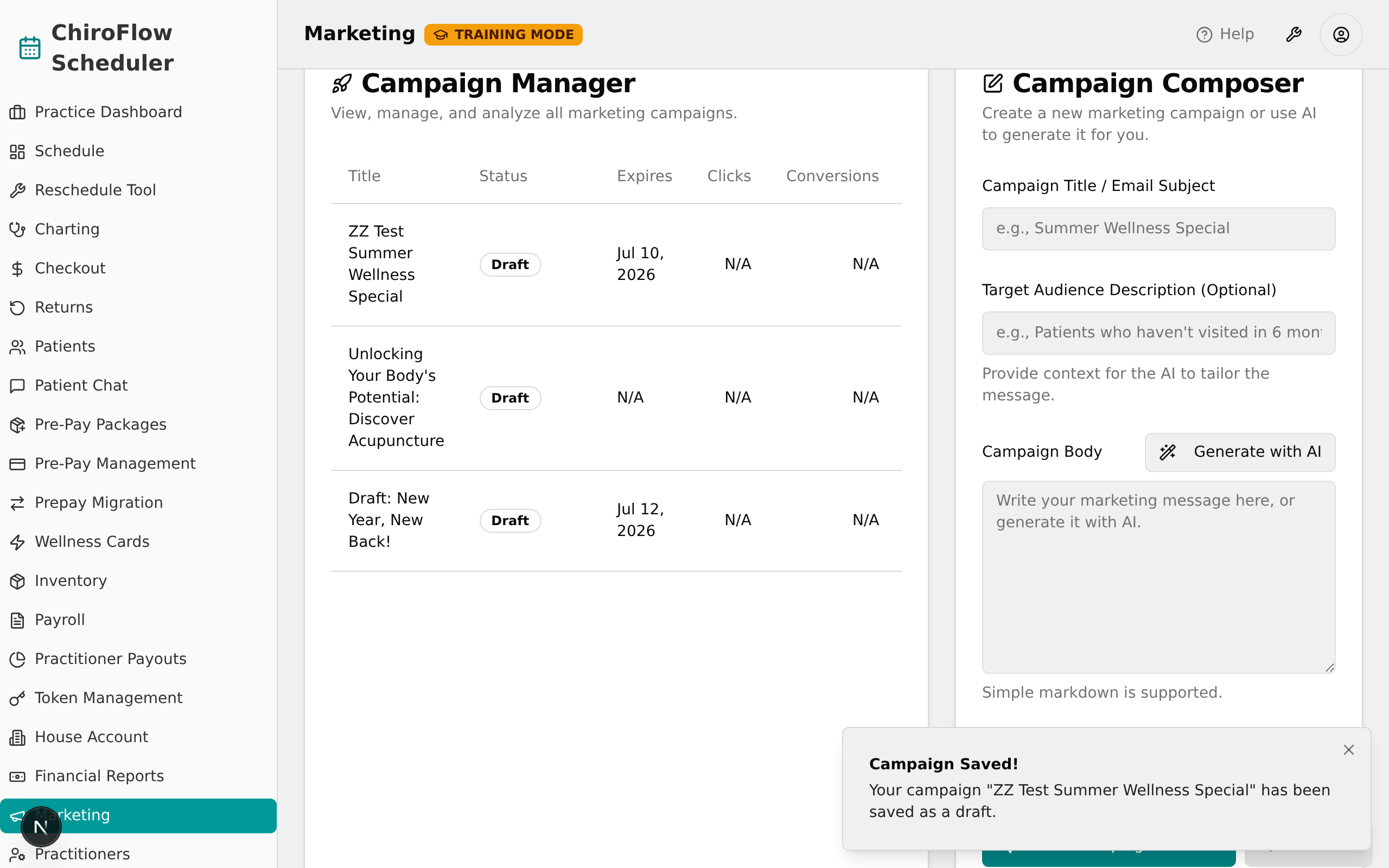
💡 Tip: To preview before saving, click the Preview (eye) button next to Save Campaign as Draft. If the title or body are too short you'll get a Fields Required for Preview toast instead. Campaigns are only saved as drafts here — nothing is sent or emailed.
Let AI write the campaign body and image
Have the AI draft the message text and a matching image in the Composer.
- In the Campaign Composer, fill in the Campaign Title / Email Subject (required for AI).
- (Recommended) Fill in Target Audience Description (Optional) so the AI can tailor the message.
- Click Generate with AI (the wand button at the top-right of the Campaign Body field).
- Wait while the button spins; a Generated Image box shows "Generating image..." while it works.
- When done, the Campaign Body fills with AI text, an image appears in the Generated Image box, and you'll see the Content Generated! toast.
- Edit the text if you like, then click Save Campaign as Draft.
💡 Tip: Clicking Generate with AI without a title shows a Title Required toast and nothing generates. AI tools need a Gemini key set up on the Settings page, or generation fails with a red error toast.
Get AI campaign ideas
Use the AI Campaign Assistant to generate ready-to-use ideas.
- Find the AI Campaign Assistant panel (sparkles icon).
- In Marketing Goal, describe what you want to achieve (at least 10 characters), e.g. "Promote our new acupuncture service".
- Click Generate Ideas and wait for the spinner.
- When the Suggestions Generated! toast appears, scroll the Suggestions list — each idea has a title, description, image, and sample copy.
- (Optional) Hover a suggestion's copy box and click the small clipboard icon to copy the sample wording.
- Click Create Campaign from this Idea to turn an idea into a draft; confirm the Campaign Draft Created! toast and the new row in the Campaign Manager.
Build a revenue-driven marketing plan
Use the AI Revenue Strategist to turn a revenue goal into a full plan.
- Find the AI Revenue Strategist panel (wand icon).
- In Revenue Target, enter the dollar amount you want to bring in (defaults to 5000).
- In Timeframe (Days), enter the number of days to hit the goal (defaults to 30).
- Click Generate Strategy and wait for "AI is analyzing services and formulating a plan...".
- When the Strategy Generated! toast appears, review the Overall Strategy, Recommended Service Promotions, and Suggested New Campaigns sections.
- On a suggested campaign card, click Preview to see a fully AI-generated draft, or Create Campaign to save it as a draft (confirmed by the Campaign Draft Created! toast).
Manage existing campaigns
Preview campaigns and change their status from the Campaign Manager.
- Find the Campaign Manager panel (rocket icon), a table with Title, Status, Expires, Clicks, Conversions, Revenue, and Actions columns.
- Click the ⋯ (three-dots) button in a campaign's Actions column to open the menu.
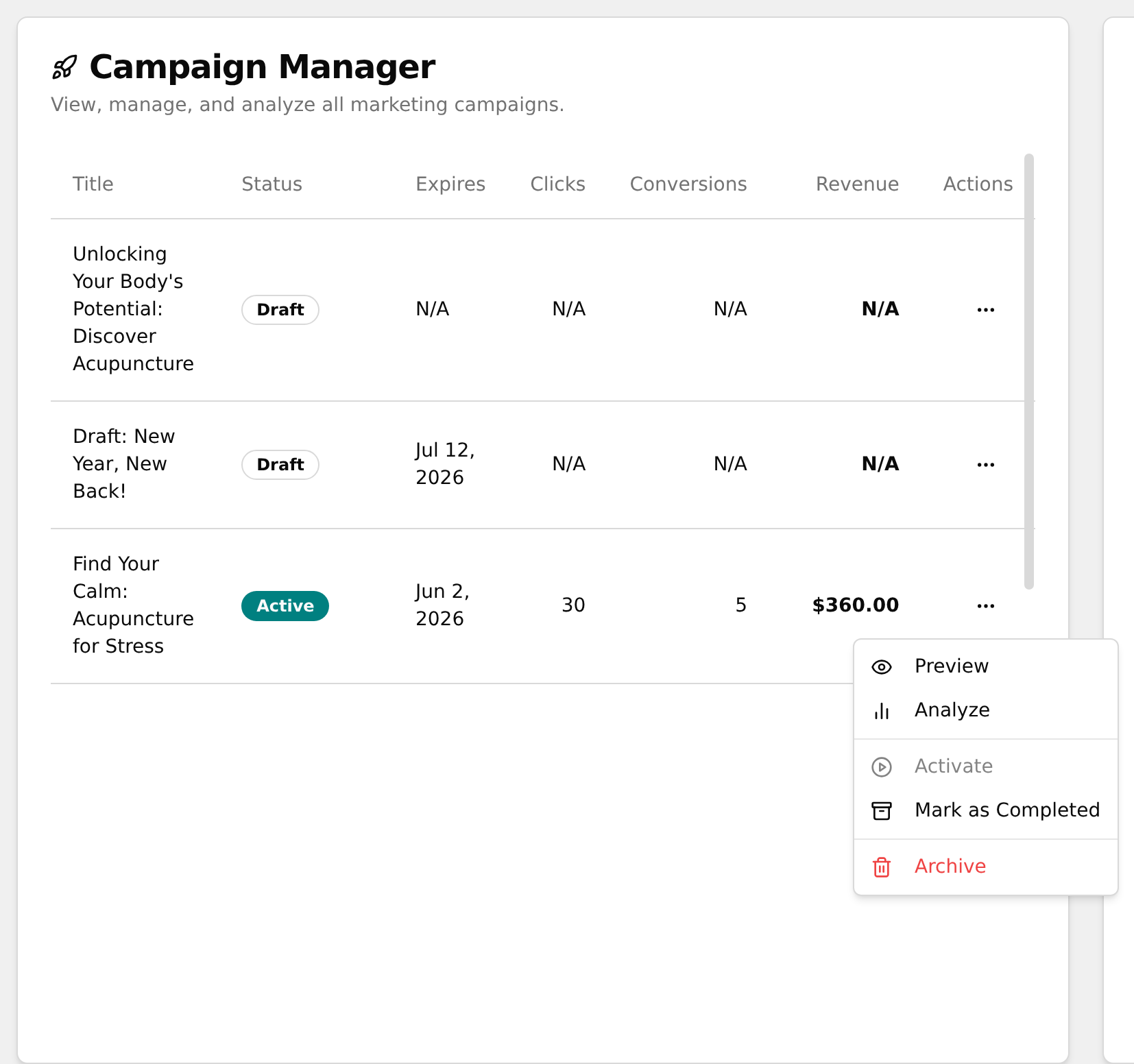
- Choose an option: Preview (open the preview dialog), Analyze (analytics; disabled for drafts), Activate, Mark as Completed, or Archive (shown in red).
- After a status change, confirm the Campaign Updated toast reading "Campaign status changed to ...".
💡 Tip: In this build, status changes (Activate / Mark as Completed / Archive) update the on-screen list only — they are not saved and revert if you refresh or leave the page.
View campaign analytics
See performance metrics for an active, completed, or archived campaign.
- In the Campaign Manager table, click the ⋯ button for an active, completed, or archived campaign (Analyze is disabled for drafts).
- Click Analyze to open the Campaign Analytics dialog, titled with the campaign name and showing its Tracking Code and expiration date.
- Review the metric cards: Total Revenue, Impressions, Click-Through Rate (CTR), and Conversion Rate.
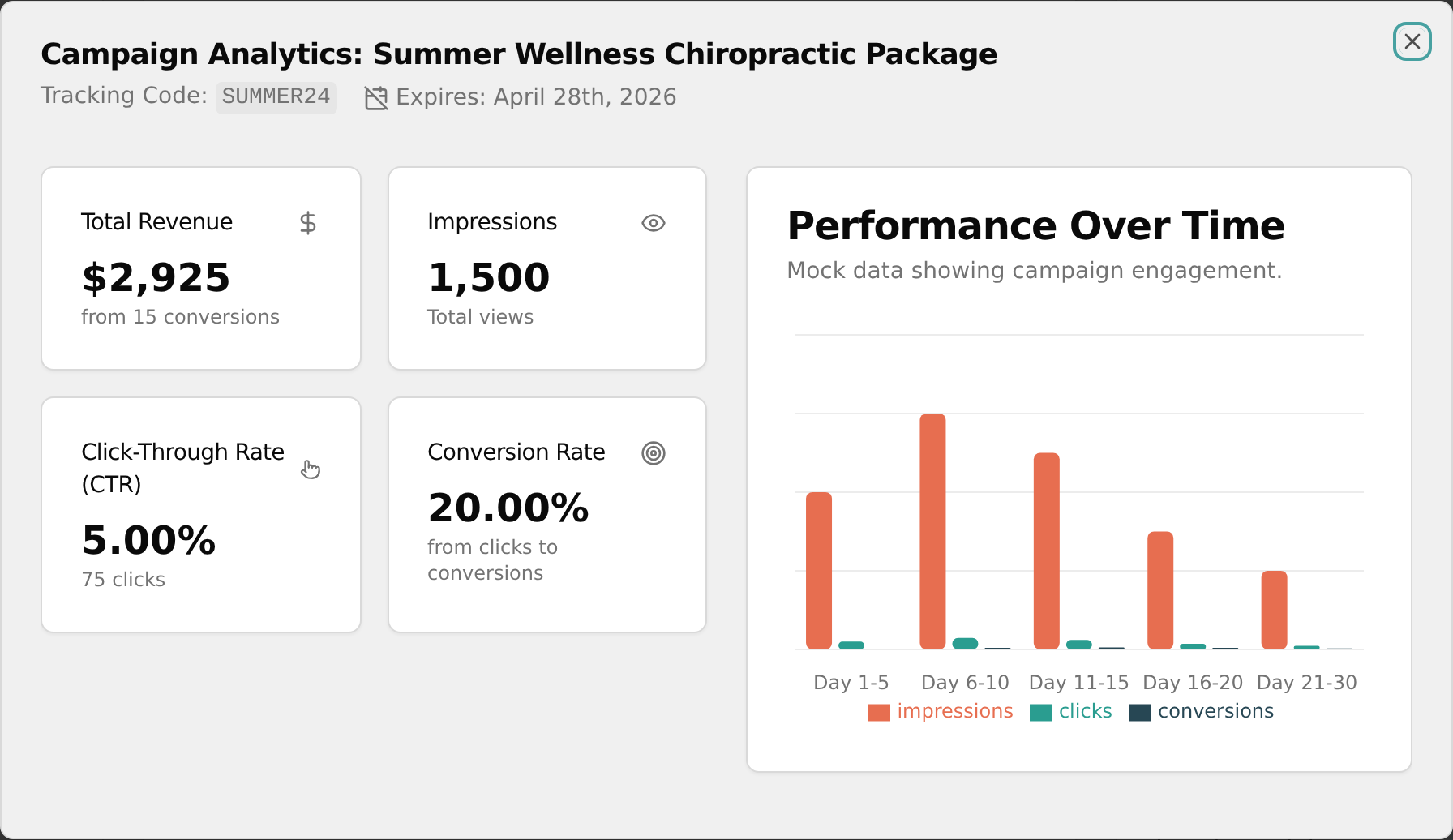
- On the right, review the Performance Over Time bar chart comparing Impressions, Clicks, and Conversions.
💡 Tip: The chart is labeled "Mock data showing campaign engagement" in this build, so the numbers are illustrative.