Practice Dashboard
An Admin-only, read-only overview of clinic performance that shows last week's actual results beside this week's projected outlook, plus an AI Goal Assistant for improvement ideas.
Auto-generated from the in-app Help for /practice-dashboard — source of truth src/lib/help-content/.
Open the Practice Dashboard
Reach the page and let both weeks load.
- In the sidebar, click Practice Dashboard.
- Wait for the spinner to finish — the page loads both weeks at once.
💡 Tip: This page is Admin-only. Doctor, Front Desk, and Purchasing users won't see the sidebar link and will hit an Access Denied card if they open it directly.
Read your weekly performance numbers
See what actually happened at the clinic last week.
- Read the Prior Week Performance (Actual) cards for what really happened last week.
- Glance at the highlighted Net Profit card first — it's the clinic's bottom line for the week.
- Use the small grey sub-labels under a card (for example, Margin - OpEx) to understand how that number is calculated.
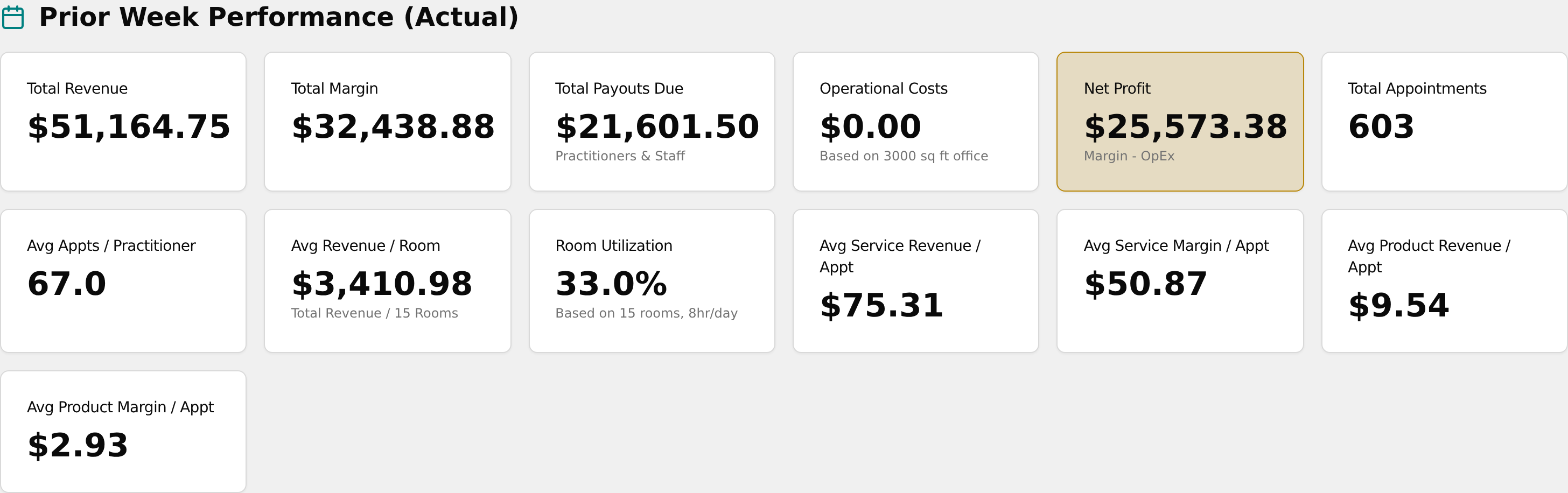
💡 Tip: Prior Week counts only completed and checked-out appointments.
Compare last week's actuals with this week's projection
Spot trends by lining up the two sections.
- Scroll to the Current Week Outlook (Projected) section.
- Compare a card here to the matching card in the Prior Week Performance (Actual) section above (for example, Total Revenue vs. Total Revenue).
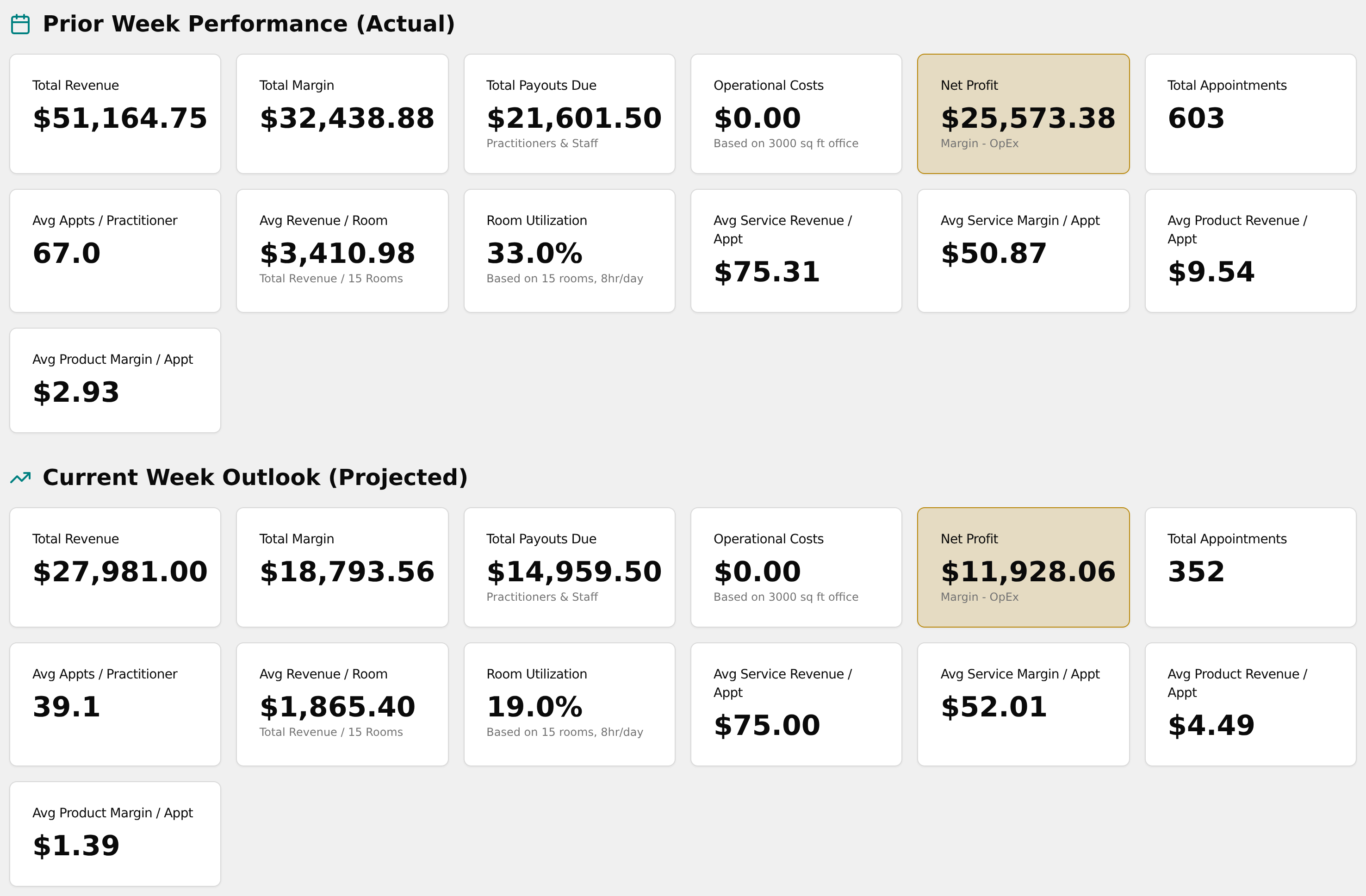
💡 Tip: The two periods are calculated automatically from today's date — there is no date picker, and Current Week is a projection that includes all booked appointments.
Get AI suggestions to improve a metric
Use the AI Goal Assistant to generate an action plan.
- Scroll to the bottom card, AI Goal Assistant.
- In the KPI to Improve dropdown, choose Room Utilization (the only selectable option).
- In Target Improvement (%), leave the pre-filled 10, or type a different percentage increase.
- Click Get Suggestions and wait while it shows "AI is analyzing clinic data and formulating a plan..."
- When it finishes, a Suggestions Generated toast appears and a Recommended Actions list shows below the form.
💡 Tip: The AI needs a Gemini API key set on the Settings page. Without one, you still get the toast but a single AI Suggestions Unavailable card instead of real advice. Net Profit, Total Revenue, and Appointments per Practitioner appear greyed out and can't be selected yet.
Act on a Marketing suggestion
Follow a Marketing-type recommendation to where it gets done.
- In the Recommended Actions list, find a suggestion marked as a Marketing type (it has a megaphone icon).
- Read the dashed note at the bottom of the card: "To act on this, go to the Marketing page and use the AI Campaign Assistant or Campaign Composer."
- In the sidebar, click Marketing to continue the workflow there.