Inventory
Manage the clinic's product catalog and stock — add and edit products, check on-hand quantities, receive serialized stock, print labels, and watch for expiring items.
Auto-generated from the in-app Help for /inventory — source of truth src/lib/help-content/.
Add a new product
Create a catalog entry before you can receive or sell an item.
- On the Product Catalog tab, click New Product (top right, plus icon).
- In the New Product dialog, fill in the required fields (marked *): SKU, Name, and Base Price (the sale price).
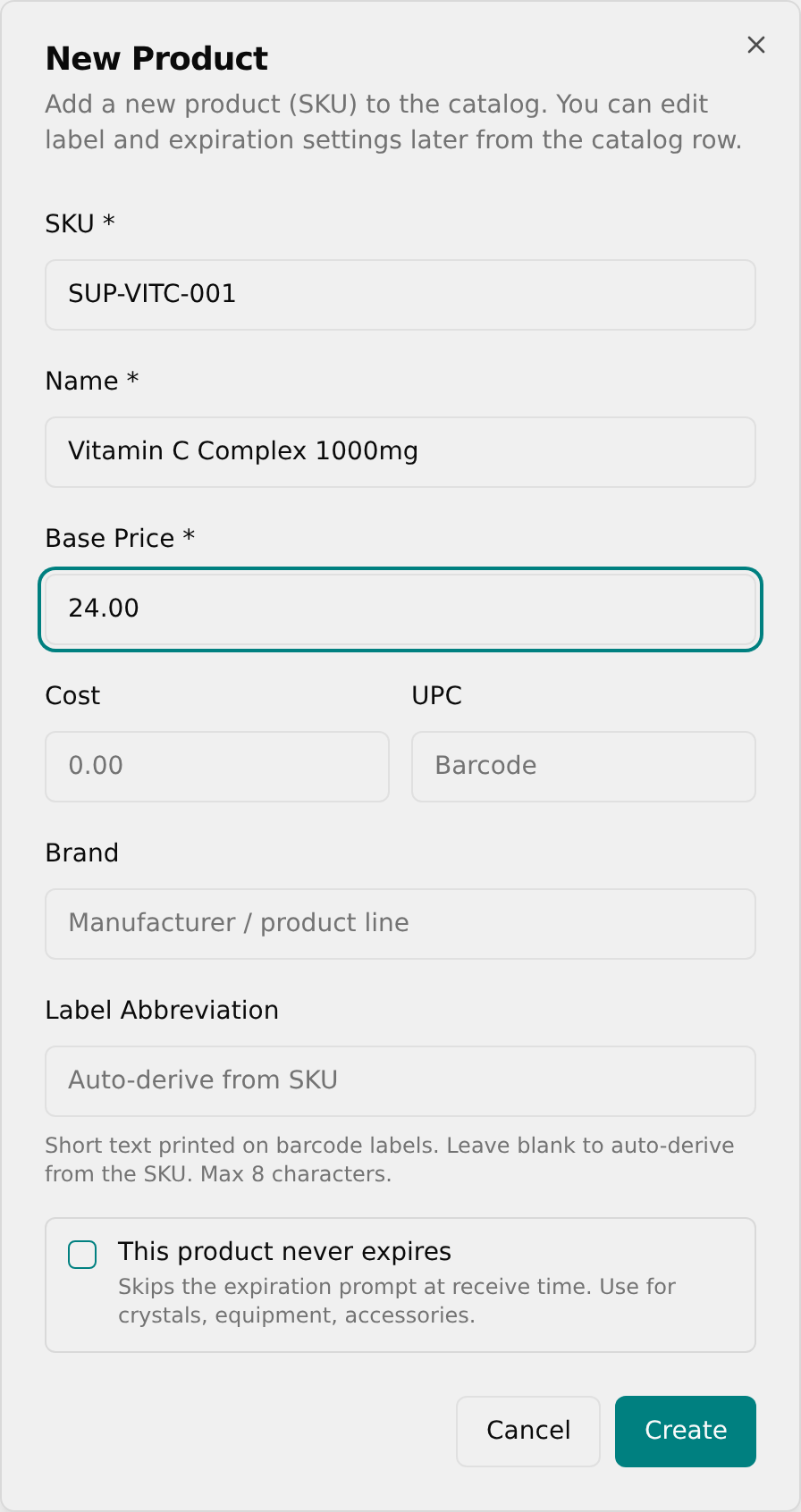
- Optionally add Cost, UPC (barcode number), and Brand.
- Optionally type a Label Abbreviation (max 8 characters), or leave it blank to auto-derive from the SKU.
- If the item has no shelf life, tick This product never expires.
- Click Create. A Product created toast confirms the new row appears in the catalog.
💡 Tip: Missing or invalid fields show a red toast like SKU required, Name required, Invalid price, or Label too long.
Search the product catalog
- Open the Product Catalog tab.
- Click the search box (placeholder "Search products by name, SKU, category, or description...").
- Type any part of a name, SKU, category, or description — the table filters as you type.
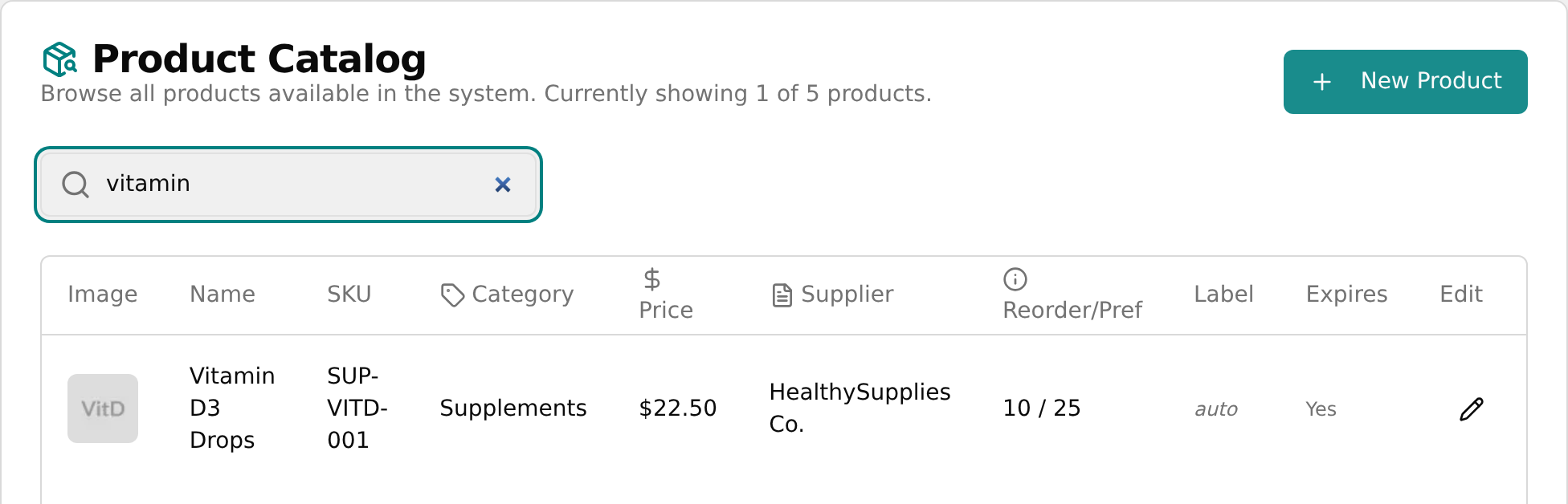
- The subtitle updates to "Currently showing X of Y products." If nothing matches, the table reads "No products found matching your search criteria."
Edit a product's label and expiration setting
Change the label abbreviation or whether an item expires.
- On the Product Catalog tab, find the product's row.
- Click the pencil icon in the Edit column (the last column).
- In the Edit Label & Expiration dialog, change the Label Abbreviation (max 8 characters; blank auto-derives from the SKU).
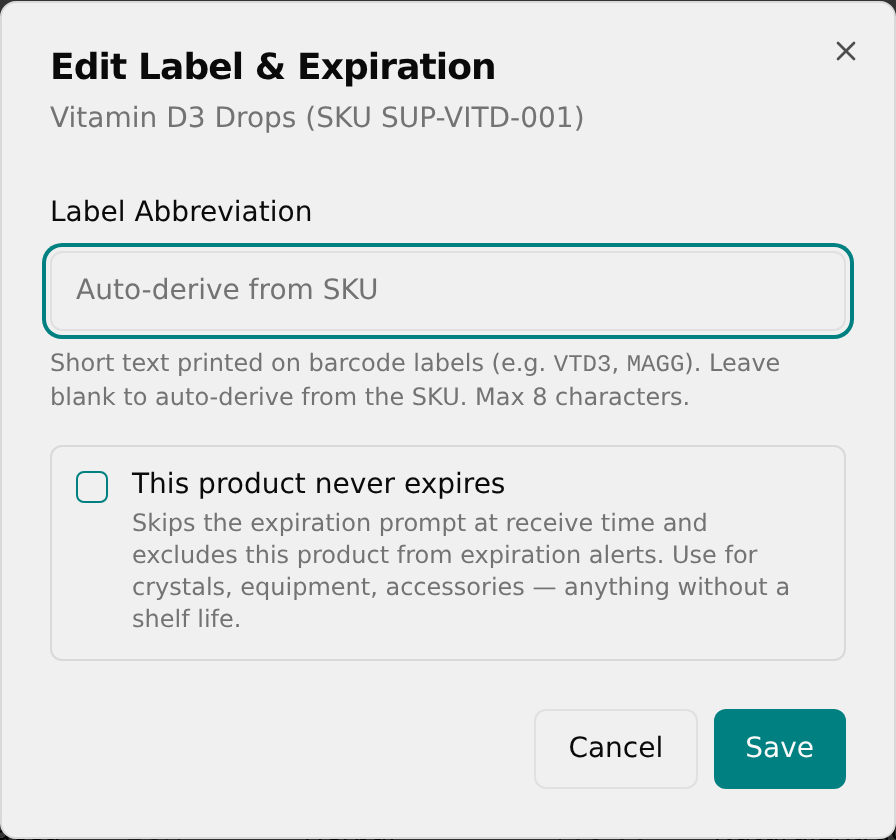
- Tick or untick This product never expires as needed.
- Click Save. A Product updated toast confirms the change.
💡 Tip: This dialog only edits the label abbreviation and the "never expires" setting — price, brand, and cost can't be changed here.
Receive new stock and generate serial barcodes
Add incoming units and create a serialized barcode for each one.
- Click the Inventory Actions tab.
- In the Receive Stock card, choose a Product and a Location.
- Enter Quantity Received (1 to 500) and set the Received Date (defaults to today).
- If the product expires, set the Expiration Date, or leave it as "Unknown — skip".
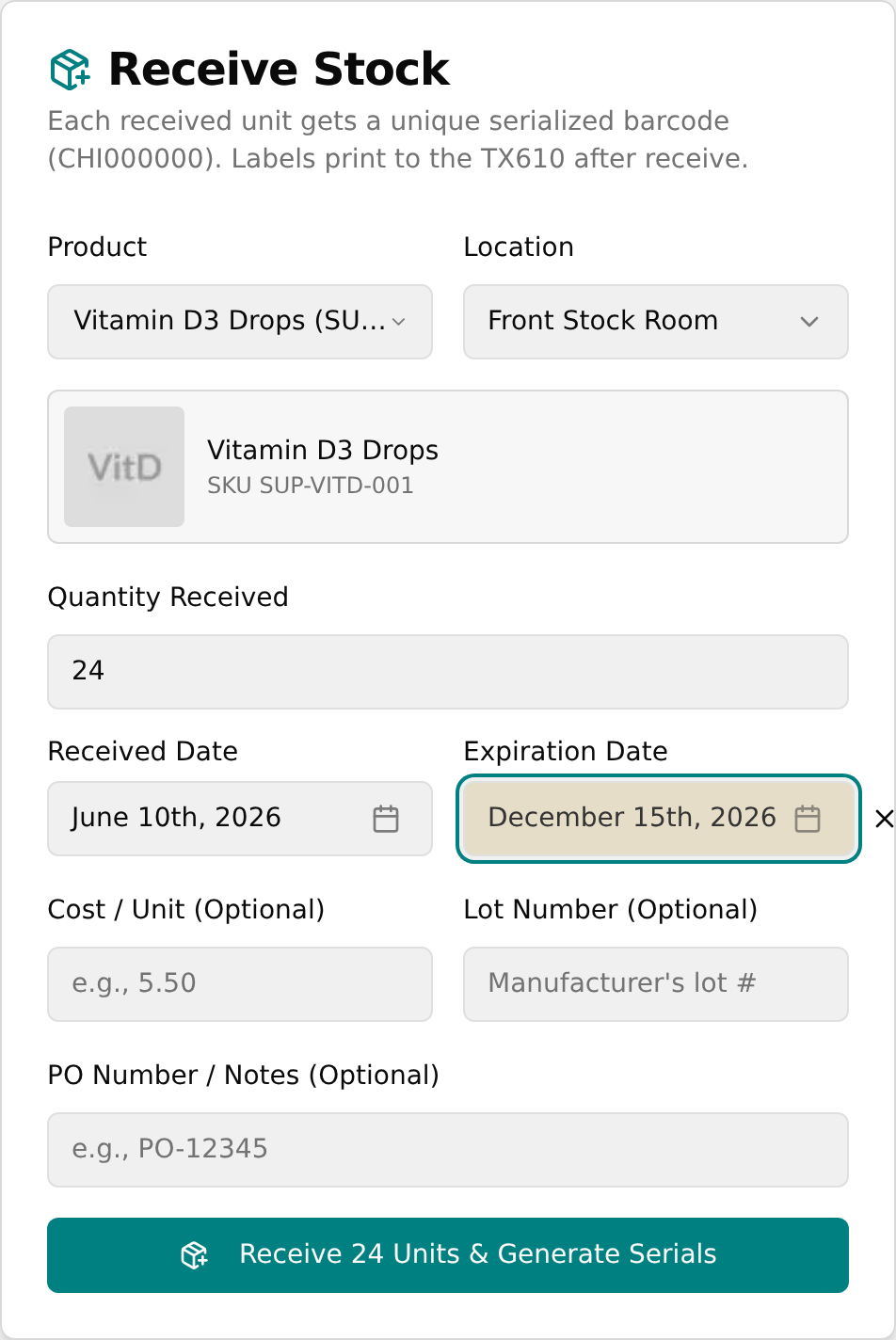
- Optionally enter Cost / Unit, Lot Number, and PO Number / Notes.
- Click Receive N Units & Generate Serials. A Stock received toast shows the serial range.
💡 Tip: Each unit gets its own barcode in the form CHI000000. After receiving, the card switches to the Print Labels view.
Print labels for received stock
Print serialized barcode labels right after receiving a batch.
- After receiving, the card shows Print Labels with a green "N unit(s) received" box and every serial's status ("pending", "✓ printed", or "✗ failed").
- Click Print all N labels to send them to the TX610 label printer.
- If some fail, click Retry remaining to re-send only the ones that didn't print; a red panel lists any failures.
- When all are done the button reads All labels printed and is disabled.
- Click Receive more to clear the form and start another batch.
💡 Tip: If the TX610 printer isn't connected, labels show "✗ failed" with an error in the red panel — verify the printer is configured.
Check stock levels
See total quantities or per-location breakdowns, with color-coded status flags.
- Click the Aggregated Stock tab for each product's total across all locations, including Total Quantity, Earliest Expiration, and Status.
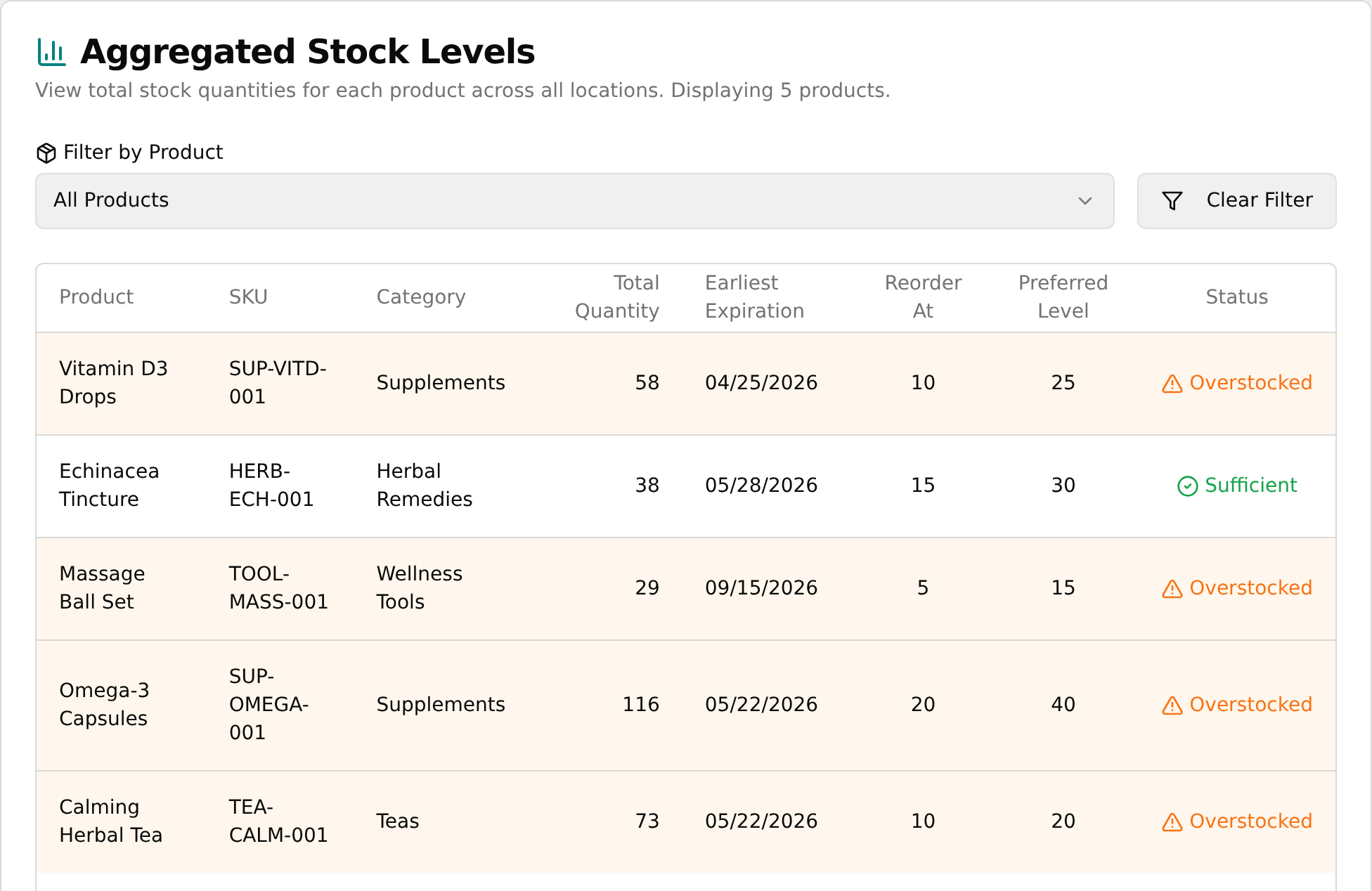
- The Status column flags each row as Low Stock (red), Overstocked (orange), Okay (yellow), or Sufficient (green).
- Click the Stock By Location tab to see quantities broken down per location.
- Narrow either view with Filter by Product and/or Filter by Location, then click Clear Filter(s) to reset.
💡 Tip: Row colors are status cues: red = low, orange = high/overstocked, yellow = okay, green = good/sufficient. Sold or discarded units are excluded from on-hand totals.
Generate AI transfer suggestions
Let the system recommend moving stock between locations.
- Click the Transfer View tab.
- Click Generate Transfer Suggestions and wait while the AI analyzes stock levels.
- Review the Suggested Transfers table: From Location, To Location, Qty to Transfer, and Reason.
- Click Simulate Transfer in a row to remove that suggestion; a "Transfer Simulated" toast confirms.
💡 Tip: Simulate Transfer only simulates the move — it does not actually relocate stock. If none are needed you'll see "No Transfers Suggested."
Track expiring stock and get a discount suggestion
Find items nearing expiry and get an AI markdown idea.
- Click the Expiration & Discounts tab.
- Review items grouped under Expiring in Next 30 Days, Next 3 Months, and Next 6 Months, each with a "(N days left)" note.
- Click Get Suggestion in a row to request an AI markdown.
- The cell shows the suggested percent off, the new price, and a short reason; a "Discount Suggested" toast confirms.
💡 Tip: If nothing is expiring soon you'll see "No products are currently flagged as nearing expiration within the next 6 months."