Services
Set up the services and therapies your clinic offers — naming each one, giving it a color, marking it active, assigning practitioners, and (for therapies) setting a duration and cost.
Auto-generated from the in-app Help for /services — source of truth src/lib/help-content/.
Switch between Services and Therapies
Toggle which group of cards you're viewing.
- At the top of the page, click the Services tab for standard services or the Therapies tab for therapies.
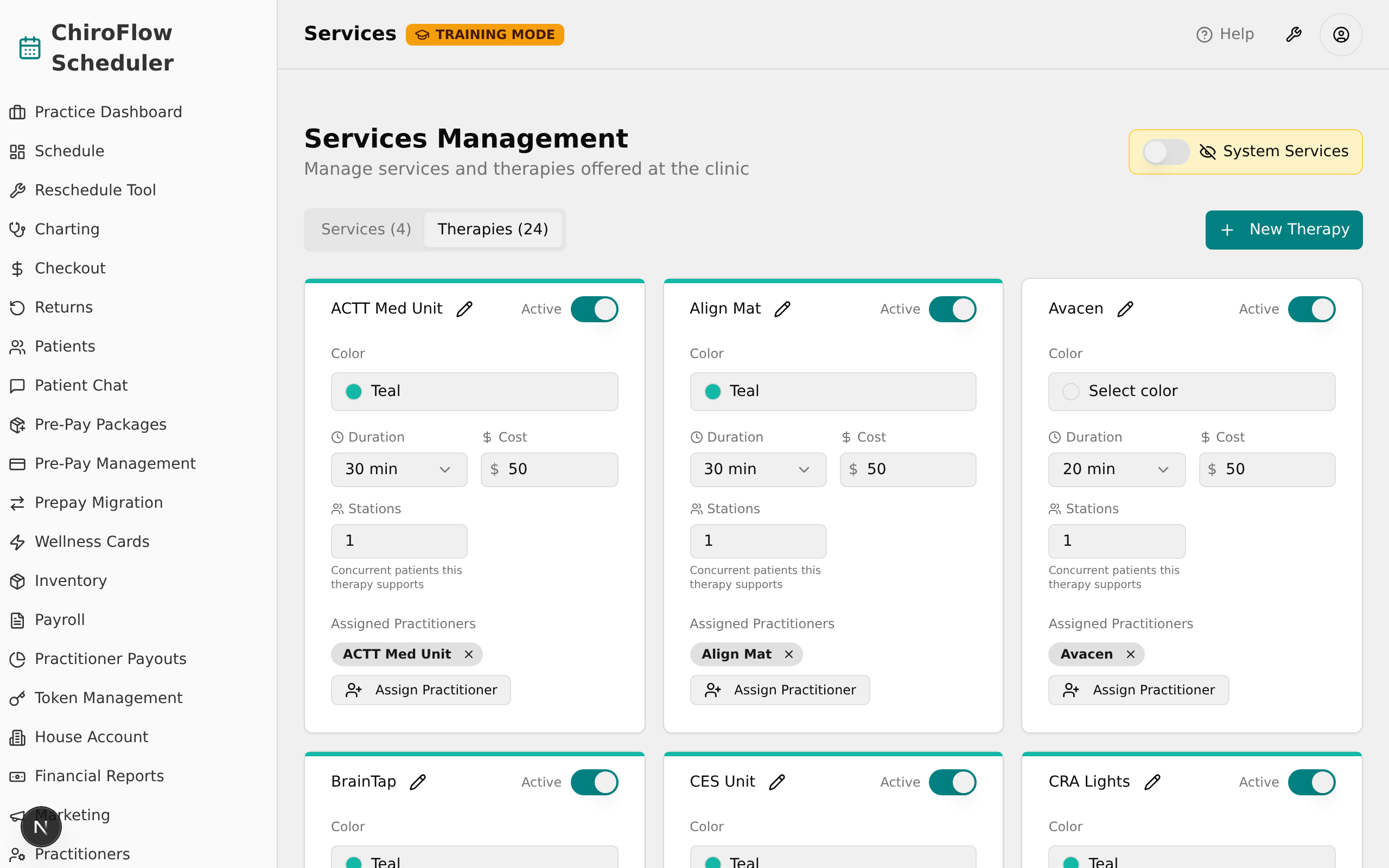
- Read the number in parentheses on each tab to see how many items are in that group.
💡 Tip: There is no search or filter box — the Services and Therapies tabs are the only way to narrow what you see.
Add a new service
- Click the Services tab, then click the New Service button on the right.
- In the Create New Service dialog, type a name in the Service Name field.
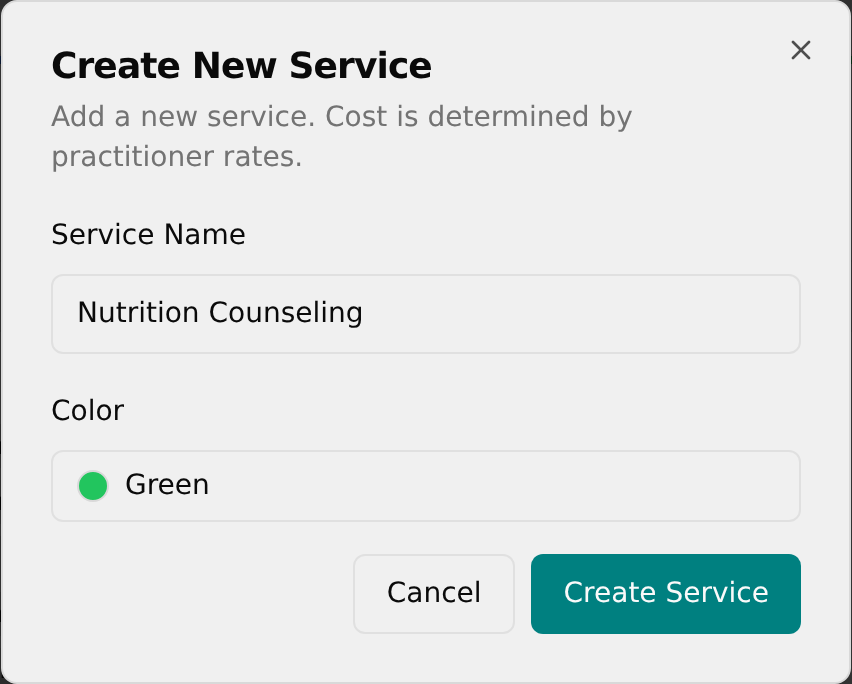
- Click the Color button and pick a color from the palette (it closes automatically).
- Click Create Service to save.
💡 Tip: Services have no cost field — a service's cost is determined by practitioner rates.
Add a new therapy
- Click the Therapies tab, then click the New Therapy button on the right.
- In the Create New Therapy dialog, type a name in the Therapy Name field.
- Click the Color button and pick a color.
- Open the Duration (minutes) dropdown and choose a length (10, 20, 30, 40, 50, or 60).
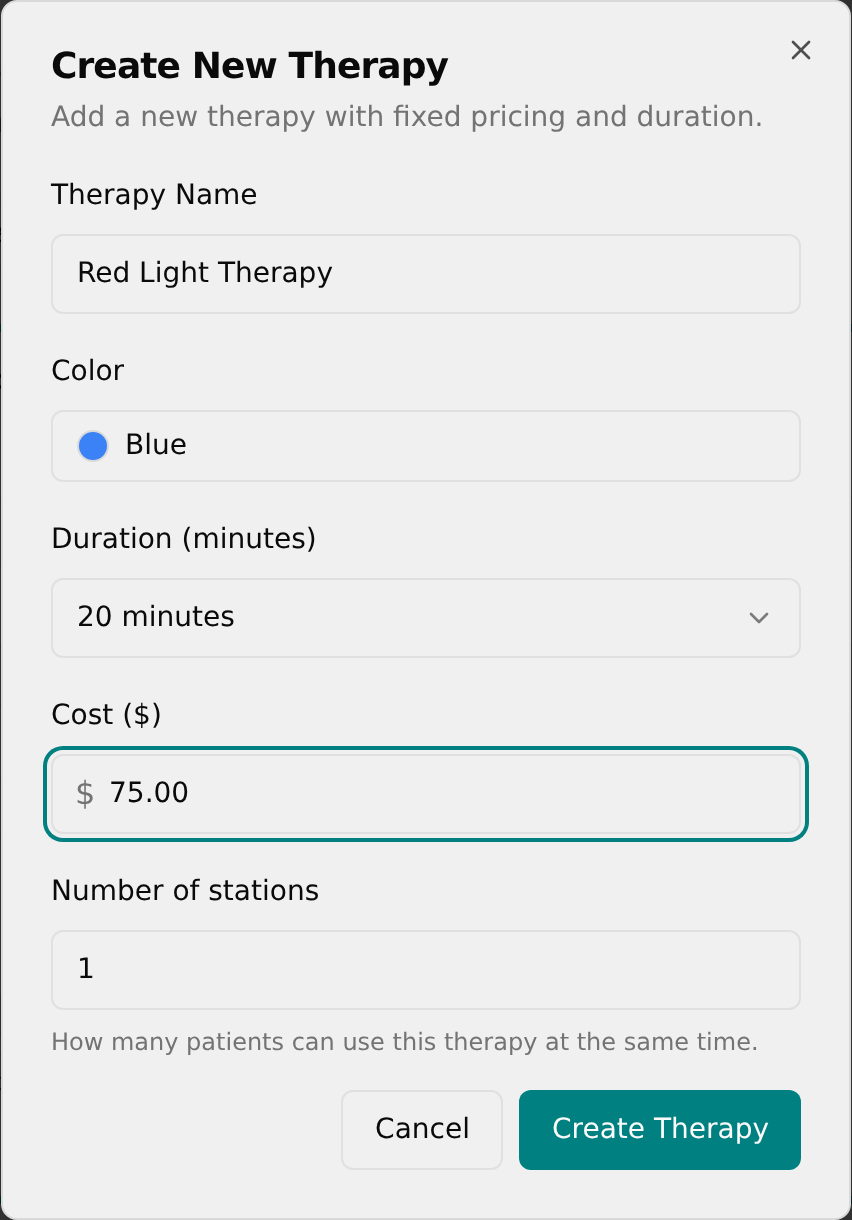
- In the Cost ($) field, type the price (for example, 75.00).
- Click Create Therapy to save.
Rename a service or therapy
- Find the card for the item, then click the small pencil (edit) icon next to its name.
- Type the new name in the box that appears.
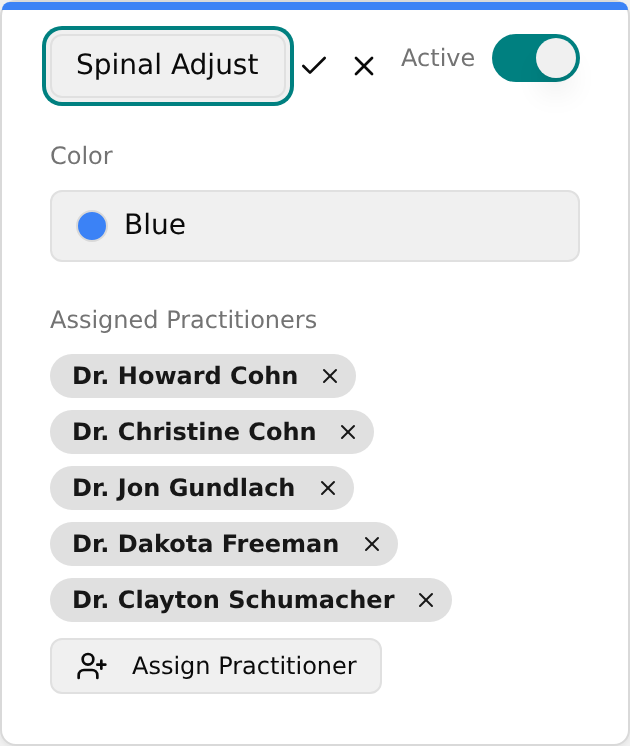
- Click the check (✓) icon to save, or the X icon to cancel.
💡 Tip: You can also press Enter to save or Escape to cancel.
Change a service's color
- On the card, click the Color button (it shows the current color name).
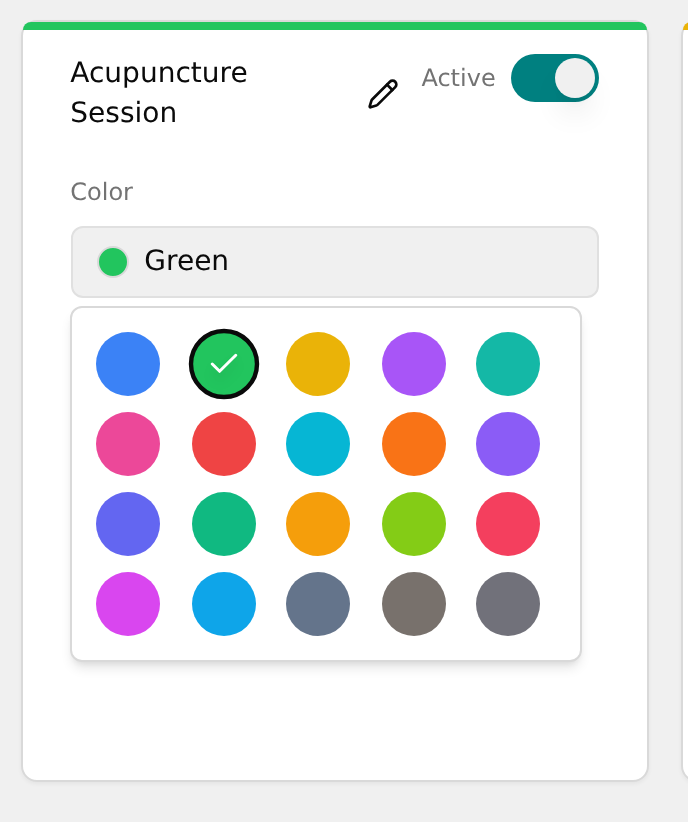
- In the popup palette, click any colored circle — a checkmark marks your choice and the popup closes.
Turn a service active or inactive
- On the card, find the Active label and switch in the top-right.
- Click the switch to turn the item off (inactive) or on (active).
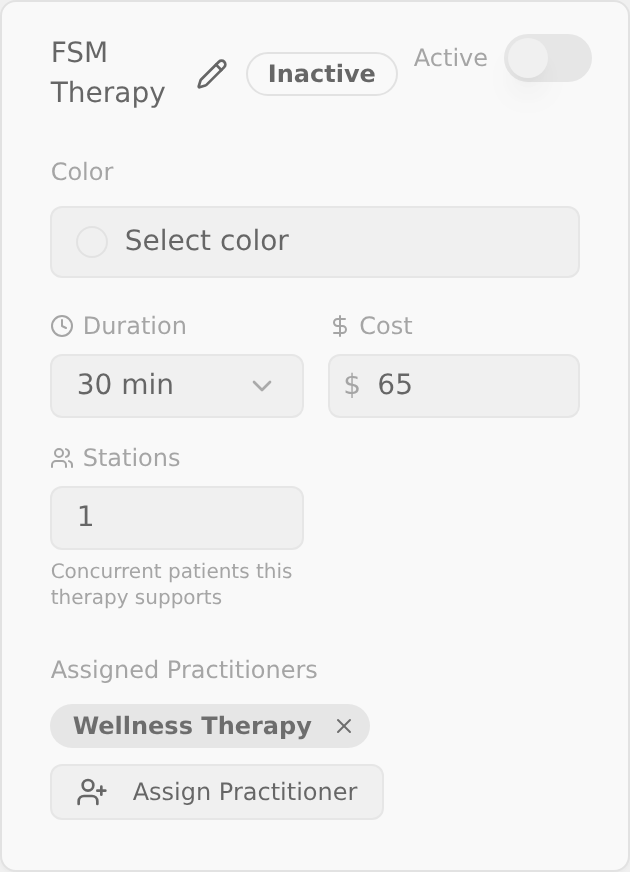
💡 Tip: There is no delete button — to stop offering a service, turn its Active switch off instead.
Change a therapy's duration or cost
Duration and Cost appear only on therapy cards.
- Open the Therapies tab and find the therapy's card.
- Click the Duration dropdown (clock icon) and choose 10, 20, 30, 40, 50, or 60 min.
- In the Cost field (with the "$" sign), type the new amount, then click outside the field to save.
💡 Tip: Standard services have no Duration or Cost — their cost comes from practitioner rates.
Assign or remove a practitioner
- On the card, find the Assigned Practitioners area, then click the Assign Practitioner button.
- In the dropdown, click the practitioner you want to add (each shows their name and specialty).
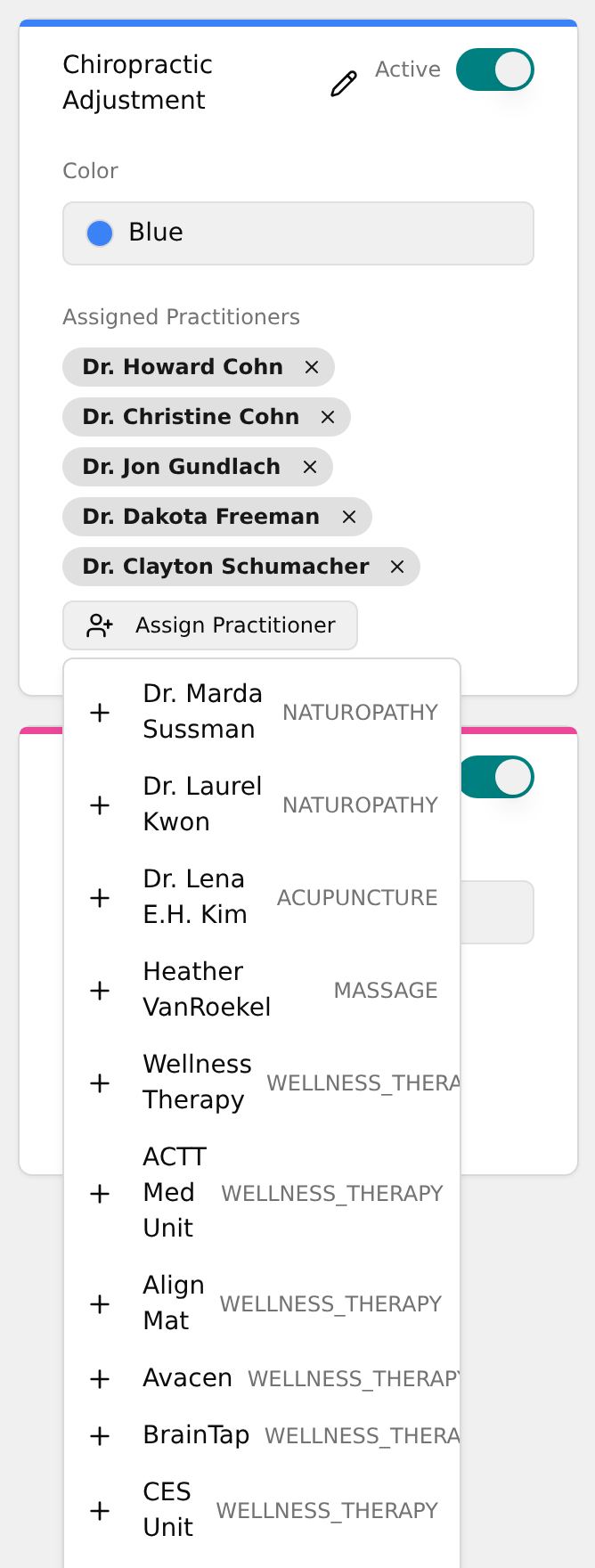
- The practitioner appears as a tag in the Assigned Practitioners area.
- To remove someone, click the small X on the right side of their tag.