Reschedule Tool
When a practitioner is out for a day, this page finds all their affected appointments on that date and suggests open slots so you can move each patient to a new time.
Auto-generated from the in-app Help for /reschedule-tool — source of truth src/lib/help-content/.
Find appointments affected by a day off
Search for every patient booked with an unavailable practitioner on a given date.
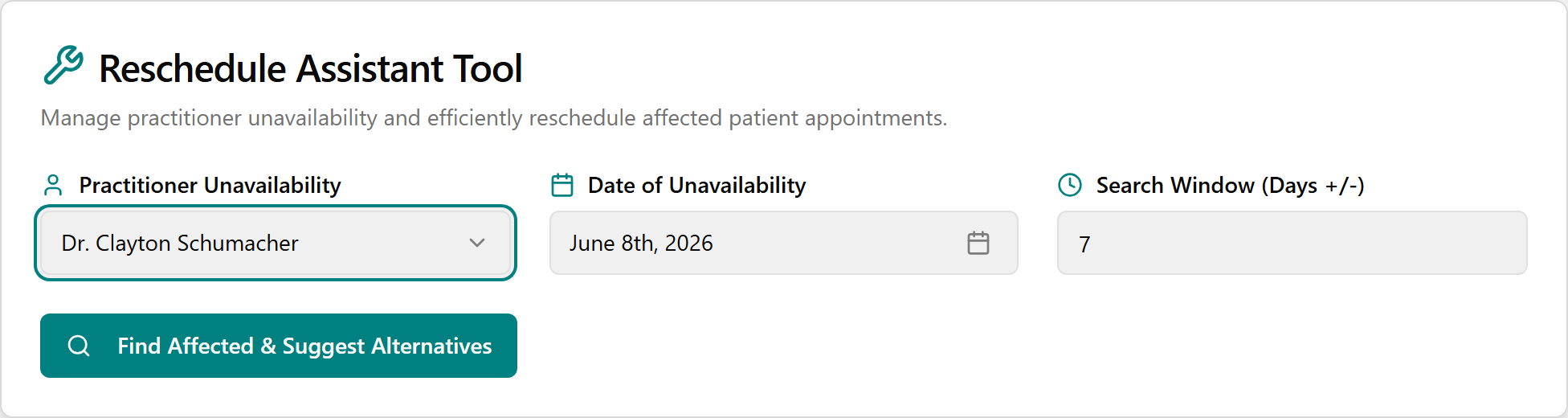
- Open the Practitioner Unavailability dropdown and pick the practitioner who is out.
- Click the Date of Unavailability button and pick the day they will be out from the calendar.
- (Optional) Adjust Search Window (Days +/-) to widen or narrow how far the tool looks for open slots (1 to 30 days).
- Click Find Affected & Suggest Alternatives. The button reads "Searching & Suggesting..." while it works.
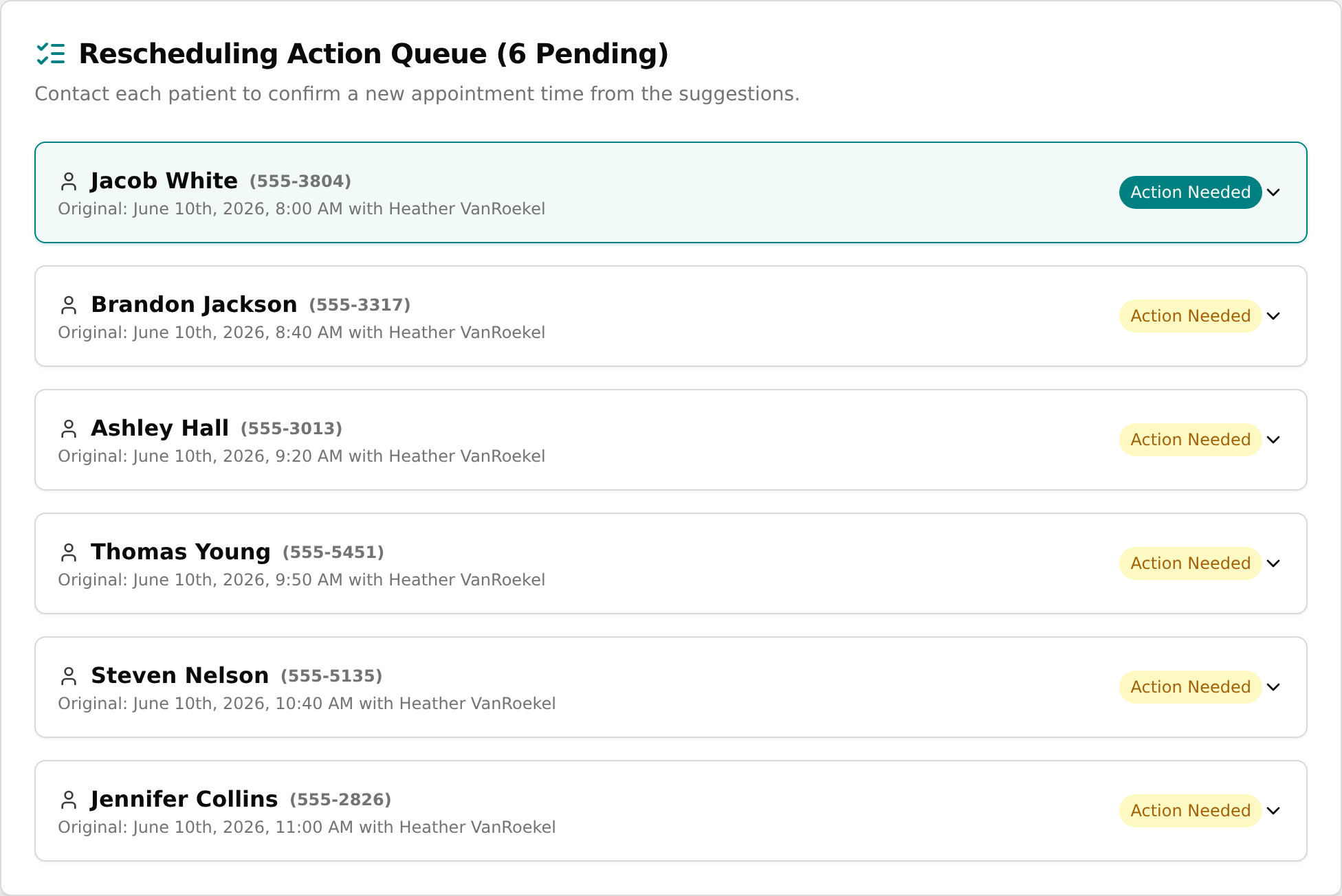
- When it finishes, a "Search Complete" toast appears and the Rescheduling Action Queue (N Pending) card lists each affected patient.
💡 Tip: If nothing is found, you'll get a "No Affected Appointments" toast — double-check the practitioner and date.
Review an affected appointment's details
- In the Rescheduling Action Queue, find the patient row showing their name, the original appointment, and an "Action Needed" tag.
- Click the row to expand it.
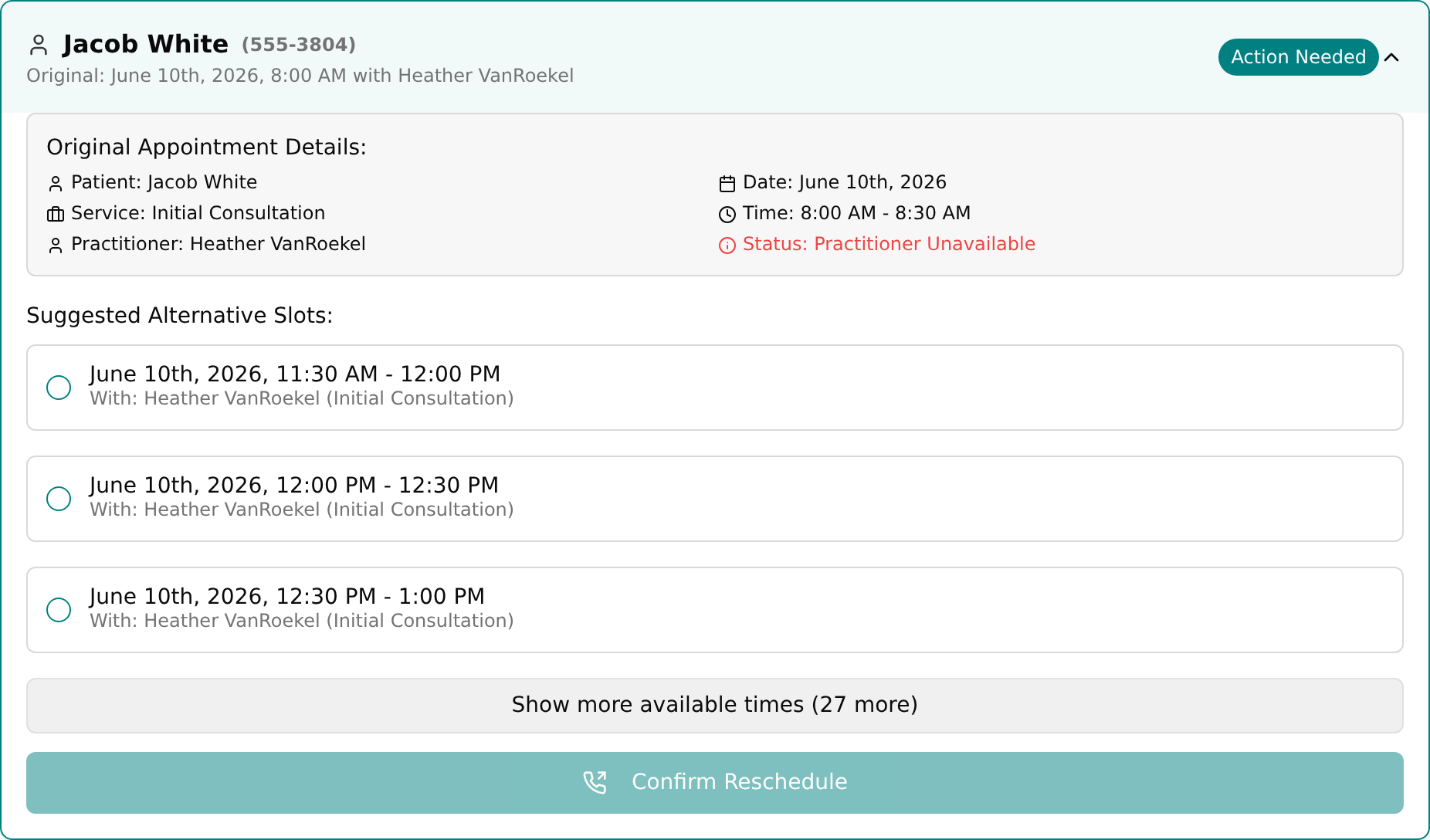
- Read the Original Appointment Details box: Patient, Date, Service, Time, Practitioner, and a "Status: Practitioner Unavailable" line.
💡 Tip: Rows open one at a time — opening a new row closes the one you had open.
Reschedule a patient to a suggested slot
- Expand the patient's row in the Rescheduling Action Queue.
- Under Suggested Alternative Slots, review the offered times. Slots with someone else are tagged "(Different Practitioner)" in amber.
- Click the option you want — it becomes highlighted with a ring around it.
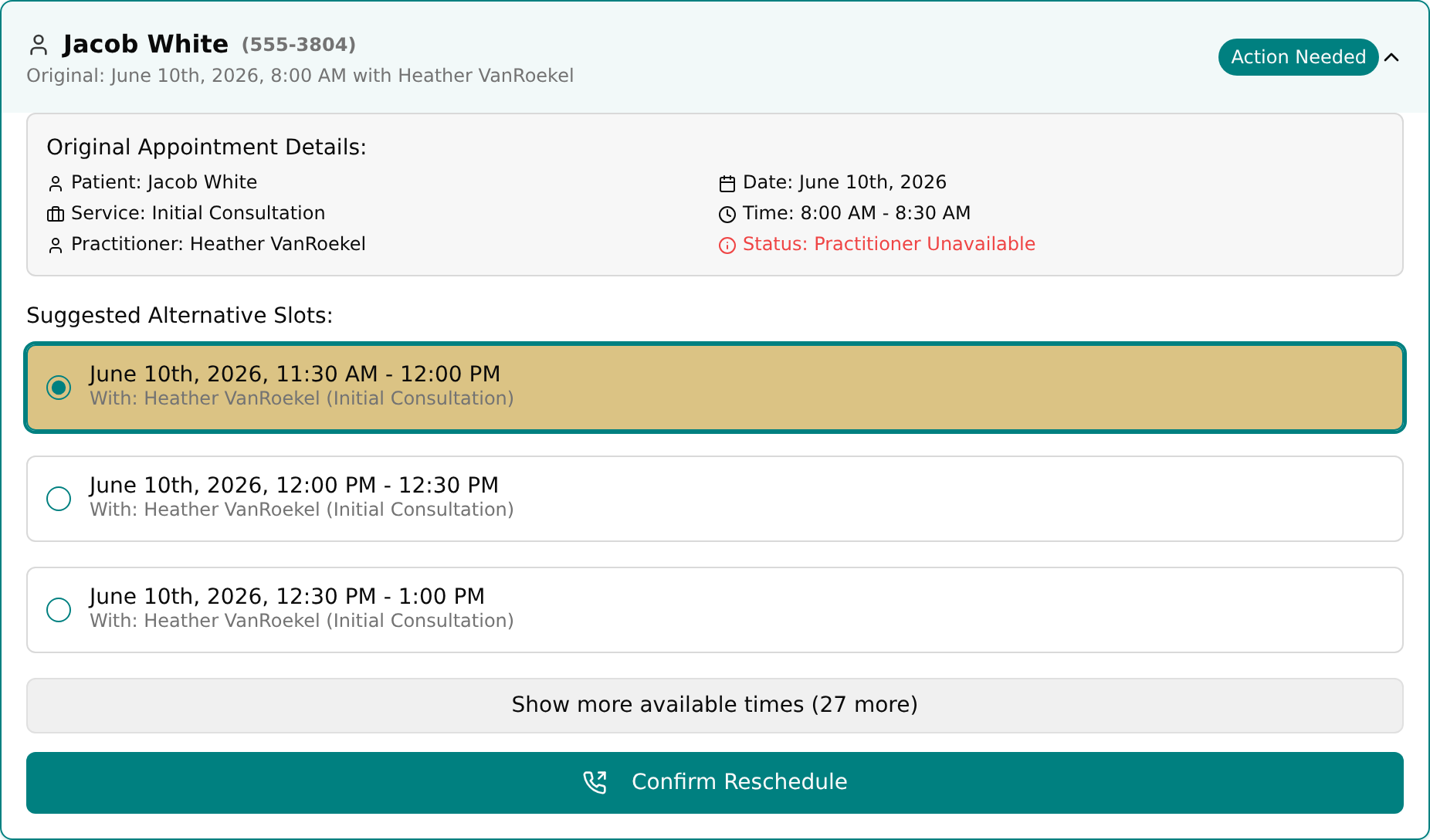
- Click Confirm Reschedule. (This button stays disabled until you select a slot.)
- An "Appointment Rescheduled" toast confirms the move, and the row's tag changes to Rescheduled and moves into the Rescheduled Appointments (N) section.
💡 Tip: Confirming saves the new time to the appointment (it then shows on the Schedule page). Remember to actually phone the patient — the queue is built around contacting each person.
Handle a patient with no available slots
- Expand the patient's row.
- If nothing was found, an amber box reads "No alternative slots could be found based on the current criteria."
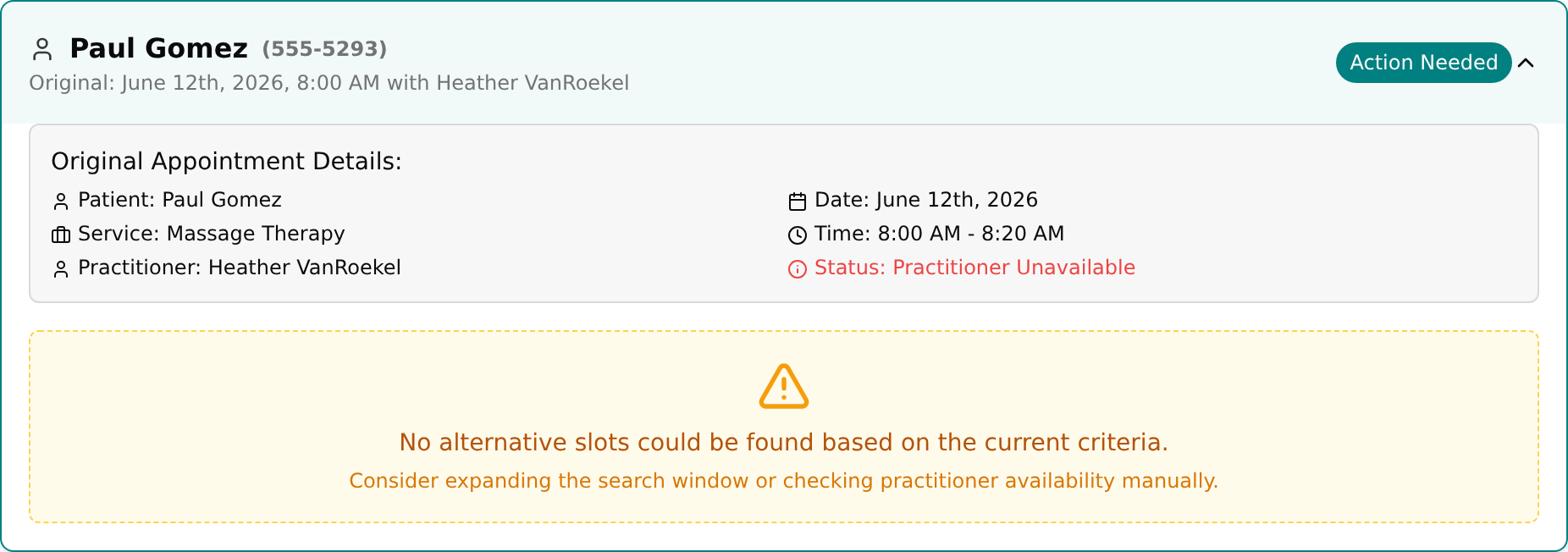
- Increase the Search Window (Days +/-) number in the form above and click Find Affected & Suggest Alternatives again to try a wider net.
Read the Rescheduled and Failed sections
- Scroll below the action queue.
- The Rescheduled Appointments (N) section (green heading) lists patients you've moved — expand a row to see "Appointment Rescheduled To:" with the new time and practitioner.
- The Failed/No Suggestions (N) section (red heading) lists patients the tool found no slot for. These need manual handling.